
AutoXpose
Label a container, and AutoXpose builds the DNS record and reverse proxy for it.
- mostafawahied/autoxpose:0.6.0
- port 6103
- Networking
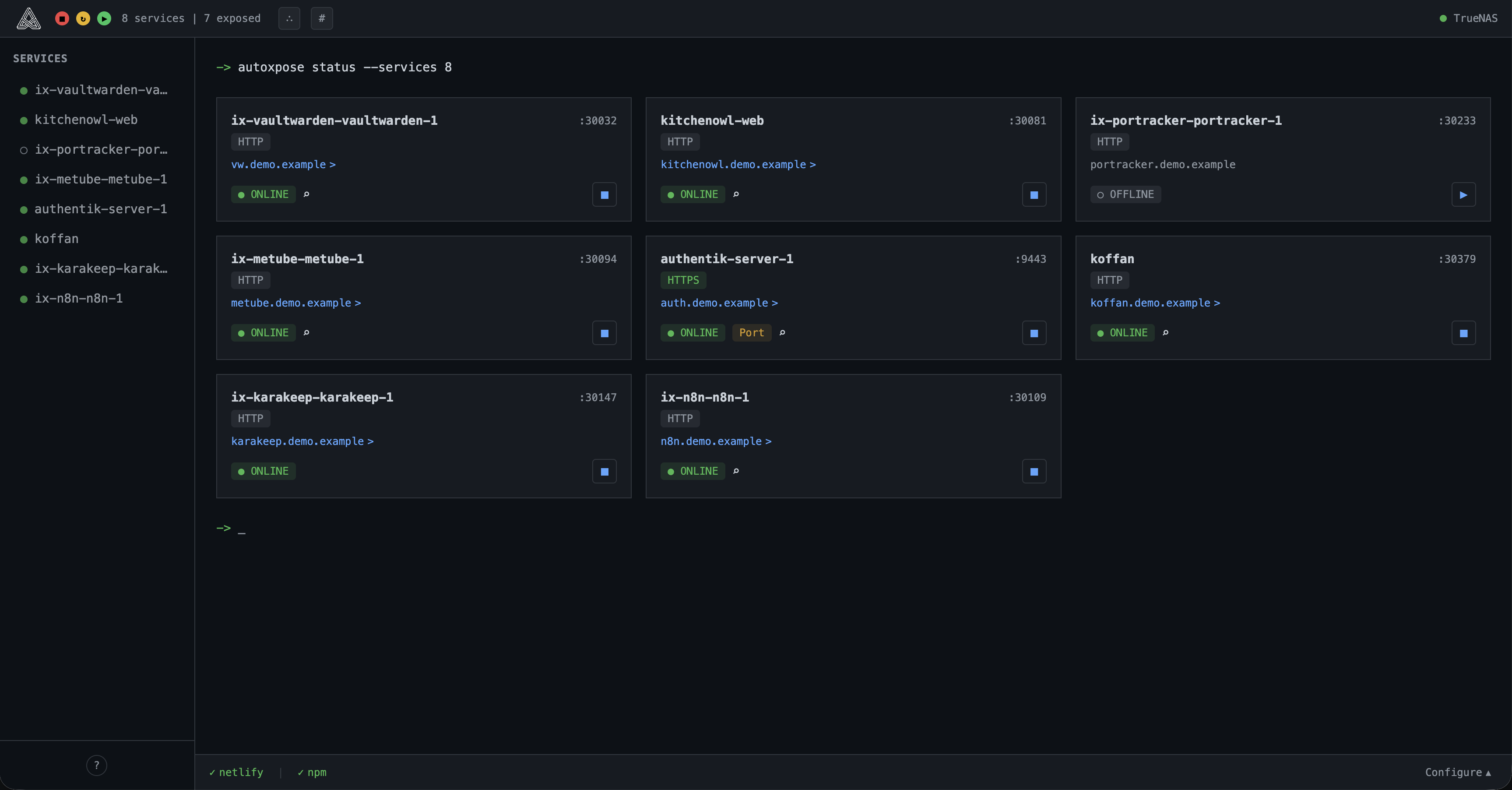
Web UI
/http://localhost:6103/ AutoXpose watches your Docker containers. When it finds one with an autoxpose label, it creates the DNS record and sets up your reverse proxy with HTTPS for you.
Features
- Finds running containers that have autoxpose labels and lists them
- Creates and removes DNS records, and checks that they work, on Cloudflare, Netlify, DigitalOcean, Porkbun, Aliyun or Tencent Cloud DNSPod
- Sets up Nginx Proxy Manager or Caddy as the reverse proxy, and detects HTTP or HTTPS on its own
- Auto-expose mode (
autoxpose.enable=auto) skips the "Expose" click - Attach an existing Nginx Proxy Manager access list with a label
- Finds and removes old DNS records and proxy hosts left behind by removed containers
- One container with a built-in SQLite database, no extra database needed
How to use
- Open AutoXpose from your dashboard.
- Go to Settings and add a DNS provider and a proxy provider (Nginx Proxy Manager or Caddy).
- Add the label
autoxpose.enable=true(orauto) to a container you want to reach from the internet. Addautoxpose.subdomain=myappto pick its name. Then recreate that container. - Open AutoXpose again. The container shows up under Discovered Services. Click "Expose" if you used
enable=true. - You can change provider settings,
SERVER_IPandLAN_IPlater from Settings.
Labels
| Label | What it does |
|---|---|
autoxpose.enable |
true shows the container in AutoXpose, auto also exposes it right away |
autoxpose.subdomain |
The subdomain to use. Default: the container name |
autoxpose.port |
Use this port instead of the one AutoXpose finds |
autoxpose.scheme |
Use http or https instead of the one AutoXpose finds |
autoxpose.name |
The name shown in AutoXpose |
autoxpose.npm.access_list |
The name of an Nginx Proxy Manager access list to attach, or public to remove one |
Before you install
Set SERVER_IP to your public IP address and LAN_IP to the local IP address of your ZimaOS box. AutoXpose reads the Docker socket (read-only) to find your containers. You need a DNS provider account and Nginx Proxy Manager or Caddy already running. More settings are in the Variables tab and are added in the app settings. AutoXpose is ready a few seconds after it starts.
The settings in the first table are already in the app settings. To use any other one, open the app settings, add the variable with your value, save, and the app restarts with it. A setting you leave out uses its default.
In the app settings
| Variable | Default value | Description |
|---|---|---|
TZ | $TZ | Your time zone. ZimaOS fills this in for you. |
SERVER_ | CHANGEME_PUBLIC_IP | Your public IP address or hostname. AutoXpose points new DNS A records at it. Replace CHANGEME_PUBLIC_IP before you install. |
LAN_ | CHANGEME_LAN_IP | The local IP address of your ZimaOS box, like 192.168.1.10. Your reverse proxy sends traffic here. Replace CHANGEME_LAN_IP before you install. |
Logs
| Variable | Default value | Description |
|---|---|---|
LOG_ | info | How much detail goes in the log. One of debug, info, warn or error. |
Docker
| Variable | Default value | Description |
|---|---|---|
DOCKER_ | — | Use a Docker socket proxy instead of the mounted Docker socket, like tcp://192.168.1.10:2375. Leave it out to use the socket. |
name: autoxpose
services:
autoxpose:
image: mostafawahied/autoxpose:0.6.0
container_name: autoxpose
restart: unless-stopped
stop_grace_period: 40s
network_mode: bridge
environment:
- TZ=$TZ
- SERVER_IP=CHANGEME_PUBLIC_IP
- LAN_IP=CHANGEME_LAN_IP
ports:
- target: 3000
published: "6103"
protocol: tcp
volumes:
- type: bind
source: /DATA/AppData/$AppID/data
target: /app/packages/backend/data
bind:
create_host_path: true
- type: bind
source: /var/run/docker.sock
target: /var/run/docker.sock
bind:
create_host_path: false
read_only: true
deploy:
resources:
limits:
cpus: "1.00"
memory: 512M
reservations:
cpus: "0.00"
memory: 128M
labels:
icon: https://cdn.jsdelivr.net/gh/HSinghHira/IceStore@main/Apps/autoxpose/icon.png
x-casaos:
id: com.icestore.autoxpose
envs:
- container: TZ
description:
en_US: Your time zone. ZimaOS fills this in for you.
- container: SERVER_IP
description:
en_US: Your public IP address or hostname. AutoXpose points new DNS A records at it. Replace CHANGEME_PUBLIC_IP before you install.
- container: LAN_IP
description:
en_US: The local IP address of your ZimaOS box, like 192.168.1.10. Your reverse proxy sends traffic here. Replace CHANGEME_LAN_IP before you install.
ports:
- container: "3000"
description:
en_US: AutoXpose web interface, published on host as 6103.
volumes:
- container: /app/packages/backend/data
description:
en_US: The SQLite database with your provider settings and exposed services.
- container: /var/run/docker.sock
description:
en_US: Read-only access to Docker, used to find other containers and read their autoxpose labels.
x-casaos:
id: com.icestore.autoxpose
architectures:
- amd64
- arm64
main: autoxpose
author: HSinghHira
category: Networking
developer: mostafa-wahied
icon: https://cdn.jsdelivr.net/gh/HSinghHira/IceStore@main/Apps/autoxpose/icon.png
thumbnail: https://cdn.jsdelivr.net/gh/HSinghHira/IceStore@main/Apps/autoxpose/screenshot-1.png
screenshot_link:
- https://cdn.jsdelivr.net/gh/HSinghHira/IceStore@main/Apps/autoxpose/screenshot-1.png
title:
en_US: AutoXpose
tagline:
en_US: Label a container, and AutoXpose builds the DNS record and reverse proxy for it.
description:
en_US: >-
Visit: [https://icestore.hsinghhira.me/app/autoxpose/](https://icestore.hsinghhira.me/app/autoxpose/) for full details
AutoXpose watches your Docker containers. When it finds one with an
autoxpose label, it creates the DNS record and sets up your reverse
proxy with HTTPS for you.
**Features**
- Finds running containers that have autoxpose labels and lists them
- Creates and removes DNS records, and checks that they work, on
Cloudflare, Netlify, DigitalOcean, Porkbun, Aliyun or Tencent Cloud
DNSPod
- Sets up Nginx Proxy Manager or Caddy as the reverse proxy, and
detects HTTP or HTTPS on its own
- Auto-expose mode (`autoxpose.enable=auto`) skips the "Expose" click
- Attach an existing Nginx Proxy Manager access list with a label
- Finds and removes old DNS records and proxy hosts left behind by
removed containers
- One container with a built-in SQLite database, no extra database
needed
**How to use?**
1. Open AutoXpose from the Zima OS dashboard.
2. Go to Settings and add a DNS provider and a proxy provider
(Nginx Proxy Manager or Caddy).
3. Add the label `autoxpose.enable=true` (or `auto`) to a container
you want to reach from the internet. Add
`autoxpose.subdomain=myapp` to pick its name. Then recreate that
container.
4. Open AutoXpose again. The container shows up under Discovered
Services. Click "Expose" if you used `enable=true`.
5. You can change provider settings, SERVER_IP and LAN_IP later from
Settings.
tips:
before_install:
en_US: >-
Visit: [https://icestore.hsinghhira.me/app/autoxpose/](https://icestore.hsinghhira.me/app/autoxpose/) for full details
index: /
port_map: "6103"
scheme: http
is_uncontrolled: false
version: "0.6.0"
update_at: "2026-10-19"
release_notes:
en_US: |-
- Moved to IceStore and pinned to mostafawahied/autoxpose:0.6.0.
- New in 0.6.0: attach Nginx Proxy Manager access lists with the autoxpose.npm.access_list label, and Caddy start/stop fixes.
- Data now lives in /DATA/AppData/$AppID/data.
- LOG_LEVEL and DOCKER_HOST moved to the Variables tab on the IceStore website.
repo: "https://github.com/mostafa-wahied/autoxpose"
support: "https://github.com/mostafa-wahied/autoxpose/issues"
docs: "https://github.com/mostafa-wahied/autoxpose#readme" ZimaOS
 CasaOS
 Homeio