name: bookorbit

services:
  bookorbit:
    image: ghcr.io/hsinghhira/bookorbit:latest
    container_name: bookorbit
    restart: unless-stopped
    stop_grace_period: 90s
    privileged: true
    environment:
      - TZ=$TZ
      - PUBLIC_URL=http://localhost:6124
    ports:
      - target: 8080
        published: "6124"
        protocol: tcp
    volumes:
      - type: bind
        source: /DATA/AppData/$AppID/data
        target: /data
        bind:
          create_host_path: true
      - type: bind
        source: /DATA/AppData/$AppID/books
        target: /books
        bind:
          create_host_path: true
    healthcheck:
      test: ["CMD", "curl", "-fsS", "-o", "/dev/null", "http://127.0.0.1:8080/api/v1/health"]
      interval: 30s
      timeout: 10s
      retries: 5
      start_period: 180s
    deploy:
      resources:
        limits:
          cpus: "2.00"
          memory: 3072M
        reservations:
          cpus: "0.25"
          memory: 512M
    labels:
      icon: https://cdn.jsdelivr.net/gh/HSinghHira/IceStore@main/Apps/bookorbit/icon.png
    x-casaos:
      id: com.icestore.bookorbit
      envs:
        - container: TZ
          description:
            en_US: >-
              Your time zone. It is filled in from your ZimaOS time zone.
              Leave it unless you need another.
        - container: PUBLIC_URL
          description:
            en_US: >-
              The address you open BookOrbit at, like
              http://your-zimaos-ip:6124. Links in emails, Kobo sync and OPDS
              use it. Change localhost to your ZimaOS IP, or to your own
              domain if you put BookOrbit behind HTTPS.
      ports:
        - container: "8080"
          description:
            en_US: BookOrbit web app, API, OPDS and Kobo/KOReader sync, published on host as 6124
      volumes:
        - container: /data
          description:
            en_US: >-
              The database, covers, cache, Book Dock, conversion files, secret
              keys and settings.
        - container: /books
          description:
            en_US: >-
              Your book files - EPUB, MOBI, AZW3, PDF, CBZ/CBR comics and
              M4B/MP3 audiobooks. Point it at your own books folder if you
              have one.

x-casaos:
  id: com.icestore.bookorbit
  architectures:
    - amd64
    - arm64
  main: bookorbit
  author: HSinghHira
  category: Media
  developer: BookOrbit
  icon: https://cdn.jsdelivr.net/gh/HSinghHira/IceStore@main/Apps/bookorbit/icon.png
  thumbnail: https://cdn.jsdelivr.net/gh/HSinghHira/IceStore@main/Apps/bookorbit/screenshot-1.webp
  screenshot_link:
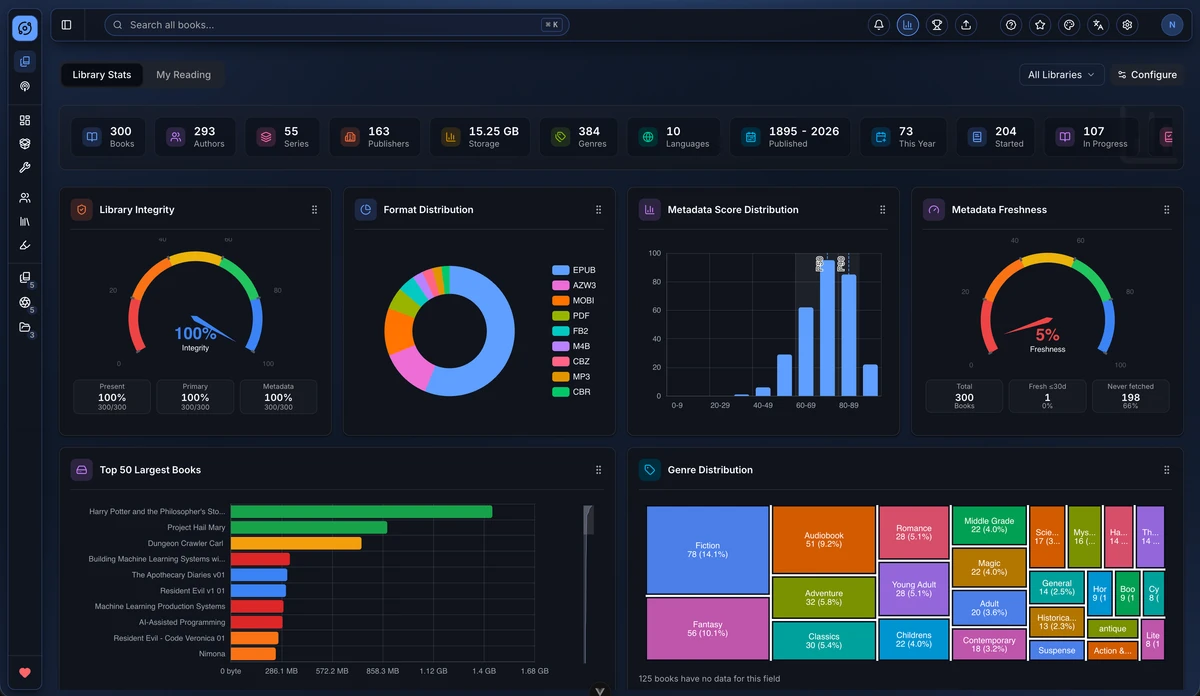
    - https://cdn.jsdelivr.net/gh/HSinghHira/IceStore@main/Apps/bookorbit/screenshot-1.webp
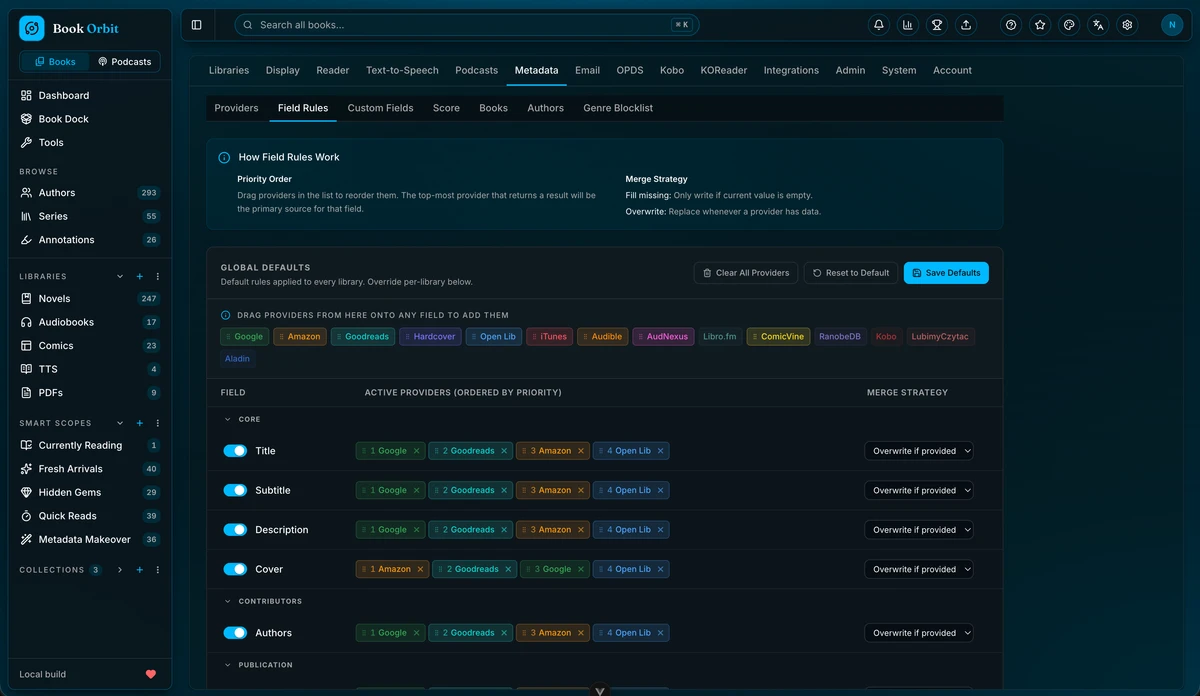
    - https://cdn.jsdelivr.net/gh/HSinghHira/IceStore@main/Apps/bookorbit/screenshot-2.webp
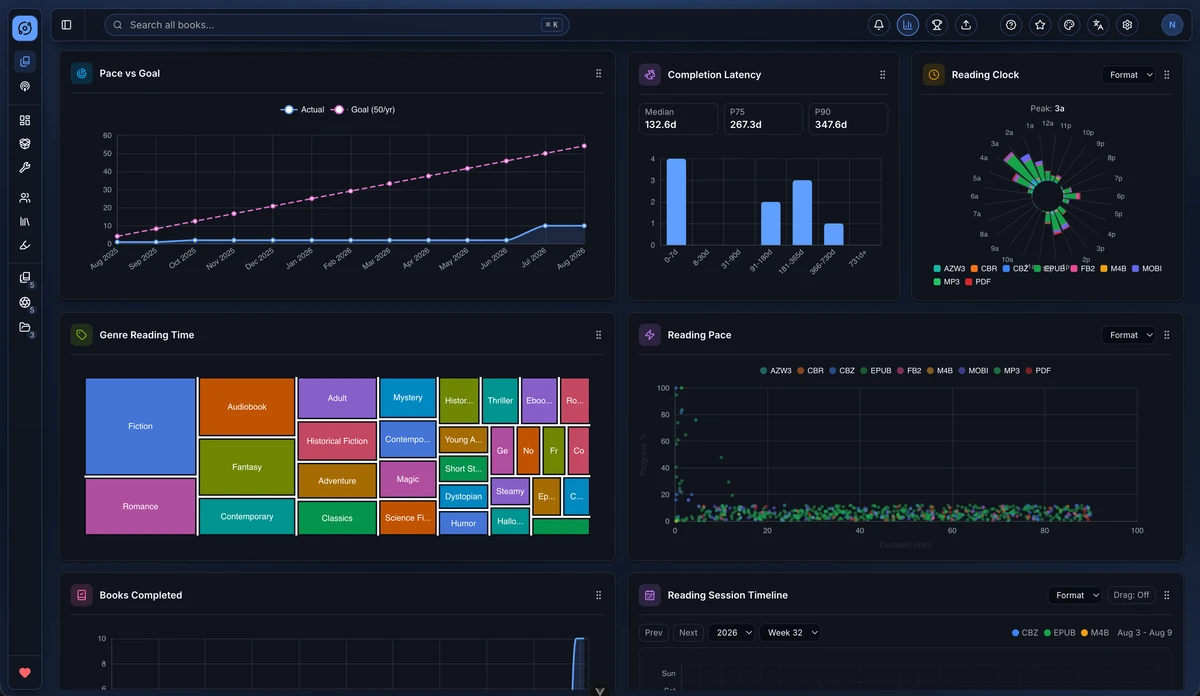
    - https://cdn.jsdelivr.net/gh/HSinghHira/IceStore@main/Apps/bookorbit/screenshot-3.webp
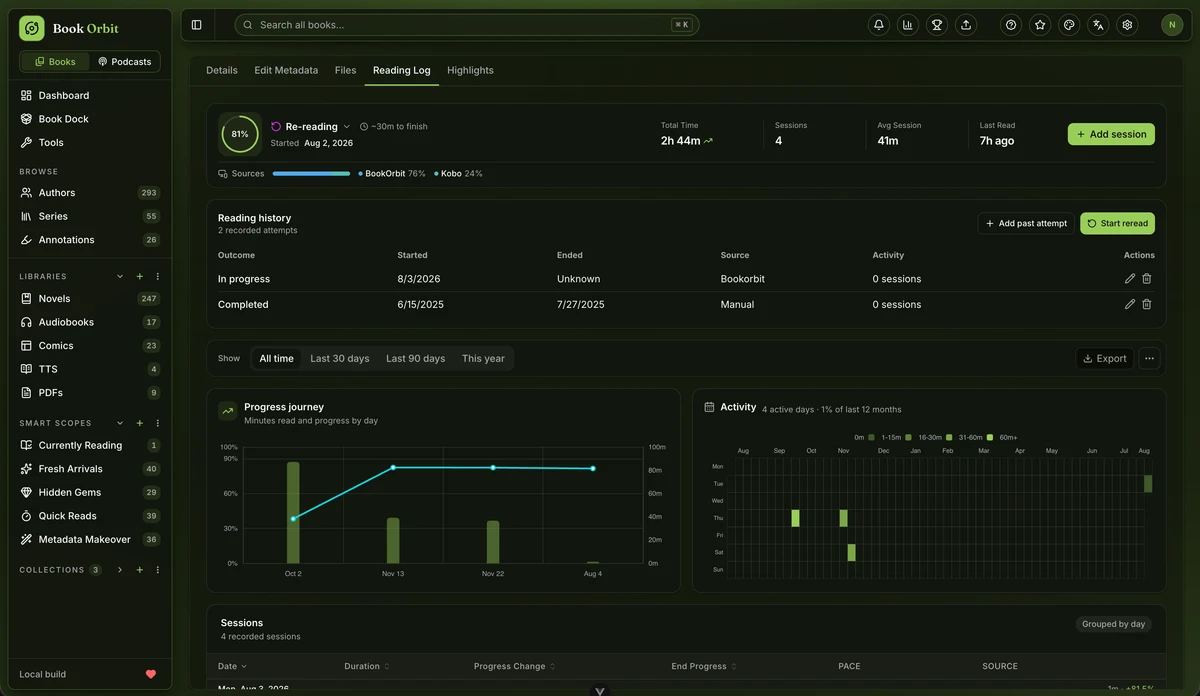
    - https://cdn.jsdelivr.net/gh/HSinghHira/IceStore@main/Apps/bookorbit/screenshot-4.webp
    - https://cdn.jsdelivr.net/gh/HSinghHira/IceStore@main/Apps/bookorbit/screenshot-5.webp
    - https://cdn.jsdelivr.net/gh/HSinghHira/IceStore@main/Apps/bookorbit/screenshot-6.webp
    - https://cdn.jsdelivr.net/gh/HSinghHira/IceStore@main/Apps/bookorbit/screenshot-7.webp
    - https://cdn.jsdelivr.net/gh/HSinghHira/IceStore@main/Apps/bookorbit/screenshot-8.webp
    - https://cdn.jsdelivr.net/gh/HSinghHira/IceStore@main/Apps/bookorbit/screenshot-9.webp
    - https://cdn.jsdelivr.net/gh/HSinghHira/IceStore@main/Apps/bookorbit/screenshot-10.webp
    - https://cdn.jsdelivr.net/gh/HSinghHira/IceStore@main/Apps/bookorbit/screenshot-11.webp
    - https://cdn.jsdelivr.net/gh/HSinghHira/IceStore@main/Apps/bookorbit/screenshot-12.webp
    - https://cdn.jsdelivr.net/gh/HSinghHira/IceStore@main/Apps/bookorbit/screenshot-13.webp
    - https://cdn.jsdelivr.net/gh/HSinghHira/IceStore@main/Apps/bookorbit/screenshot-14.webp
    - https://cdn.jsdelivr.net/gh/HSinghHira/IceStore@main/Apps/bookorbit/screenshot-15.webp
    - https://cdn.jsdelivr.net/gh/HSinghHira/IceStore@main/Apps/bookorbit/screenshot-16.webp
    - https://cdn.jsdelivr.net/gh/HSinghHira/IceStore@main/Apps/bookorbit/screenshot-17.webp
  title:
    en_US: BookOrbit
  tagline:
    en_US: Your self-hosted library for ebooks, audiobooks, comics and PDFs.
  description:
    en_US: >-
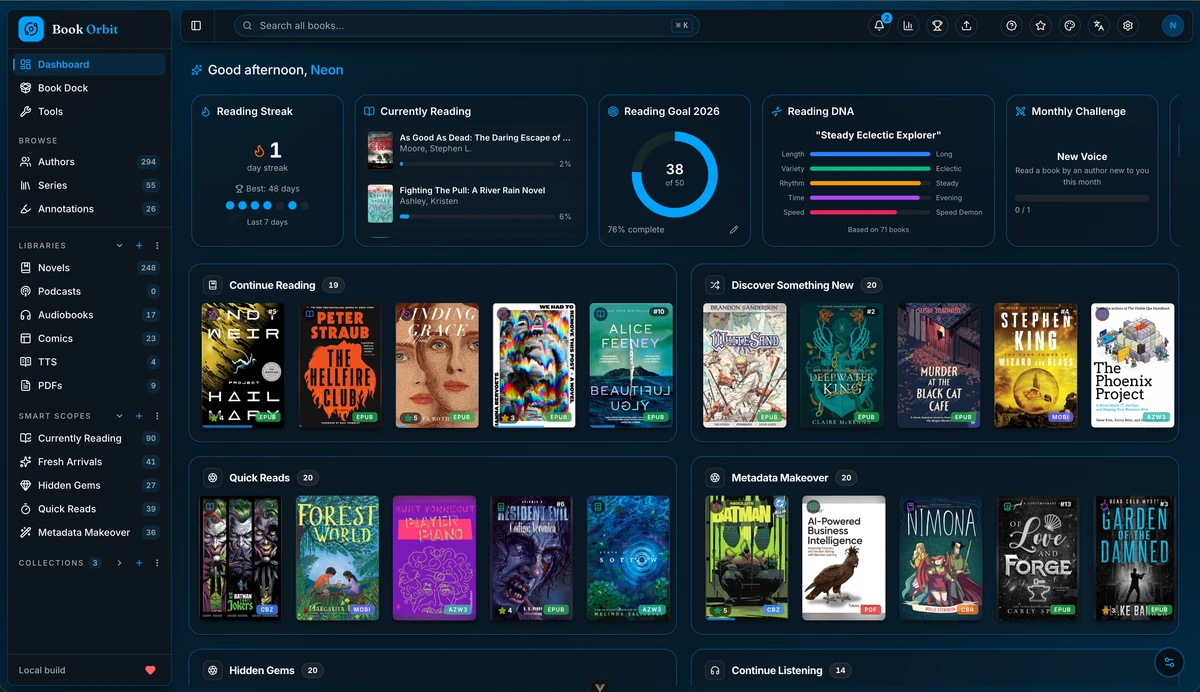
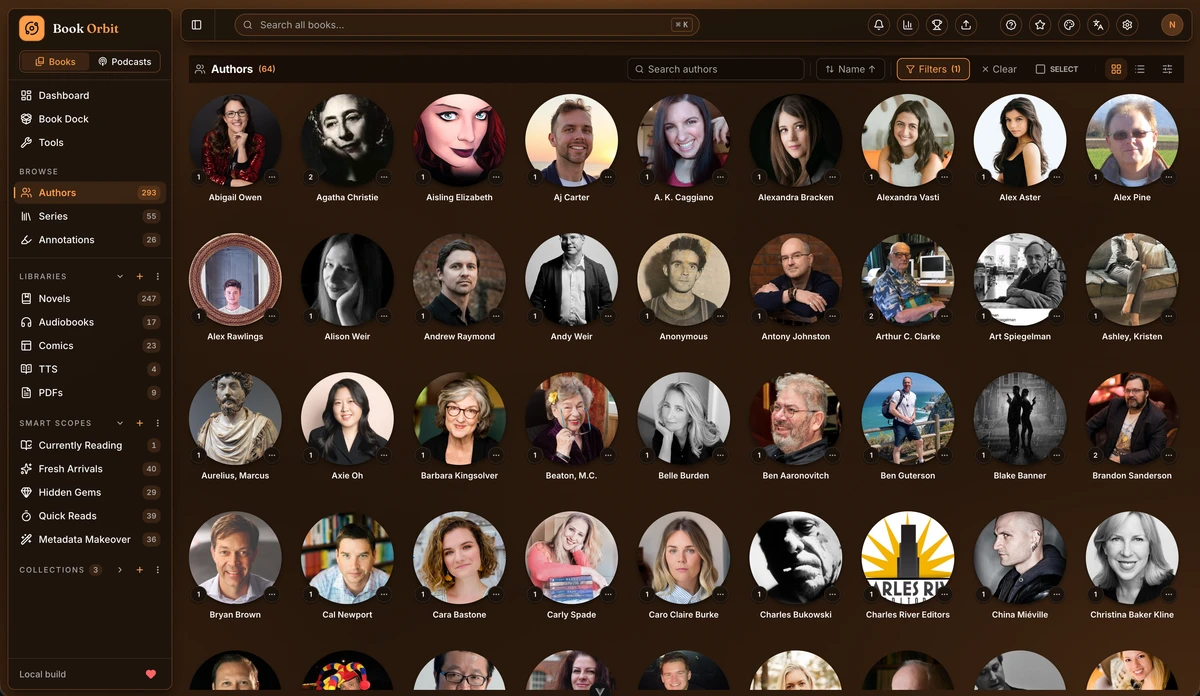
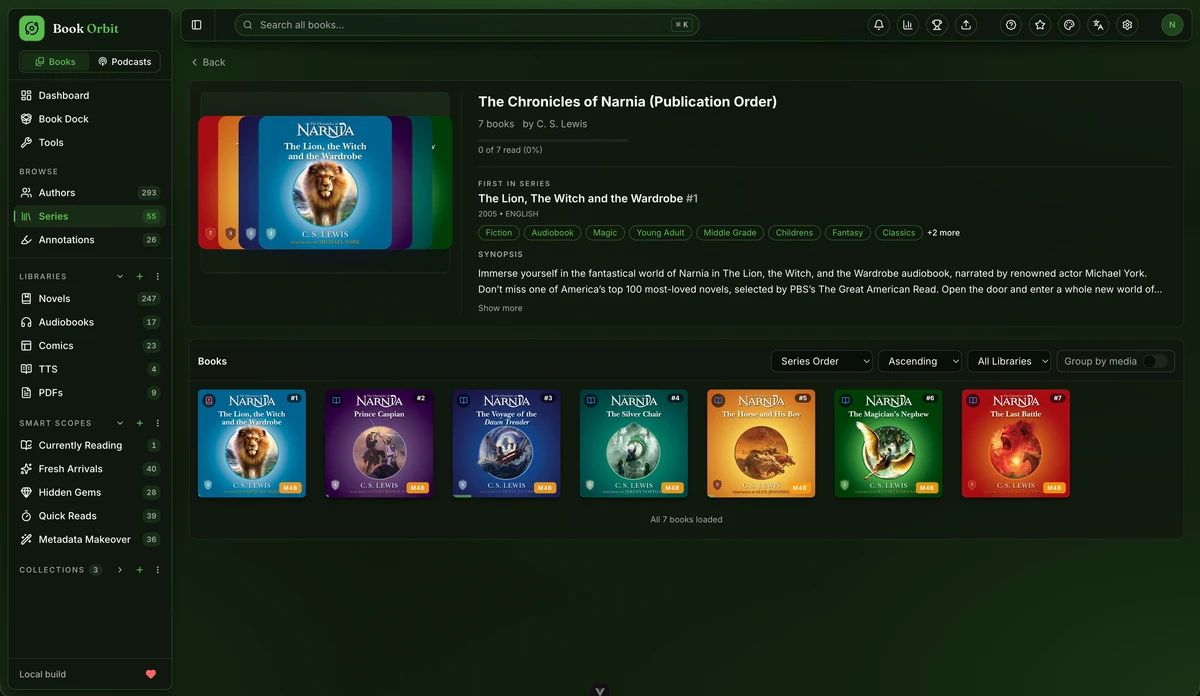
      BookOrbit is a self-hosted digital library and reading platform for
      EPUB, MOBI, AZW3, PDF, CBZ/CBR comics and M4B/MP3 audiobooks - your own
      private library with sync built in. This is BookOrbit in a single
      container, with PostgreSQL and pgvector inside, one port and one data
      folder. Secret keys and the database password are made for you on
      first start.


      **Features**


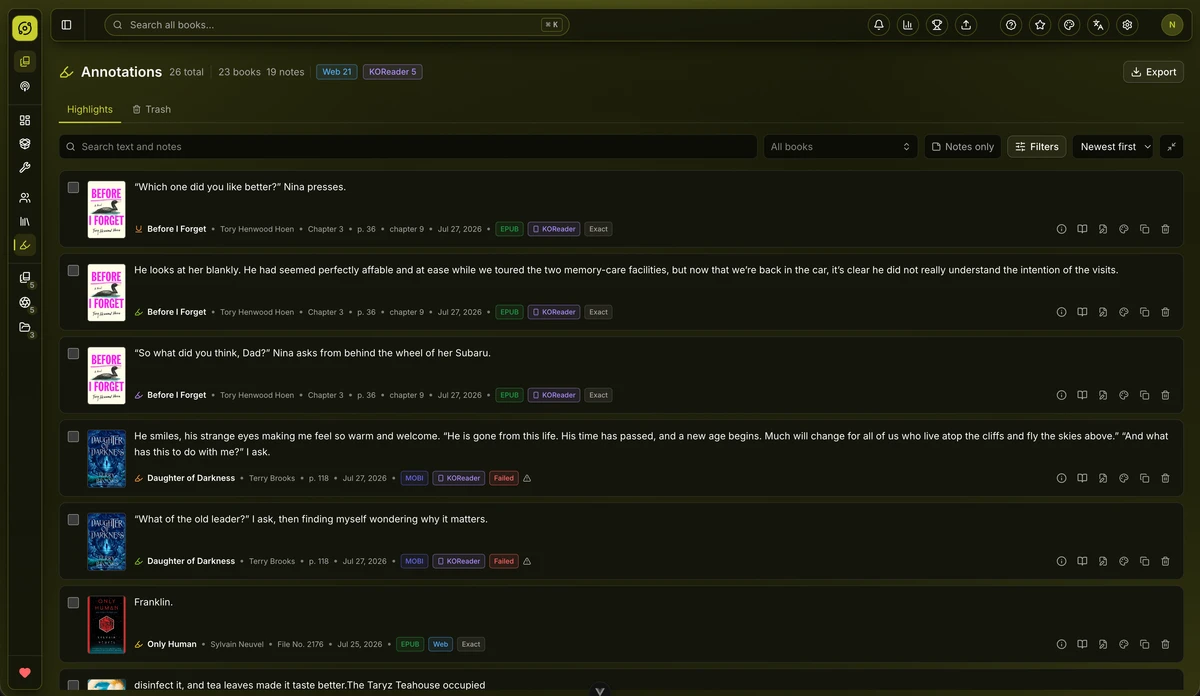
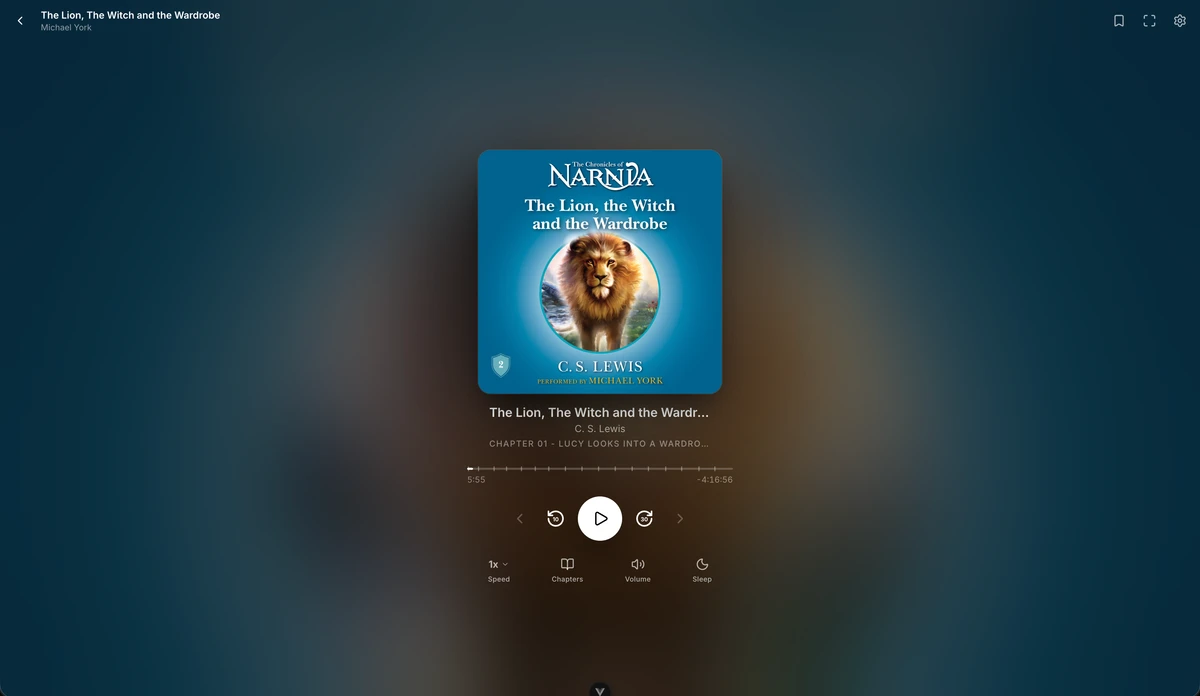
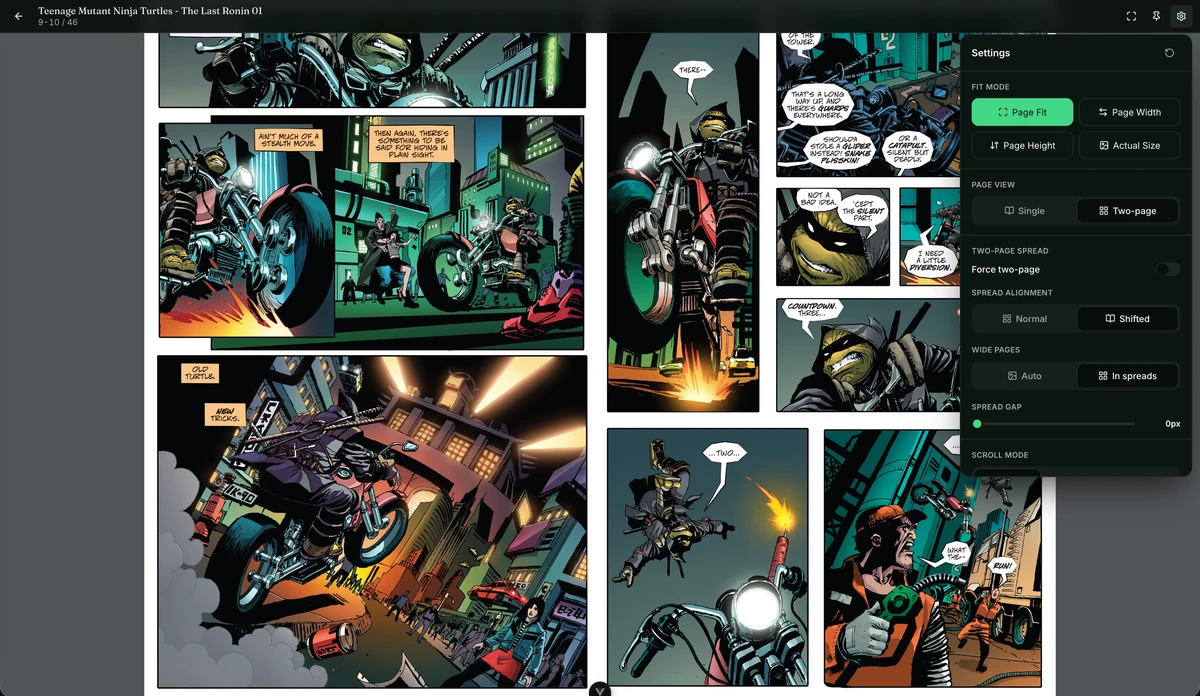
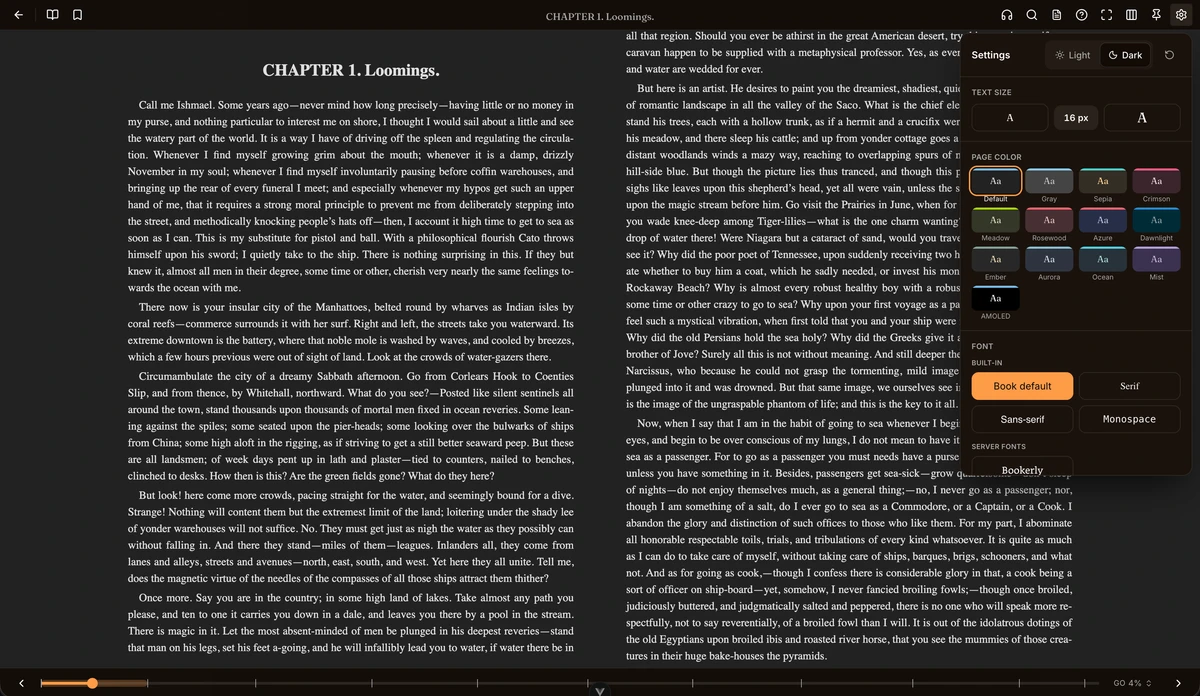
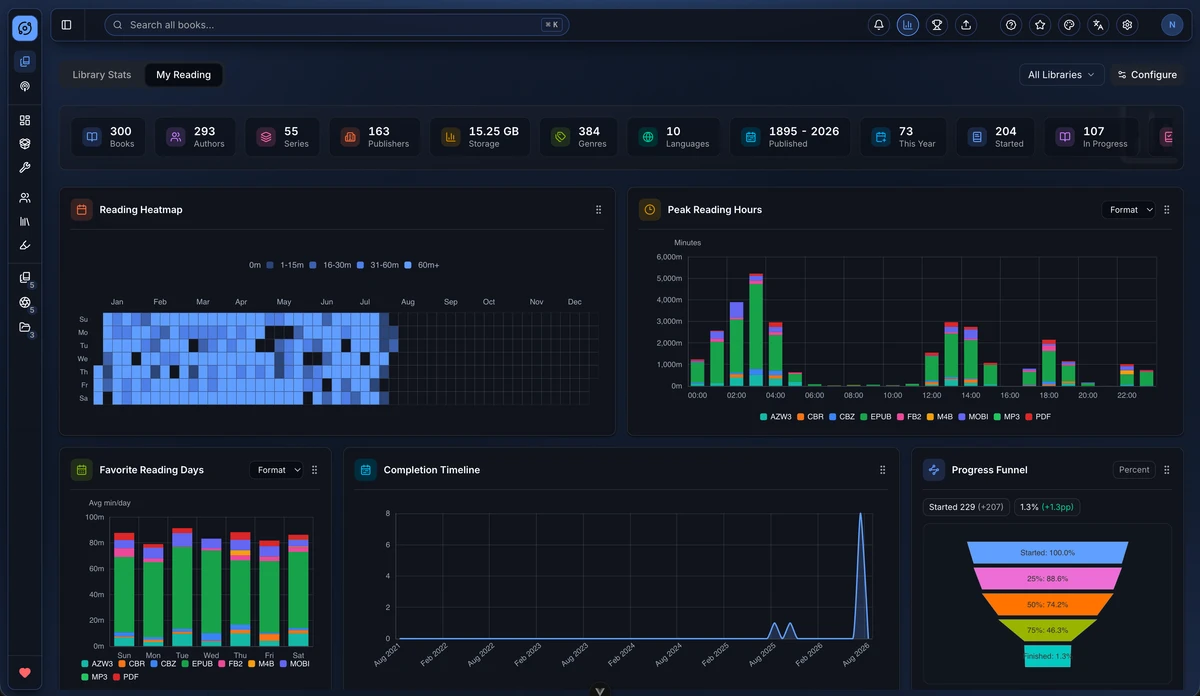
      - Built-in web readers for ebooks, PDFs, comics and audiobooks, with
        no extra plugins needed

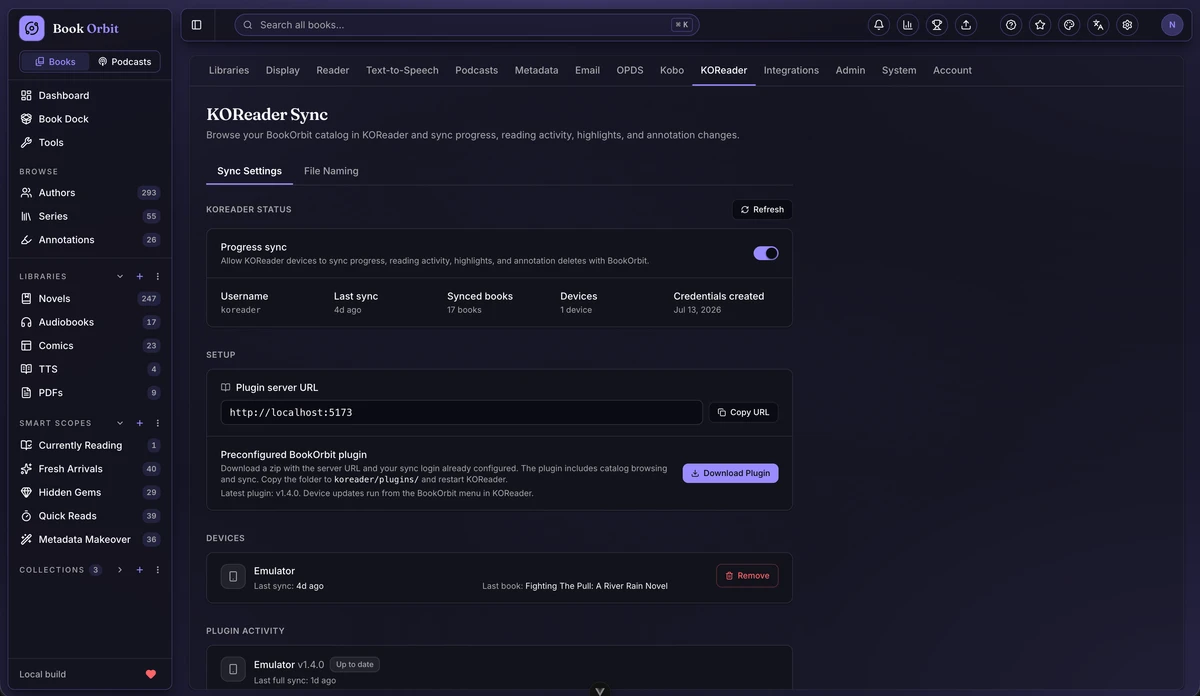
      - Three-way sync (Kobo + KOReader + BookOrbit) for reading progress
        and annotations

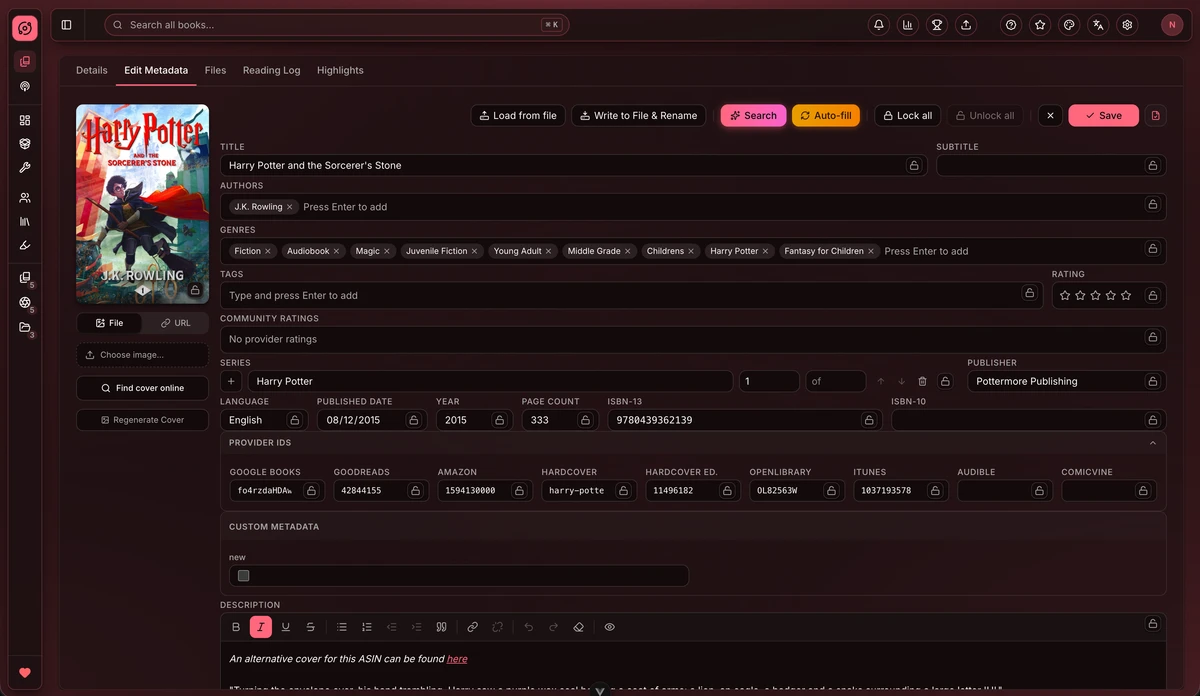
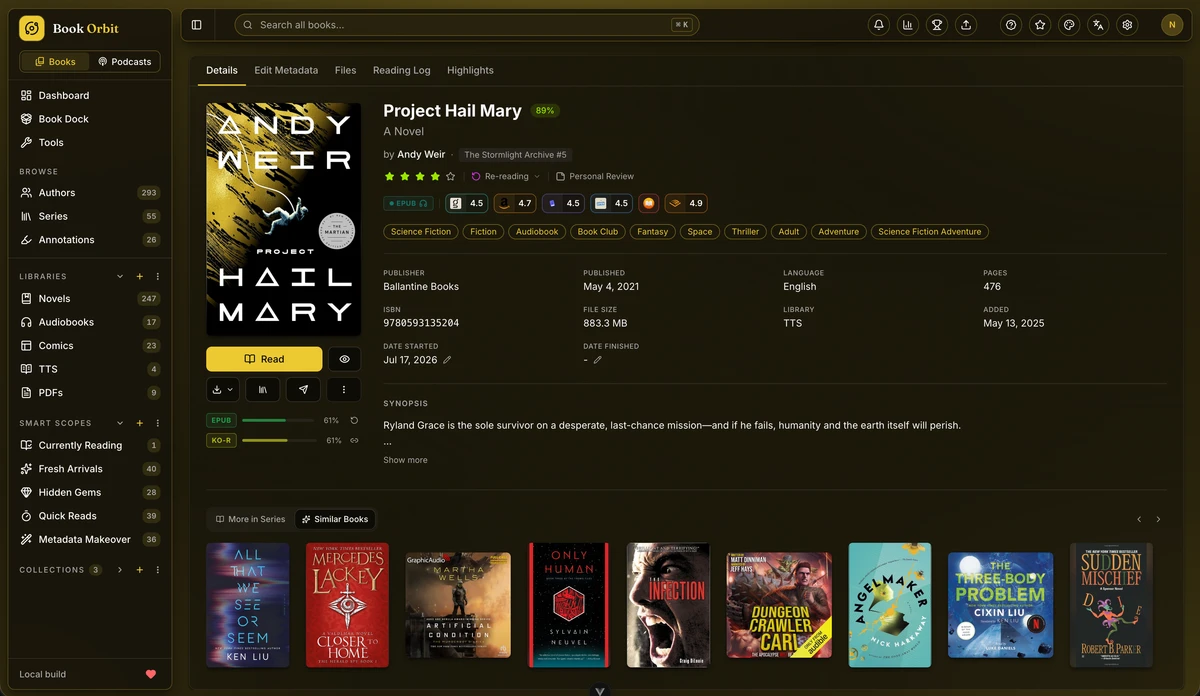
      - Metadata lookup from Google Books, Amazon, Goodreads, Open Library,
        Audible, ComicVine and more

      - Many users, with sign-in through OIDC/SSO (authentik, Keycloak,
        Authelia)

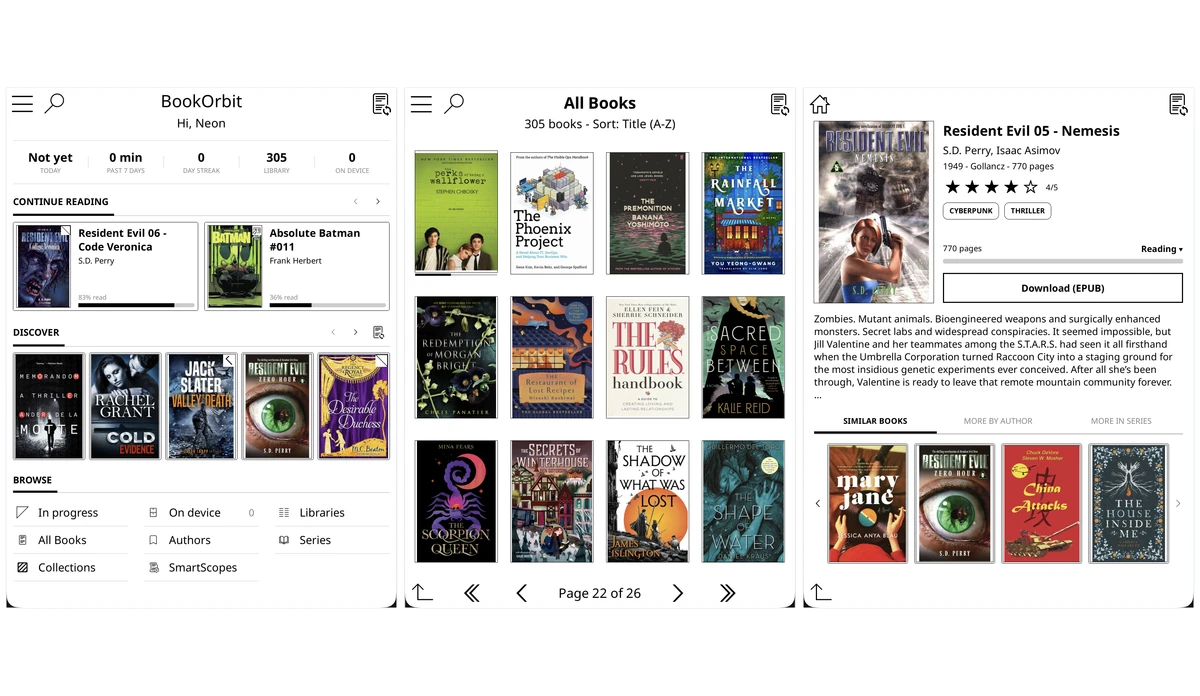
      - OPDS catalogs and Send-to-Kindle

      - Book Dock folder that adds new files for you

      - The optional Kokoro text-to-speech service is left out


      **How to use?**

      1. Open BookOrbit from the Zima OS dashboard.

      2. The setup wizard opens. It asks for a setup token. To get it, open
         the app logs and scroll to the top. Find the line that says "the
         setup token is".

      3. Create your first library and pick a folder under /books.

      4. Start reading, or drop files into the Book Dock folder.

      5. Add more users and connect OIDC/SSO in Settings if you need it.

      6. Email (SMTP), metadata providers and other extras are set in the
         admin panel in the app.
  tips:
    before_install:
      en_US: >-
        1. Open the app configuration before you install.


        2. Find PUBLIC_URL. Change localhost to your ZimaOS IP, for example
           http://192.168.1.20:6124 (your own IP will differ).


        3. Your books go in /DATA/AppData/bookorbit/books. To use a books
           folder you already have, change the /books volume to that folder.


        4. More settings, like log level and sign-in options, are listed on
           the BookOrbit page at https://icestore.hsinghhira.me/app/bookorbit/
           (Variables tab). You can add them now or later in the app settings.


        5. Start the installation.


        6. Wait about two minutes. The first start sets up the database.


        7. Open the app logs and scroll to the top. Find the line that says
           "the setup token is". Copy the token after it.


        8. Open http://your-zimaos-ip:6124 in your browser. Paste the setup
           token and create your admin account.
  index: /
  port_map: "6124"
  scheme: http
  is_uncontrolled: false
  version: "3.5.0"
  update_at: "2026-10-23"
  release_notes:
    en_US: |-
      - Single-container BookOrbit with one port (6124), one data folder and one books folder
      - JWT secret, encryption keys, setup token and database passwords are made on first start, so each install gets its own
      - ghcr.io/bookorbit/bookorbit 3.5.0
      - PostgreSQL 18 with pgvector inside
      - The optional Kokoro text-to-speech container is left out
  repo: "https://github.com/bookorbit/bookorbit"
  support: "https://github.com/bookorbit/bookorbit/issues"
  docs: "https://bookorbit.app/installation.html"
 ZimaOS
 CasaOS
 Homeio