Disk Monitor
See the health, temperature, sleep state and activity of every disk in your ZimaOS box.
- ghcr.io/hsinghhira/disk-monitor:latest
- Others
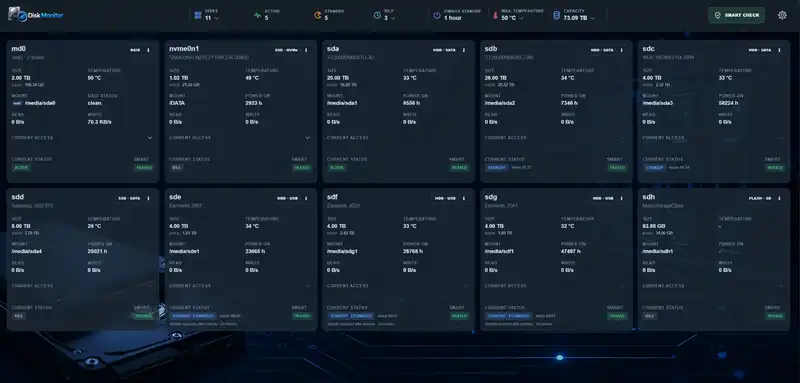
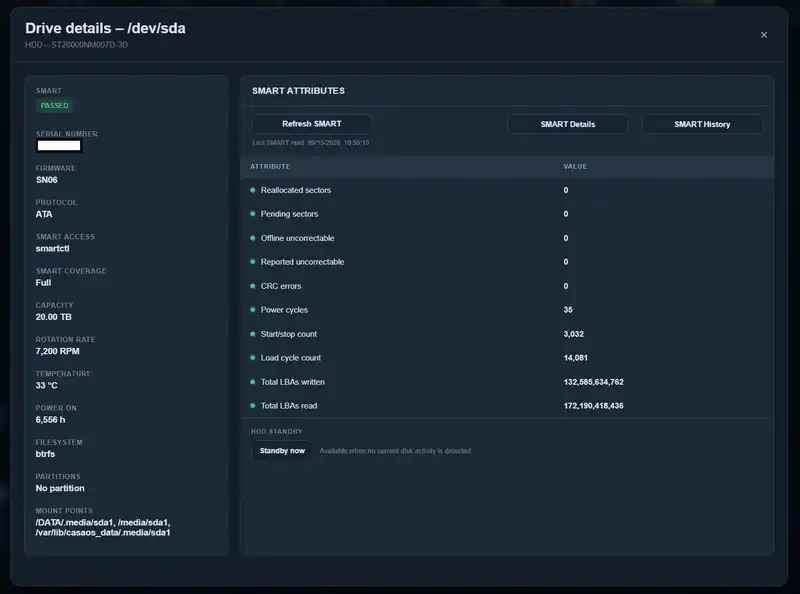
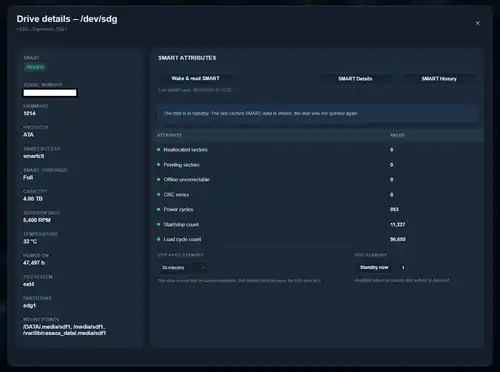
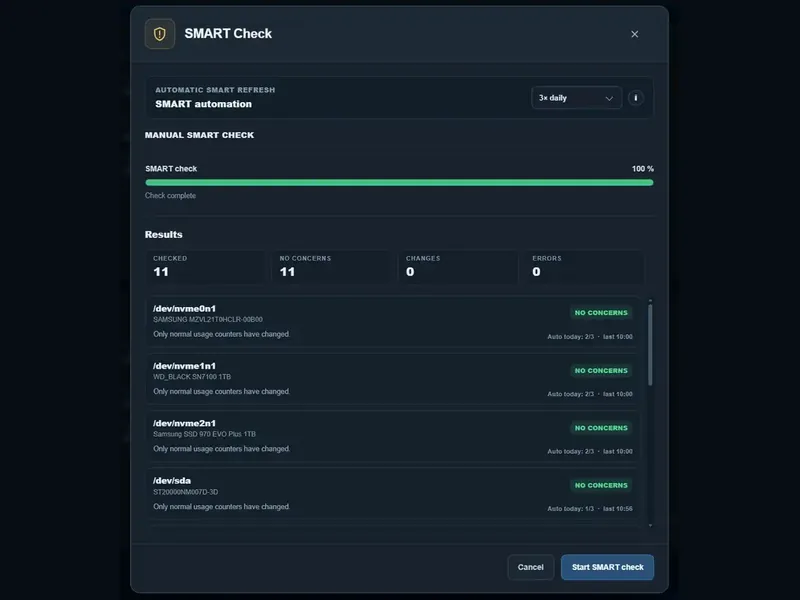
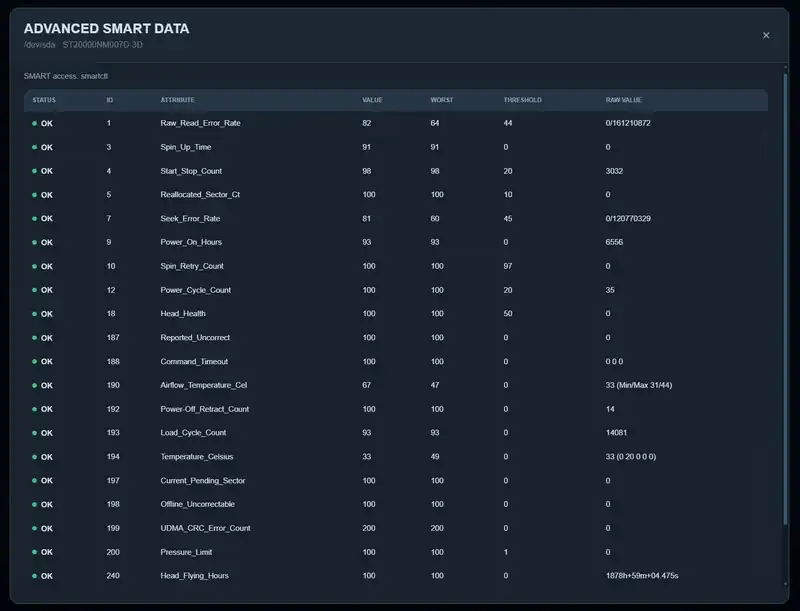
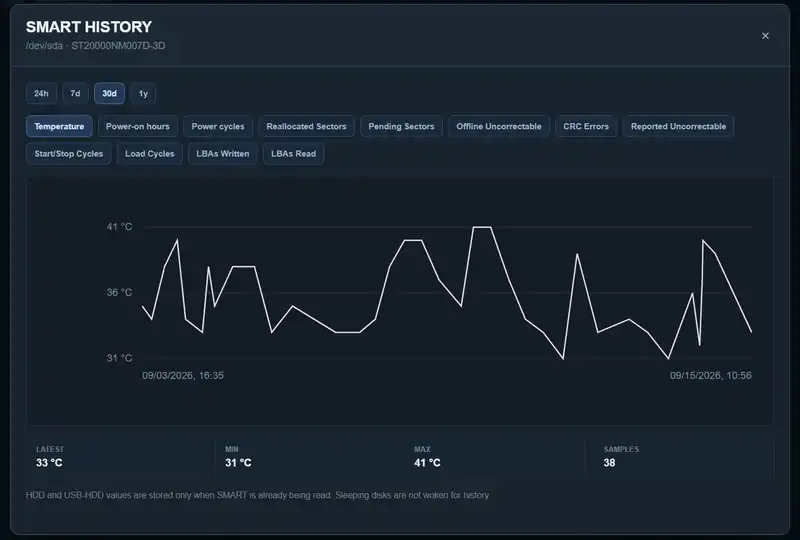
A dashboard for every disk in your ZimaOS box: SMART health, temperature, standby state, activity and RAID, with email alerts. It tries hard not to wake sleeping hard drives.
Features
- Finds your HDDs, SSDs, NVMe and supported USB drives, with used and free space and mount points
- SMART health, temperature and detailed SMART values, with history charts
- Shows which disks are asleep and since when, and works with the ZimaOS standby timer
- Automatic SMART checks (off, 1, 2 or 3 times a day) that don't wake sleeping hard drives
- Email alerts for SMART problems, missing drives, RAID and temperature, plus scheduled status reports
- RAID overview with safe standby controls
- English, German, French, Portuguese and Spanish
How to use
- Open Disk Monitor from your dashboard, or go to
http://[ZIMAOS-IP-ADDRESS]:6170. - Sign in as
admin(or yourDISK_MONITOR_USERNAME). The password is in/DATA/AppData/disk-monitor/cache/password.txt(open it with the Files app) and in the app log, unless you typed your own inDISK_MONITOR_PASSWORD. - Wait for the first full SMART check to finish. It runs once, on the first start only.
- Set up email alerts, temperature warnings and automatic SMART checks in the settings. Email (SMTP) is set up in the app, not with variables.
- For a USB hard drive, enter how long its enclosure takes to go to sleep in the USB auto-standby setting, so the sleep state shown is right.
Before you install
Leave DISK_MONITOR_PASSWORD blank and the app makes its own random password on first start, saved in password.txt in the app's cache folder and shown in the app log; or type your own with at least 12 characters (shorter ones stop the app from starting). The session secret is made for you too. On the very first start the app checks every disk once, which wakes sleeping hard drives; after that it leaves them asleep. The app uses host networking and privileged mode because it reads SMART data and sends standby commands straight to your disks, so treat it like full access to your server: use it on your home network and don't open port 6170 to the internet. It runs on amd64 (Intel/AMD) only. Two more settings are in the Variables tab and are added in the app settings.
The settings in the first table are already in the app settings. To use any other one, open the app settings, add the variable with your value, save, and the app restarts with it. A setting you leave out uses its default.
In the app settings
| Variable | Default value | Description |
|---|---|---|
TZ | $TZ | Your time zone. ZimaOS fills this in for you. |
DISK_ | admin | The username for the Disk Monitor login screen. admin is fine, or pick your own. |
DISK_ | — | The password for the Disk Monitor login screen. Leave it blank and the app makes a random one on first start. Find it in /DATA/AppData/disk-monitor/cache/password.txt (open it with the Files app) or in the app log. Or type your own here: at least 12 characters, or the app won't start. |
Security
| Variable | Default value | Description |
|---|---|---|
DISK_ | — | The secret that keeps you signed in. It is made on first start and saved as .session_secret in the cache folder. Only set it if you want your own (at least 32 characters). Changing it signs everyone out. |
DISK_ | false | Set to true only when you open Disk Monitor through HTTPS (a reverse proxy). With true, sign-in won't work over plain http. |
name: disk-monitor
services:
disk-monitor:
image: ghcr.io/hsinghhira/disk-monitor:latest
container_name: disk-monitor
hostname: disk-monitor
restart: unless-stopped
stop_grace_period: 15s
init: true
network_mode: host
privileged: true
read_only: true
tmpfs:
- /tmp:size=64m,mode=1777
environment:
- TZ=$TZ
- DISK_MONITOR_USERNAME=admin
- DISK_MONITOR_PASSWORD=
volumes:
- type: bind
source: /DATA/AppData/$AppID/cache
target: /app/cache
bind:
create_host_path: true
- type: bind
source: /sys
target: /host/sys
read_only: true
- type: bind
source: /proc
target: /host/proc
read_only: true
- type: bind
source: /dev
target: /dev
healthcheck:
test: ["CMD", "python", "-c", "import urllib.request; urllib.request.urlopen('http://127.0.0.1:6170/api/auth/status', timeout=3).read()"]
interval: 30s
timeout: 5s
retries: 3
start_period: 30s
logging:
driver: json-file
options:
max-size: "10m"
max-file: "3"
deploy:
resources:
limits:
cpus: "1.00"
memory: 512M
reservations:
cpus: "0.00"
memory: 64M
labels:
icon: https://cdn.jsdelivr.net/gh/HSinghHira/IceStore@main/Apps/disk-monitor/icon.png
x-casaos:
id: com.icestore.disk-monitor
envs:
- container: TZ
description:
en_US: Your time zone. ZimaOS fills this in for you.
- container: DISK_MONITOR_USERNAME
description:
en_US: The username for the Disk Monitor login screen. admin is fine, or pick your own.
- container: DISK_MONITOR_PASSWORD
description:
en_US: >-
The password for the Disk Monitor login screen. Leave it blank
and the app makes a random one on first start. Find it in
/DATA/AppData/disk-monitor/cache/password.txt (open it with the
Files app) or in the app log. Or type your own here: at least 12
characters, or the app won't start.
volumes:
- container: /app/cache
description:
en_US: >-
Disk Monitor's saved data: SMART history, settings, email
settings, the login password file (password.txt) and the session
secret (.session_secret). Back this folder up.
- container: /host/sys
description:
en_US: The host's /sys, read-only, so the app can see your disks.
- container: /host/proc
description:
en_US: The host's /proc, read-only, for mount points and disk activity.
- container: /dev
description:
en_US: The host's devices, for reading SMART data and sending standby commands.
x-casaos:
id: com.icestore.disk-monitor
architectures:
- amd64
main: disk-monitor
author: HSinghHira
category: Others
developer: isanto1306
icon: https://cdn.jsdelivr.net/gh/HSinghHira/IceStore@main/Apps/disk-monitor/icon.png
thumbnail: https://cdn.jsdelivr.net/gh/HSinghHira/IceStore@main/Apps/disk-monitor/screenshot-1.webp
screenshot_link:
- https://cdn.jsdelivr.net/gh/HSinghHira/IceStore@main/Apps/disk-monitor/screenshot-1.webp
- https://cdn.jsdelivr.net/gh/HSinghHira/IceStore@main/Apps/disk-monitor/screenshot-2.webp
- https://cdn.jsdelivr.net/gh/HSinghHira/IceStore@main/Apps/disk-monitor/screenshot-3.webp
- https://cdn.jsdelivr.net/gh/HSinghHira/IceStore@main/Apps/disk-monitor/screenshot-4.webp
- https://cdn.jsdelivr.net/gh/HSinghHira/IceStore@main/Apps/disk-monitor/screenshot-5.webp
- https://cdn.jsdelivr.net/gh/HSinghHira/IceStore@main/Apps/disk-monitor/screenshot-6.webp
title:
en_US: Disk Monitor
tagline:
en_US: See the health, temperature, sleep state and activity of every disk in your ZimaOS box.
description:
en_US: >-
Visit: [https://icestore.hsinghhira.me/app/disk-monitor/](https://icestore.hsinghhira.me/app/disk-monitor/) for full details
A dashboard for every disk in your ZimaOS box: SMART health,
temperature, standby state, activity and RAID, with email alerts. It
tries hard not to wake sleeping hard drives.
**Features**
- Finds your HDDs, SSDs, NVMe and supported USB drives, with used and
free space and mount points
- SMART health, temperature and detailed SMART values, with history
charts
- Shows which disks are asleep and since when, and works with the
ZimaOS standby timer
- Automatic SMART checks (off, 1, 2 or 3 times a day) that don't wake
sleeping hard drives
- Email alerts for SMART problems, missing drives, RAID and
temperature, plus scheduled status reports
- RAID overview with safe standby controls
- English, German, French, Portuguese and Spanish
**How to use?**
1. Open Disk Monitor from the Zima OS dashboard.
2. Sign in as admin (or your DISK_MONITOR_USERNAME). The password is
in /DATA/AppData/disk-monitor/cache/password.txt, unless you typed
your own in DISK_MONITOR_PASSWORD.
3. Wait for the first full SMART check to finish. It runs once, on the
first start only.
4. Set up email alerts and automatic SMART checks in the settings.
This app needs full access to your hardware (host network and
privileged mode). Use it on your home network only and don't open its
port to the internet.
tips:
before_install:
en_US: >-
1. Leave DISK_MONITOR_PASSWORD blank to get a random password, or type
your own with at least 12 characters.
2. Start the installation.
3. On the very first start, the app checks every disk once. Sleeping
hard drives will wake up for this. This is normal.
4. Open Disk Monitor from the Zima OS dashboard, or go to
http://[ZIMAOS-IP-ADDRESS]:6170 from another device.
5. Sign in as admin. The password is in
/DATA/AppData/disk-monitor/cache/password.txt (open it with the
Files app) and in the app log.
6. Don't open port 6170 to the internet. This app has full access to
your hardware.
More settings are listed on the Disk Monitor page at
https://icestore.hsinghhira.me/app/disk-monitor/ (Variables tab). You
can add them now or later in the app settings.
index: /
port_map: "6170"
scheme: http
is_uncontrolled: false
version: "0.32.104"
update_at: "2026-10-27"
release_notes:
en_US: |-
- Initial IceStore version, built on ghcr.io/isanto1306/disk-monitor 0.32.104.
- Runs on port 6170 instead of 8999.
- Each install makes its own session secret and, when DISK_MONITOR_PASSWORD is blank, its own random login password on first start, instead of CHANGE_ME values.
- The start script is now in the image (ghcr.io/hsinghhira/disk-monitor), not in the compose file, so it no longer fails with "can't create .tmp: Read-only file system".
repo: "https://github.com/isanto1306/Disk-Monitor"
support: "https://github.com/isanto1306/Disk-Monitor/issues"
docs: "https://github.com/isanto1306/Disk-Monitor#readme" ZimaOS
 CasaOS
 Homeio