
Documenso
The open source DocuSign alternative
- ghcr.io/hsinghhira/documenso:latest
- port 6142
- Productivity

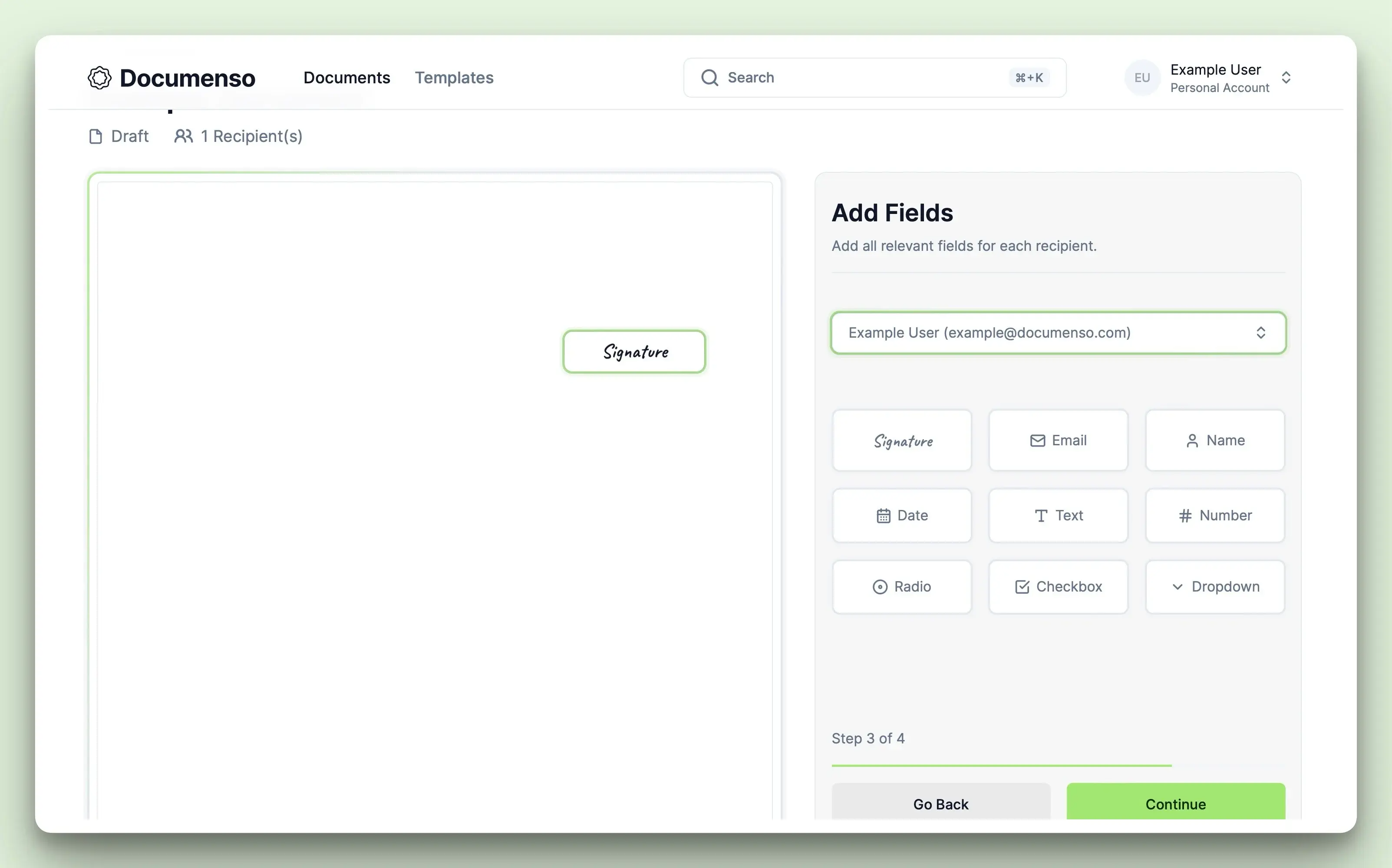
Web App
/http://localhost:6142/ Mail Viewer
/mail/http://localhost:6142/mail/ Documenso is an open source document-signing platform - like DocuSign, but self-hosted and fully auditable. This is Documenso in a single container, with PostgreSQL and a mail viewer inside, one port and one data folder. Secret keys, the database password and a signing certificate are made for you on first start.
Features
- Upload PDFs, place signature and text fields, and send documents out for signature
- Documents are signed with a certificate, so changes after signing can be detected
- Many recipients, signing order and email reminders
- Sign in with Google, Microsoft or any OIDC provider (Pocket ID, authentik, Keycloak)
- Templates, teams, webhooks and an open API
- Works without an email server: emails go to the built-in mail viewer at
/mailuntil you set up SMTP
How to use
- Open Documenso from your dashboard and sign up.
- Open
http://your-zimaos-ip:6142/mail/to find the confirm email. The login for the mail viewer is in the app logs. - Click the link in the email, then sign in.
- Upload a PDF, add the people who need to sign, and drag the fields onto the page.
- Send it. Signers get an email and sign in their browser, with no account needed.
- To send real emails, add the SMTP settings from the Variables tab.
Before you install
PUBLIC_URL starts as http://[SERVER-IP]:6142. Replace [SERVER-IP] with your ZimaOS IP, like http://192.168.1.20:6142, and always open Documenso at exactly that address. This is a must: Documenso sends sign-in requests to PUBLIC_URL and refuses forms sent from any other address, so with the wrong address sign-up fails with "Failed to fetch". Put the email you will sign up with in DOCUMENSO_ADMIN_EMAIL, and that account becomes the admin as soon as it is created. Until you add an SMTP server, emails (like the sign-up confirm email) go to the mail viewer at /mail/; its login is in the app logs on the line that says "mail viewer (/mail) login is", and in mail-password.txt in the data folder. A self-signed signing certificate is made in cert/cert.p12 in the data folder; to use your own, replace that file and set NEXT_PRIVATE_SIGNING_PASSPHRASE. The first start takes about three minutes. SMTP, sign-up rules, Google, Microsoft and OIDC sign-in and the other settings are in the Variables tab; add them in the app settings.
The settings in the first table are already in the app settings. To use any other one, open the app settings, add the variable with your value, save, and the app restarts with it. A setting you leave out uses its default.
In the app settings
| Variable | Default value | Description |
|---|---|---|
TZ | $TZ | Your time zone. It is filled in from your ZimaOS time zone. Leave it unless you need another. |
PUBLIC_ | http://[SERVER-IP]:6142 | The address you open Documenso at, like http://192.168.1.20:6142. Replace [SERVER-IP] with your ZimaOS IP, or use your own domain if you put Documenso behind HTTPS. Documenso only works at exactly this address. If it does not match what is in your browser's address bar, sign-up and sign-in fail with "Failed to fetch". |
DOCUMENSO_ | — | The email you will sign up with. That account becomes an admin as soon as it is created. Leave it blank for no admin. |
Email (SMTP)
| Variable | Default value | Description |
|---|---|---|
NEXT_ | — | Your mail server, like smtp.gmail.com. Leave it out to keep emails in the built-in mail viewer at /mail. |
NEXT_ | 587 | Your mail server's port. Usually 587, or 465 with NEXT_PRIVATE_SMTP_SECURE set to true. |
NEXT_ | — | The user name for your mail server. Leave it out if it needs none. |
NEXT_ | — | The password for your mail server. |
NEXT_ | false | Set to true for a server on port 465 that uses TLS from the start. |
NEXT_ | false | Set to true to never use TLS, even when the server offers it. Only for a mail server on your own network. |
NEXT_ | Documenso | The sender name on emails Documenso sends. |
NEXT_ | [email protected] | The sender address on emails. Most mail servers need this to be an address they own. |
NEXT_ | smtp-auth | How emails are sent: smtp-auth, smtp-api, resend or mailchannels. Leave it out for a normal mail server. |
NEXT_ | — | Your Resend API key, when NEXT_PRIVATE_SMTP_TRANSPORT is resend. |
MP_ | — | Your own login for the mail viewer, as user:password. Leave it out to use the one made on first start (shown in the app logs). |
Sign-up and accounts
| Variable | Default value | Description |
|---|---|---|
NEXT_ | false | Set to true so nobody new can sign up, by any method. Do this after you have made your own account. |
NEXT_ | false | Set to true to stop sign-up with email and password, but still allow sign-up with Google, Microsoft or OIDC. |
NEXT_ | — | Only let emails from these domains sign up, comma separated, like example.com,acme.org. |
NEXT_ | false | Set to true to turn off email and password sign-in, so everyone signs in with Google, Microsoft or OIDC. |
Sign in with Google
| Variable | Default value | Description |
|---|---|---|
NEXT_ | — | Client ID of a Google OAuth app. The redirect URL to add in Google is PUBLIC_URL followed by /api/auth/callback/google. |
NEXT_ | — | Client secret of the same Google OAuth app. |
NEXT_ | false | Set to true so Google can only sign in people who already have an account. |
NEXT_ | false | Set to true to hide the Google button. |
Sign in with Microsoft
| Variable | Default value | Description |
|---|---|---|
NEXT_ | — | Application (client) ID of a Microsoft Entra app. The redirect URL to add is PUBLIC_URL followed by /api/auth/callback/microsoft. |
NEXT_ | — | Client secret of the same Microsoft app. |
NEXT_ | false | Set to true so Microsoft can only sign in people who already have an account. |
NEXT_ | false | Set to true to hide the Microsoft button. |
Sign in with OIDC
| Variable | Default value | Description |
|---|---|---|
NEXT_ | — | The discovery URL of your provider (Pocket ID, authentik, Keycloak), like https://auth.example.com/.well-known/openid-configuration. The redirect URL to add there is PUBLIC_URL followed by /api/auth/callback/oidc. |
NEXT_ | — | Client ID from your OIDC provider. |
NEXT_ | — | Client secret from your OIDC provider. |
NEXT_ | OIDC | The name on the sign-in button, like Pocket ID. |
NEXT_ | false | Set to true to accept accounts whose email the provider has not verified. Without it, those sign-ins fail with UNVERIFIED_EMAIL. |
NEXT_ | login | The prompt sent to the provider. login asks for the password each time; set to none to skip it when already signed in there. |
NEXT_ | false | Set to true so OIDC can only sign in people who already have an account. |
NEXT_ | false | Set to true to hide the OIDC button. |
NEXT_ | false | When OIDC is the only way to sign in, the sign-in page jumps straight to your provider. Set to true to show the sign-in page instead. |
Signing
| Variable | Default value | Description |
|---|---|---|
NEXT_ | — | Only if you put your own certificate in the data folder as cert/cert.p12: its passphrase. Leave it out to use the certificate made on first start. |
NEXT_ | Signed by Documenso | The reason written into each signature. |
NEXT_ | — | The contact info written into each signature. Leave it out to use PUBLIC_URL. |
NEXT_ | — | Timestamp server URLs, comma separated, like http://timestamp.digicert.com. Adds a trusted time to each signature. |
File storage
| Variable | Default value | Description |
|---|---|---|
NEXT_ | database | Where uploaded PDFs are kept: database (inside the data folder) or s3. |
NEXT_ | — | The S3 server URL, for S3-compatible storage like MinIO or Garage. |
NEXT_ | us-east-1 | The S3 region. |
NEXT_ | — | The S3 bucket name. Needed when NEXT_PUBLIC_UPLOAD_TRANSPORT is s3. |
NEXT_ | — | The S3 access key. |
NEXT_ | — | The S3 secret key. |
NEXT_ | false | Set to true for most self-hosted S3 servers (MinIO, Garage). |
NEXT_ | 5 | The largest PDF people can upload, in MB. |
Features
| Variable | Default value | Description |
|---|---|---|
NEXT_ | — | The URL of a Gotenberg server, like http://192.168.1.20:3000, to accept Word (DOCX) files. Leave it out to accept PDF only. |
NEXT_ | — | Host names or IPs on your own network that webhooks may call, comma separated, like 192.168.1.5. |
AI
| Variable | Default value | Description |
|---|---|---|
GOOGLE_ | — | A Google Vertex AI (Gemini) API key, to turn on the AI features, like finding the fields in a document for you. |
GOOGLE_ | — | Your Google Cloud project ID for Vertex AI. |
GOOGLE_ | global | The Google Cloud region for Vertex AI. |
Security
| Variable | Default value | Description |
|---|---|---|
NEXT_ | — | A Cloudflare Turnstile site key, to show a bot check on sign-up and sign-in. Needs NEXT_PRIVATE_TURNSTILE_SECRET_KEY too. |
NEXT_ | — | The Cloudflare Turnstile secret key. |
Privacy
| Variable | Default value | Description |
|---|---|---|
DOCUMENSO_ | — | Set to true to stop sending Documenso the app version and an anonymous install ID once an hour. Also stops the "Error while flushing PostHog" log lines if your network blocks it. Any value turns it off, so leave it out to keep it on. |
NEXT_ | — | A Documenso license key, if you bought one, to turn on enterprise features. |
name: documenso
services:
documenso:
image: ghcr.io/hsinghhira/documenso:latest
container_name: documenso
restart: unless-stopped
stop_grace_period: 90s
privileged: true
environment:
- TZ=$TZ
- PUBLIC_URL=http://[SERVER-IP]:6142
- DOCUMENSO_ADMIN_EMAIL=
ports:
- target: 8080
published: "6142"
protocol: tcp
volumes:
- type: bind
source: /DATA/AppData/$AppID/data
target: /data
bind:
create_host_path: true
healthcheck:
test: ["CMD", "curl", "-fsS", "-o", "/dev/null", "http://127.0.0.1:8080/api/health"]
interval: 30s
timeout: 10s
retries: 5
start_period: 240s
deploy:
resources:
limits:
cpus: "2.00"
memory: 3072M
reservations:
cpus: "0.25"
memory: 512M
labels:
icon: https://cdn.jsdelivr.net/gh/HSinghHira/IceStore@main/Apps/documenso/icon.png
x-casaos:
id: com.icestore.documenso
envs:
- container: TZ
description:
en_US: >-
Your time zone. It is filled in from your ZimaOS time zone.
Leave it unless you need another.
- container: PUBLIC_URL
description:
en_US: >-
The address you open Documenso at, like
http://192.168.1.20:6142. Replace [SERVER-IP] with your ZimaOS
IP, or use your own domain if you put Documenso behind HTTPS.
Documenso only works at exactly this address. If it does not
match what is in your browser's address bar, sign-up and
sign-in fail with "Failed to fetch".
- container: DOCUMENSO_ADMIN_EMAIL
description:
en_US: >-
The email you will sign up with. That account becomes an admin
as soon as it is created. Leave it blank for no admin.
ports:
- container: "8080"
description:
en_US: Documenso web app, API and mail viewer (/mail), published on host as 6142
volumes:
- container: /data
description:
en_US: >-
The database (your documents and signatures), the signing
certificate in cert/, secret keys and settings.
x-casaos:
id: com.icestore.documenso
architectures:
- amd64
- arm64
main: documenso
author: HSinghHira
category: Productivity
developer: Documenso
icon: https://cdn.jsdelivr.net/gh/HSinghHira/IceStore@main/Apps/documenso/icon.png
thumbnail: https://cdn.jsdelivr.net/gh/HSinghHira/IceStore@main/Apps/documenso/screenshot-1.png
screenshot_link:
- https://cdn.jsdelivr.net/gh/HSinghHira/IceStore@main/Apps/documenso/screenshot-1.png
- https://cdn.jsdelivr.net/gh/HSinghHira/IceStore@main/Apps/documenso/screenshot-2.png
title:
en_US: Documenso
tagline:
en_US: The open source DocuSign alternative
description:
en_US: >-
Documenso is an open source document-signing platform - like DocuSign,
but self-hosted and fully auditable. This is Documenso in a single
container, with PostgreSQL and a mail viewer inside, one port and one
data folder. Secret keys, the database password and a signing
certificate are made for you on first start.
**Features**
- Upload PDFs, place signature and text fields, and send documents out
for signature
- Documents are signed with a certificate, so changes after signing
can be detected
- Many recipients, signing order and email reminders
- Sign in with Google, Microsoft or any OIDC provider (Pocket ID,
authentik, Keycloak)
- Templates, teams, webhooks and an open API
- Works without an email server: emails go to the built-in mail viewer
at /mail until you set up SMTP
**How to use?**
1. Open Documenso from the Zima OS dashboard and sign up.
2. Open http://your-zimaos-ip:6142/mail/ to find the confirm email. The
login for the mail viewer is in the app logs.
3. Click the link in the email, then sign in.
4. Upload a PDF, add the people who need to sign, and drag the fields
onto the page.
5. Send it. Signers get an email and sign in their browser, with no
account needed.
6. To send real emails, add the SMTP settings from the Variables tab on
the IceStore page.
tips:
before_install:
en_US: >-
1. Open the app configuration before you install.
2. Find PUBLIC_URL. Replace [SERVER-IP] with your ZimaOS IP, for example
http://192.168.1.20:6142 (your own IP will differ). This step is a
must: Documenso only works at exactly this address. Always open
it at this address too.
3. Find DOCUMENSO_ADMIN_EMAIL. Type the email you will sign up with.
That account becomes the admin.
4. Emails stay inside the app at first. To send real emails, add the
SMTP settings. They are listed on the Documenso page at
https://icestore.hsinghhira.me/app/documenso/ (Variables tab), with
sign-up rules and Google, Microsoft and OIDC sign-in. You can add
them now or later in the app settings.
5. Start the installation.
6. Wait about three minutes. The first start sets up the database.
7. Open http://your-zimaos-ip:6142 and sign up.
8. Open the app logs. Find the line that says "mail viewer (/mail)
login is". It shows a user name and password.
9. Open http://your-zimaos-ip:6142/mail/ and log in with them. Open
the email from Documenso and click the confirm link.
10. Sign in to Documenso. If you are the admin, sign out and in again
to see the admin panel.
index: /
port_map: "6142"
scheme: http
is_uncontrolled: false
version: "v2.21.1"
update_at: "2026-10-24"
release_notes:
en_US: |-
- Single-container Documenso with one port (6142) and one data folder
- Secret keys, database passwords and a self-signed signing certificate are made on first start, so each install gets its own
- Built-in mail viewer at /mail, used until you set an SMTP server
- DOCUMENSO_ADMIN_EMAIL makes your account an admin, no database commands needed
- documenso/documenso v2.21.1
- axllent/mailpit v1.32.0
- PostgreSQL 15 inside
repo: "https://github.com/documenso/documenso"
support: "https://github.com/documenso/documenso/issues"
docs: "https://docs.documenso.com/docs/self-hosting" ZimaOS
 CasaOS
 Homeio