
DocuSeal
Open source DocuSign alternative to create, fill and sign PDF documents
- docuseal/docuseal:3.3.3
- port 6148
- Productivity
Web App
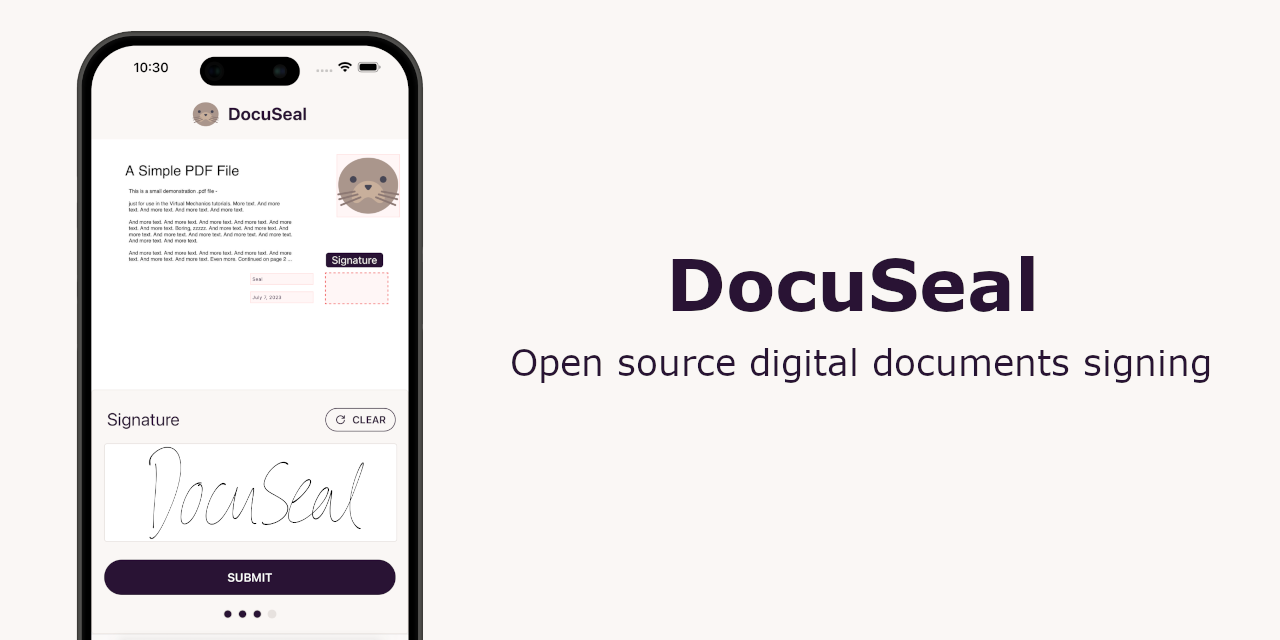
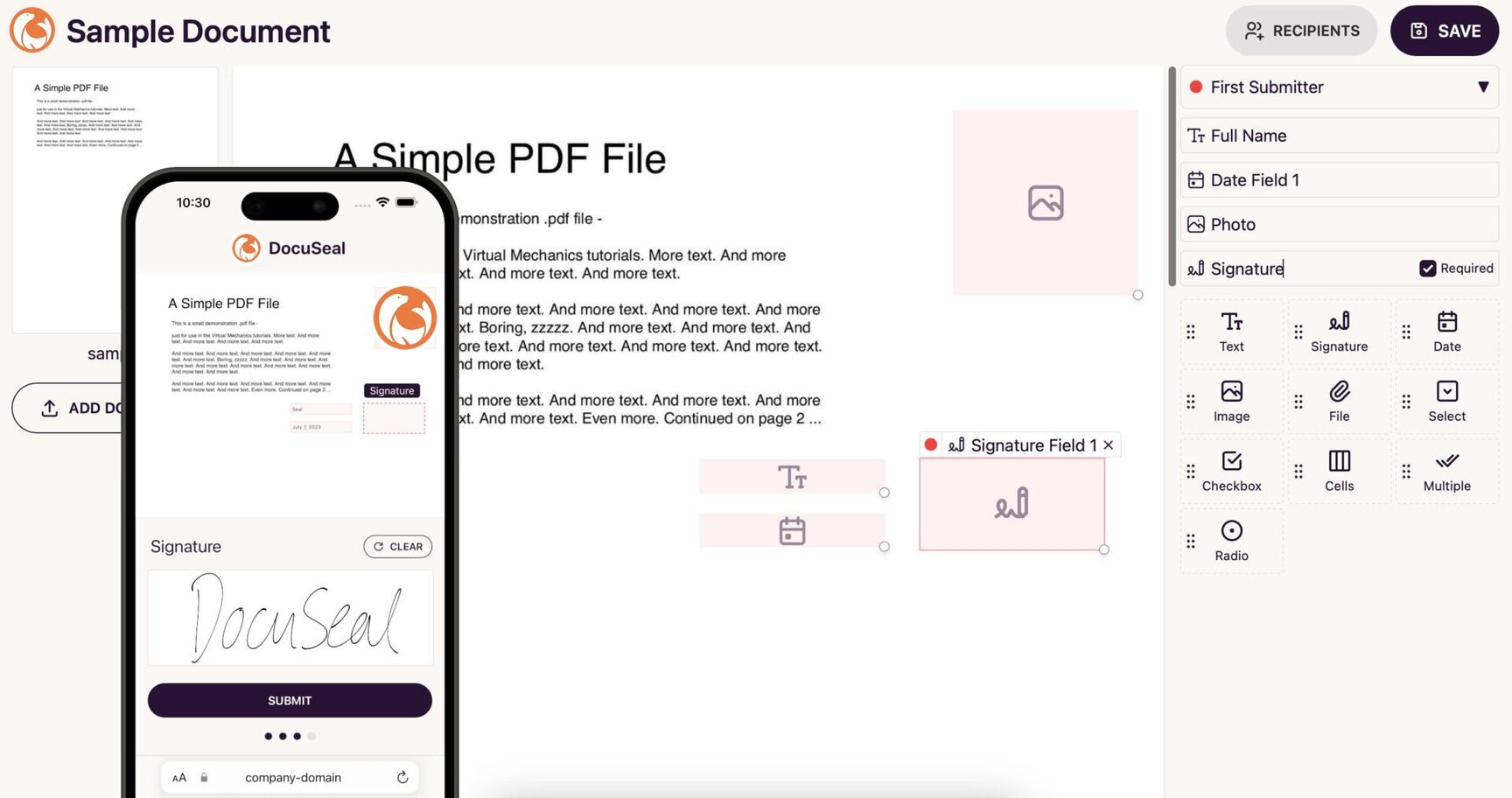
/http://localhost:6148/ DocuSeal is an open source platform for filling and signing digital documents. Build a fillable PDF form once, then send it out for one or more people to sign from any device.
Features
- Drag-and-drop PDF form builder with 12+ field types (signature, date, file, checkbox and more)
- Many signers per document, with email notifications
- Automatic PDF eSignature and signature verification
- Built-in SQLite database, so there is no separate database to look after
- The secret key is made for you on first start and kept in the data folder
How to use
- Open DocuSeal from your dashboard.
- Create your admin account on the first screen. Type the address you open DocuSeal at as the app URL.
- Upload a PDF to make your first template, then place the fields on it.
- Send the template to a signer, or share the signing link.
- To send emails, add your SMTP server under Settings, Email in the app, or with the SMTP settings in the Variables tab.
Before you install
There is nothing you must set. The first start takes about a minute. Open http://your-zimaos-ip:6148 and make your admin account; for the app URL, type the address in your browser bar. The secret key is made on first start and kept in docuseal/docuseal.env in the data folder, so back that folder up. Email can be set up inside the app, or with the SMTP settings in the Variables tab. A Postgres database (DATABASE_URL) only takes effect on a fresh install. Add any of these settings in the app settings.
The settings in the first table are already in the app settings. To use any other one, open the app settings, add the variable with your value, save, and the app restarts with it. A setting you leave out uses its default.
In the app settings
| Variable | Default value | Description |
|---|---|---|
TZ | $TZ | Your time zone. It is filled in from your ZimaOS time zone. Leave it unless you need another. |
Email (SMTP)
| Variable | Default value | Description |
|---|---|---|
SMTP_ | — | Your mail server, like smtp.gmail.com. Add it only with a value: an empty SMTP_ADDRESS still turns SMTP on. You can also set email up in the app under Settings, Email. |
SMTP_ | 587 | Your mail server's port. Usually 587, or 465 with SMTP_ENABLE_SSL set to true. |
SMTP_ | — | The user name for your mail server. |
SMTP_ | — | The password for your mail server. |
SMTP_ | — | The sender address on emails, like [email protected]. Needed when SMTP_ADDRESS is set. |
SMTP_ | — | The domain DocuSeal says hello as to the mail server. Most servers do not need it. |
SMTP_ | plain | How DocuSeal logs in to the mail server: plain, login or cram_md5. |
SMTP_ | true | Set to false to stop DocuSeal upgrading the connection to TLS. |
SMTP_ | false | Set to true for a mail server on port 465 that uses TLS from the start. |
SMTP_ | true | Set to false to accept a mail server with a self-signed certificate. |
Server
| Variable | Default value | Description |
|---|---|---|
APP_ | — | The address you open DocuSeal at, like https://sign.example.com. Leave it out to set it in the app under Settings, Account. |
FORCE_ | — | Set to true when DocuSeal is behind an HTTPS reverse proxy, so links use https and cookies are secure. Leave it out for plain http. |
Sign-up and accounts
| Variable | Default value | Description |
|---|---|---|
SESSION_ | 730 | How many days "remember me" keeps people signed in. |
Database
| Variable | Default value | Description |
|---|---|---|
DATABASE_ | — | A Postgres or MySQL database, like postgresql://user:[email protected]:5432/docuseal. Leave it out to use the built-in SQLite database. Set it before the first start: data already in SQLite is not moved. |
File storage
| Variable | Default value | Description |
|---|---|---|
S3_ | — | An S3 bucket for documents instead of the data folder. Needs the AWS settings below. |
AWS_ | — | The S3 access key. |
AWS_ | — | The S3 secret key. |
AWS_ | us-east-1 | The S3 region. |
S3_ | — | The S3 server URL, for S3-compatible storage like MinIO or Garage. |
Signing
| Variable | Default value | Description |
|---|---|---|
TIMESERVER_ | — | A timestamp server URL, like http://timestamp.digicert.com, to add a trusted time to each signature. |
name: docuseal
services:
docuseal:
image: docuseal/docuseal:3.3.3
container_name: docuseal
restart: unless-stopped
stop_grace_period: 40s
network_mode: bridge
environment:
- TZ=$TZ
ports:
- target: 3000
published: "6148"
protocol: tcp
volumes:
- type: bind
source: /DATA/AppData/$AppID/data
target: /data
bind:
create_host_path: true
deploy:
resources:
limits:
cpus: "1.00"
memory: 1024M
reservations:
cpus: "0.10"
memory: 256M
labels:
icon: https://cdn.jsdelivr.net/gh/HSinghHira/IceStore@main/Apps/docuseal/icon.png
x-casaos:
id: com.icestore.docuseal
envs:
- container: TZ
description:
en_US: >-
Your time zone. It is filled in from your ZimaOS time zone.
Leave it unless you need another.
ports:
- container: "3000"
description:
en_US: DocuSeal web UI, published on host as 6148
volumes:
- container: /data
description:
en_US: >-
Everything DocuSeal keeps, in docuseal/: the SQLite database,
uploaded and signed documents, and docuseal.env with the secret
key made on first start. Back this folder up.
x-casaos:
id: com.icestore.docuseal
architectures:
- amd64
- arm64
main: docuseal
author: HSinghHira
category: Productivity
developer: DocuSeal
icon: https://cdn.jsdelivr.net/gh/HSinghHira/IceStore@main/Apps/docuseal/icon.png
thumbnail: https://cdn.jsdelivr.net/gh/HSinghHira/IceStore@main/Apps/docuseal/screenshot-1.png
screenshot_link:
- https://cdn.jsdelivr.net/gh/HSinghHira/IceStore@main/Apps/docuseal/screenshot-1.png
- https://cdn.jsdelivr.net/gh/HSinghHira/IceStore@main/Apps/docuseal/screenshot-2.png
title:
en_US: DocuSeal
tagline:
en_US: Open source DocuSign alternative to create, fill and sign PDF documents
description:
en_US: >-
DocuSeal is an open source platform for filling and signing digital
documents. Build a fillable PDF form once, then send it out for one or
more people to sign from any device.
**Features**
- Drag-and-drop PDF form builder with 12+ field types (signature,
date, file, checkbox and more)
- Many signers per document, with email notifications
- Automatic PDF eSignature and signature verification
- Built-in SQLite database, so there is no separate database to look
after
- The secret key is made for you on first start and kept in the data
folder
**How to use?**
1. Open DocuSeal from the Zima OS dashboard.
2. Create your admin account on the first screen. Type the address you
open DocuSeal at as the app URL.
3. Upload a PDF to make your first template, then place the fields on
it.
4. Send the template to a signer, or share the signing link.
5. To send emails, add your SMTP server under Settings, Email in the
app, or with the SMTP settings in the Variables tab on the IceStore
page.
tips:
before_install:
en_US: >-
1. Start the installation. There is nothing you must set first.
2. Wait about one minute for the first start.
3. Open http://your-zimaos-ip:6148 in your browser.
4. Make your admin account. For the app URL, type the address in your
browser bar, like http://192.168.1.20:6148.
5. To send signing emails, open Settings, then Email, inside
DocuSeal and type your mail server details.
6. More settings, like SMTP, file storage on S3 and a Postgres
database, are listed on the DocuSeal page at
https://icestore.hsinghhira.me/app/docuseal/ (Variables tab). You
can add them now or later in the app settings.
index: /
port_map: "6148"
scheme: http
is_uncontrolled: false
version: "3.3.3"
update_at: "2026-10-25"
release_notes:
en_US: |-
- Moved to IceStore, now on port 6148
- Pinned to docuseal/docuseal 3.3.3
- No secret key in the compose file any more: DocuSeal makes its own on first start and keeps it in the data folder
repo: "https://github.com/docusealco/docuseal"
support: "https://github.com/docusealco/docuseal/issues"
docs: "https://www.docuseal.com/docs" ZimaOS
 CasaOS
 Homeio