Homelable
Draw and monitor your whole homelab as a live, interactive diagram
- ghcr.io/hsinghhira/homelable:latest
- port 6151
- Networking
Web App
/http://localhost:6151/ API Docs
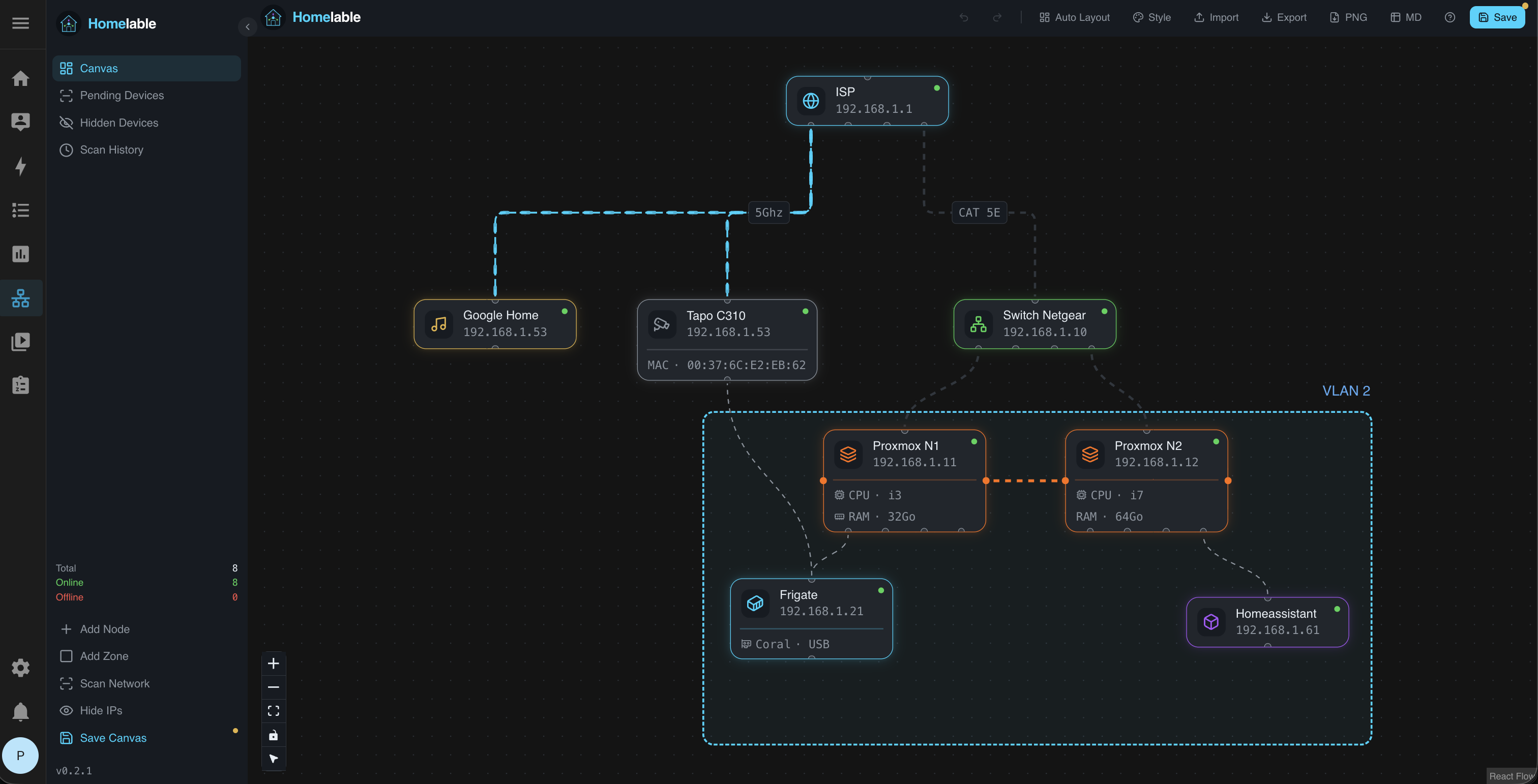
/docshttp://localhost:6151/docs Homelable is a self-hosted map of your homelab: scan your network, drop the devices it finds onto a canvas, and watch live health checks light up as your gear goes on and offline. This is Homelable in a single container, with the API and the web app behind one port and one data folder. The secret key and the admin password are made for you on first start.
Features
- One-click nmap network scans that queue new devices for you to approve onto the canvas
- 15+ node types: routers, switches, servers, hypervisors, firewalls, Docker hosts and containers, IoT and more
- Live status checks per node (ping, TCP, HTTP) with real-time updates
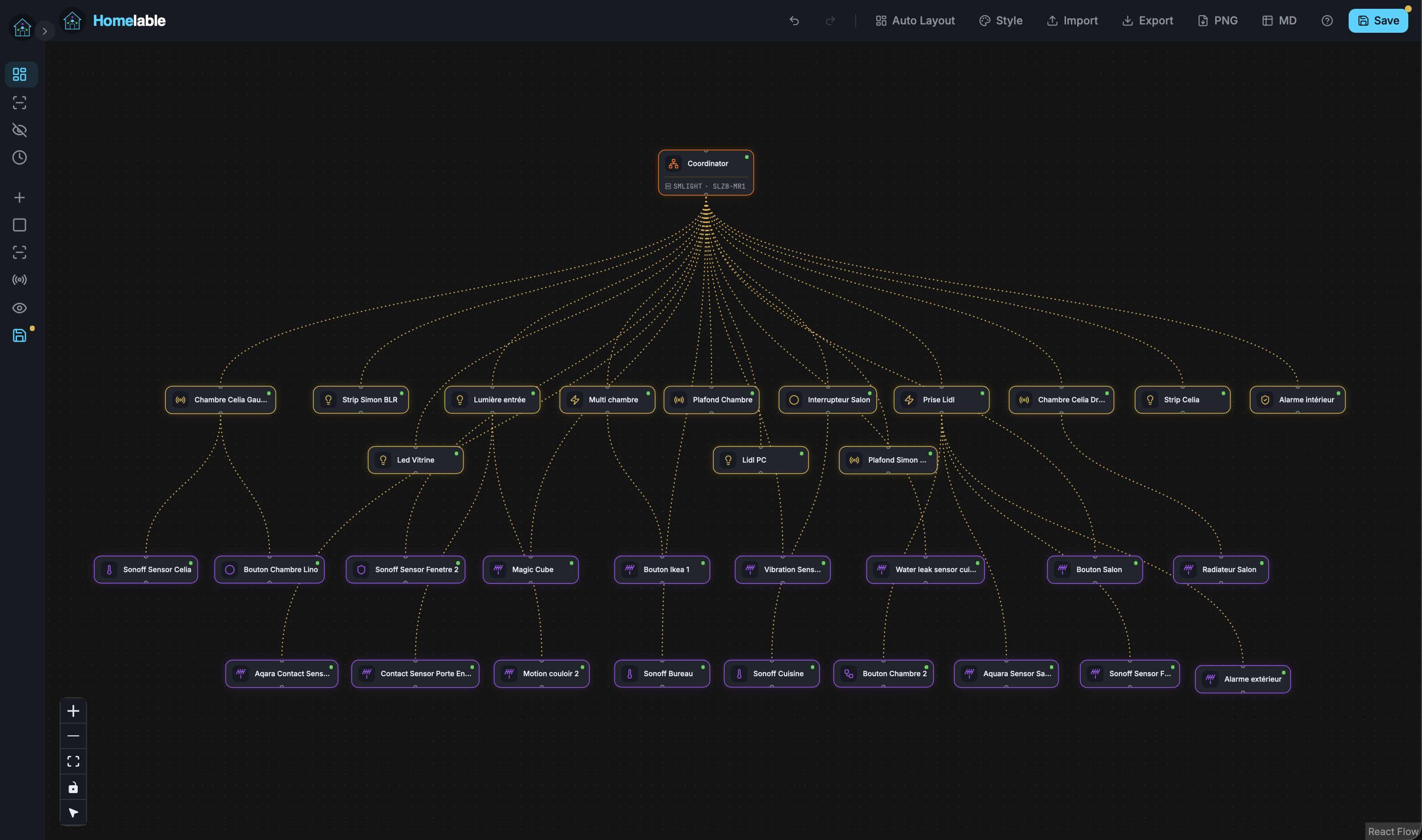
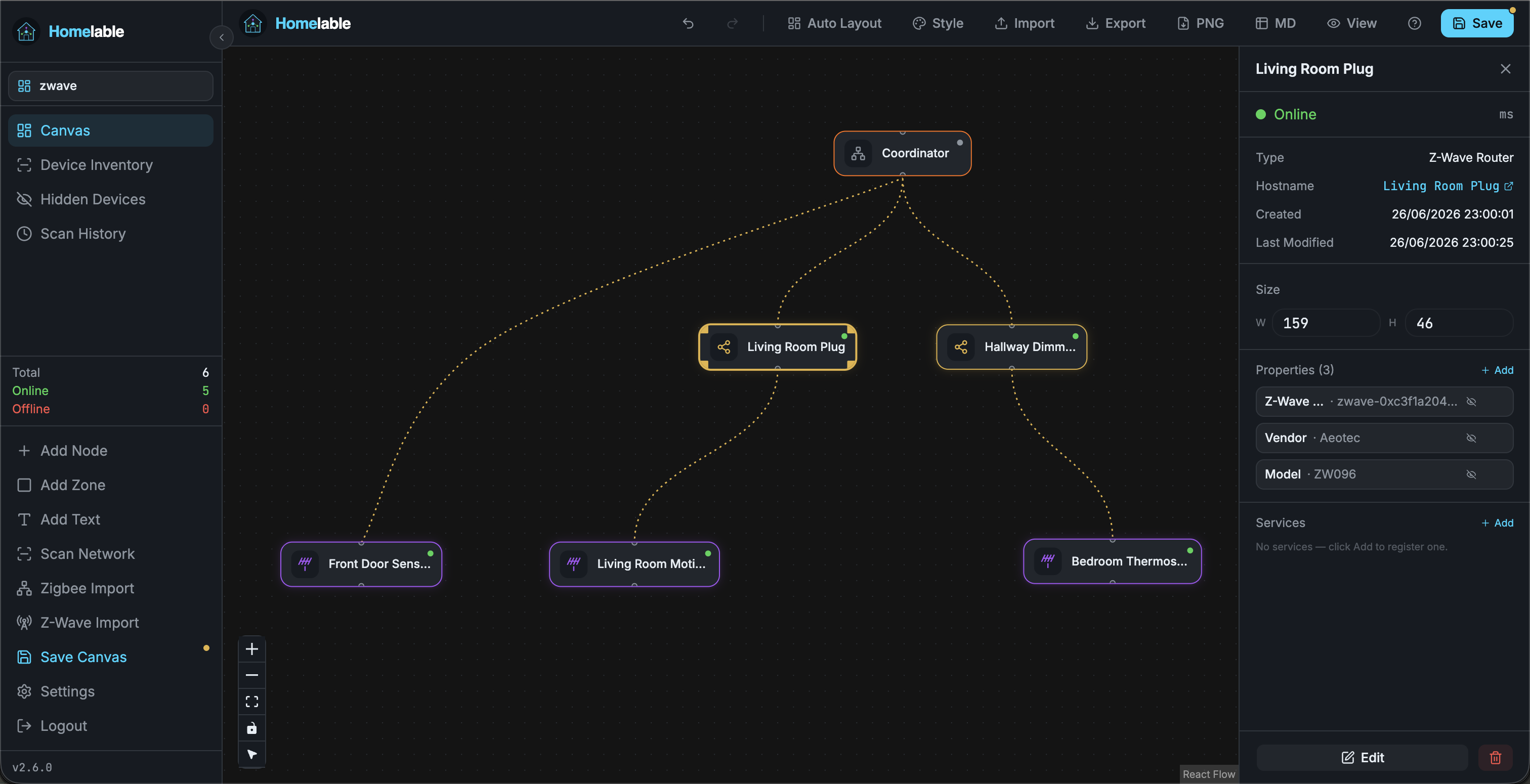
- Import Proxmox hosts and guests, Unraid, Zigbee2MQTT meshes and Z-Wave JS networks
- Rack view with port-to-port cabling, next to your network and electrical diagrams
- Sign in with a password or with your own OpenID Connect provider
How to use
- Open Homelable from your dashboard.
- Sign in as
admin. The password is in the app logs, on the line that says "admin login is". - Click Scan Network to find devices on your network, or add nodes by hand.
- Approve the devices you want from the Pending Devices list.
- Double-click a node to set its health check, icon and services.
- Scans run from inside the container, so device MAC addresses are not shown.
Before you install
PUBLIC_URL starts as http://localhost:6151; change localhost to your ZimaOS IP, like http://192.168.1.20:6151. Type a password in ADMIN_PASSWORD, or leave it empty and one is made for you: it is in the app logs on the line that says "admin login is", and in admin-password.txt in the data folder. You no longer need to make a bcrypt hash yourself. The first start takes about a minute. Scan ranges, Proxmox, Unraid, Zigbee and Z-Wave auto-sync and OpenID Connect sign-in are in the Variables tab; add them in the app settings.
The settings in the first table are already in the app settings. To use any other one, open the app settings, add the variable with your value, save, and the app restarts with it. A setting you leave out uses its default.
In the app settings
| Variable | Default value | Description |
|---|---|---|
TZ | $TZ | Your time zone. It is filled in from your ZimaOS time zone. Leave it unless you need another. |
PUBLIC_ | http://localhost:6151 | The address you open Homelable at, like http://192.168.1.20:6151. Change localhost to your ZimaOS IP. Use your own domain if you put Homelable behind HTTPS. |
ADMIN_ | — | The password for the admin login. Leave it empty and one is made for you on first start; it is shown in the app logs. Type your own to change it at any time. |
Sign-in
| Variable | Default value | Description |
|---|---|---|
AUTH_ | admin | The user name for the password login. |
AUTH_ | — | A bcrypt hash of your password, if you would rather not type the password itself. It wins over ADMIN_PASSWORD. Leave it out normally. |
ACCESS_ | 1440 | How long a password sign-in lasts, in minutes. |
Sign in with OpenID Connect
| Variable | Default value | Description |
|---|---|---|
AUTH_ | local | Set to oidc to sign in with your own identity provider (Authentik, Pocket ID, Keycloak...) instead of the password. |
OIDC_ | — | Your provider's discovery address, ending in /.well-known/openid-configuration. |
OIDC_ | — | The client ID from your provider. |
OIDC_ | — | The client secret from your provider. |
OIDC_ | <PUBLIC_URL>/api/v1/auth/oidc/callback | The callback address to register at your provider. It is made from PUBLIC_URL, so you rarely need to set it. |
OIDC_ | openid profile email | The scopes to ask for, separated by spaces. |
OIDC_ | true | Needs HTTPS for PUBLIC_URL and the provider. Set to false only to try OpenID Connect over plain HTTP on your own network. |
OIDC_ | 480 | How long an OpenID Connect sign-in lasts, in minutes (5 to 1440). |
Server
| Variable | Default value | Description |
|---|---|---|
CORS_ | ["<PUBLIC_URL>"] | Other browser addresses allowed to call the API directly, as a JSON list. The web app does not need it. |
Network scanner
| Variable | Default value | Description |
|---|---|---|
SCANNER_ | ["192.168.1.0/24"] | The networks the scanner starts with, as a JSON list like ["192.168.1.0/24","10.0.0.0/24"]. You can also change them in the app. |
SCANNER_ | [] | Extra ports for the deep scan, as a JSON list like ["8080","9000-9100"]. |
SCANNER_ | false | Set to true to look at web pages on found ports to name the service. |
SCANNER_ | false | Set to true to check HTTPS certificates during the deep scan. |
Status checks
| Variable | Default value | Description |
|---|---|---|
STATUS_ | 60 | How often every node is checked, in seconds. |
STATUS_ | true | Set to false when another tool does your monitoring. |
Sharing
| Variable | Default value | Description |
|---|---|---|
LIVEVIEW_ | — | Set a long random value to turn on a read-only canvas at /view?key=<value>, for a wall screen. |
DOCS_ | — | Set a long random value to turn on read-only documentation at /docs?key=<value>. Anyone with the link reads every document. |
HOMEPAGE_ | — | Set a random value to turn on the gethomepage widget at /api/v1/stats/summary (send it in the X-API-Key header). |
Proxmox auto-sync
| Variable | Default value | Description |
|---|---|---|
PROXMOX_ | — | Your Proxmox server, like 192.168.1.10. Only needed for auto-sync; one-off imports ask in the app. |
PROXMOX_ | 8006 | Your Proxmox API port. |
PROXMOX_ | — | The API token id, like root@pam!homelable. Give it the read-only PVEAuditor role. |
PROXMOX_ | — | The API token secret. |
PROXMOX_ | true | Set to false if Proxmox uses a self-signed certificate. |
Unraid auto-sync
| Variable | Default value | Description |
|---|---|---|
UNRAID_ | — | Your Unraid server, like 192.168.1.20. |
UNRAID_ | — | An Unraid API key with read access to Docker, VMs and Info. |
UNRAID_ | false | Set to true when Unraid's "Use SSL/TLS" is on. |
UNRAID_ | 80 | The Unraid web port (443 with HTTPS). |
UNRAID_ | false | Set to true once Unraid has a trusted certificate. |
Zigbee2MQTT auto-sync
| Variable | Default value | Description |
|---|---|---|
ZIGBEE_ | — | Your MQTT broker, like 192.168.1.20. |
ZIGBEE_ | 1883 | Your MQTT broker's port (usually 8883 with TLS). |
ZIGBEE_ | — | The MQTT user name, if your broker needs one. |
ZIGBEE_ | — | The MQTT password. |
ZIGBEE_ | zigbee2mqtt | The Zigbee2MQTT base topic. |
ZIGBEE_ | false | Set to true for a TLS broker. |
ZIGBEE_ | 300 | Seconds to wait for the network map. Raise it for a very large mesh. |
Z-Wave JS auto-sync
| Variable | Default value | Description |
|---|---|---|
ZWAVE_ | — | Your MQTT broker, like 192.168.1.20. |
ZWAVE_ | 1883 | Your MQTT broker's port. |
ZWAVE_ | — | The MQTT user name, if your broker needs one. |
ZWAVE_ | — | The MQTT password. |
ZWAVE_ | zwave | The Z-Wave JS UI MQTT prefix. |
ZWAVE_ | zwavejs2mqtt | The Z-Wave JS UI gateway name. |
ZWAVE_ | false | Set to true for a TLS broker. |
name: homelable
services:
homelable:
image: ghcr.io/hsinghhira/homelable:latest
container_name: homelable
restart: unless-stopped
stop_grace_period: 40s
privileged: true
environment:
- TZ=$TZ
- PUBLIC_URL=http://localhost:6151
- ADMIN_PASSWORD=
ports:
- target: 8080
published: "6151"
protocol: tcp
volumes:
- type: bind
source: /DATA/AppData/$AppID/data
target: /data
bind:
create_host_path: true
healthcheck:
test: ["CMD", "curl", "-fsS", "-o", "/dev/null", "http://127.0.0.1:8080/api/v1/health"]
interval: 30s
timeout: 10s
retries: 5
start_period: 90s
deploy:
resources:
limits:
cpus: "1.00"
memory: 768M
reservations:
cpus: "0.10"
memory: 128M
labels:
icon: https://cdn.jsdelivr.net/gh/HSinghHira/IceStore@main/Apps/homelable/icon.png
x-casaos:
id: com.icestore.homelable
envs:
- container: TZ
description:
en_US: >-
Your time zone. It is filled in from your ZimaOS time zone.
Leave it unless you need another.
- container: PUBLIC_URL
description:
en_US: >-
The address you open Homelable at, like http://192.168.1.20:6151.
Change localhost to your ZimaOS IP. Use your own domain if you
put Homelable behind HTTPS.
- container: ADMIN_PASSWORD
description:
en_US: >-
The password for the admin login. Leave it empty and one is made
for you on first start; it is shown in the app logs. Type your
own to change it at any time.
ports:
- container: "8080"
description:
en_US: Homelable web app and API, published on host as 6151
volumes:
- container: /data
description:
en_US: >-
The database (all canvases, devices and settings), uploaded floor
plans, the secret key and the admin password file.
x-casaos:
id: com.icestore.homelable
architectures:
- amd64
- arm64
main: homelable
author: HSinghHira
category: Networking
developer: Pouzor
icon: https://cdn.jsdelivr.net/gh/HSinghHira/IceStore@main/Apps/homelable/icon.png
thumbnail: https://cdn.jsdelivr.net/gh/HSinghHira/IceStore@main/Apps/homelable/screenshot-1.png
screenshot_link:
- https://cdn.jsdelivr.net/gh/HSinghHira/IceStore@main/Apps/homelable/screenshot-1.png
- https://cdn.jsdelivr.net/gh/HSinghHira/IceStore@main/Apps/homelable/screenshot-2.png
- https://cdn.jsdelivr.net/gh/HSinghHira/IceStore@main/Apps/homelable/screenshot-3.png
title:
en_US: Homelable
tagline:
en_US: Draw and monitor your whole homelab as a live, interactive diagram
description:
en_US: >-
Homelable is a self-hosted map of your homelab: scan your network, drop
the devices it finds onto a canvas, and watch live health checks light
up as your gear goes on and offline. This is Homelable in a single
container, with the API and the web app behind one port and one data
folder. The secret key and the admin password are made for you on first
start.
**Features**
- One-click nmap network scans that queue new devices for you to
approve onto the canvas
- 15+ node types: routers, switches, servers, hypervisors, firewalls,
Docker hosts and containers, IoT and more
- Live status checks per node (ping, TCP, HTTP) with real-time updates
- Import Proxmox hosts and guests, Unraid, Zigbee2MQTT meshes and
Z-Wave JS networks
- Rack view with port-to-port cabling, next to your network and
electrical diagrams
- Sign in with a password or with your own OpenID Connect provider
**How to use?**
1. Open Homelable from the Zima OS dashboard.
2. Sign in as admin. The password is in the app logs, on the line that
says "admin login is".
3. Click Scan Network to find devices on your network, or add nodes by
hand.
4. Approve the devices you want from the Pending Devices list.
5. Double-click a node to set its health check, icon and services.
6. Scans run from inside the container, so device MAC addresses are
not shown.
tips:
before_install:
en_US: >-
1. Open the app configuration before you install.
2. Find PUBLIC_URL. It starts as http://localhost:6151. Change
localhost to your ZimaOS IP, like http://192.168.1.20:6151.
3. Find ADMIN_PASSWORD. Type a password, or leave it empty to get one
made for you.
4. More settings, like the scan ranges, Proxmox import and OpenID
Connect sign-in, are listed on the Homelable page at
https://icestore.hsinghhira.me/app/homelable/ (Variables tab). You
can add them now or later in the app settings.
5. Start the installation.
6. Wait about one minute.
7. If you left ADMIN_PASSWORD empty, open the app logs and find the
line that says "admin login is". It shows the user name and
password.
8. Open http://your-zimaos-ip:6151 and sign in as admin.
9. Click Scan Network to find your devices.
index: /
port_map: "6151"
scheme: http
is_uncontrolled: false
version: "3.6.0"
update_at: "2026-10-25"
release_notes:
en_US: |-
- Single-container Homelable with one port (6151) and one data folder
- The secret key and admin password are made on first start; set ADMIN_PASSWORD to choose your own (no bcrypt hash needed)
- homelable-backend 3.6.0
- homelable-frontend 3.6.0
- The optional MCP server for AI clients is not included
repo: "https://github.com/Pouzor/homelable"
support: "https://github.com/Pouzor/homelable/issues"
docs: "https://github.com/Pouzor/homelable/blob/main/INSTALLATION.md" ZimaOS
 CasaOS
 Homeio