
Cal.diy
Booking links for your calendar, the self-hosted edition of Cal.com
- ghcr.io/hsinghhira/cal-diy:latest
- v6.2.0
- Updated 20 Nov 2026
- port 6749
- amd64
- Productivity
- 50.3k stars
Screenshots
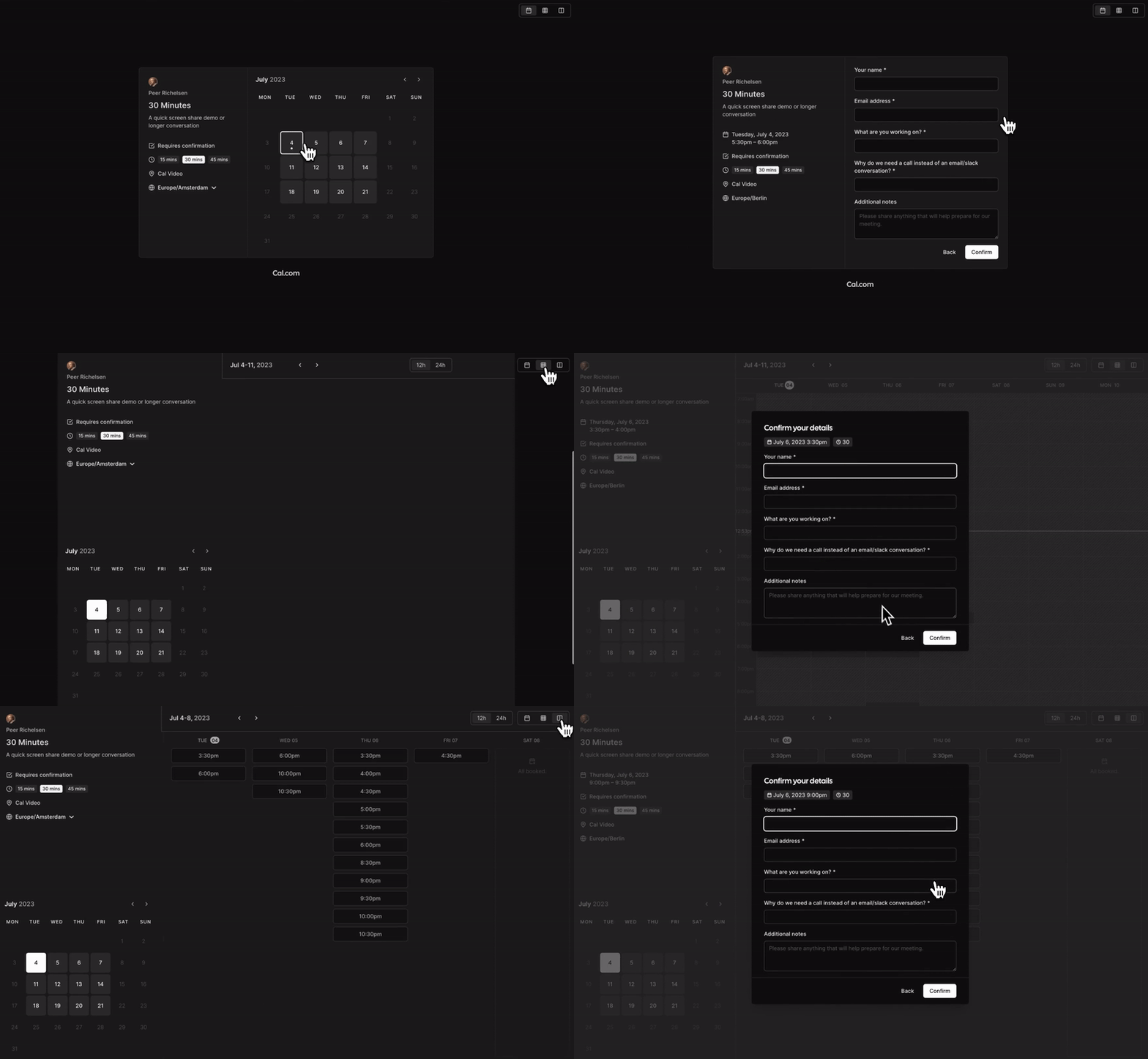
Open the app
About Cal.diy
Cal.diy is the open-source, self-hosted edition of Cal.com. Share a link, and people pick a free time in your calendar without the back and forth. PostgreSQL and a mail viewer are built in, so it is one container.
Features
- Booking pages with your event types: length, buffers, limits and questions
- Checks your Google, Outlook or CalDAV calendars so you are never double-booked
- Availability schedules, time zones and date overrides
- Teams with round-robin and collective events
- Workflows that send reminders, webhooks and an embed for your website
- A built-in mail viewer at
/mailshows every email while no email server is set
How to use
- Set
PUBLIC_URLtohttp://[ZIMAOS-IP-ADDRESS]:6749with your ZimaOS IP before you install. - Open Cal.diy. The setup page makes your admin account.
- Connect a calendar under Settings, Calendars, and set your working hours under Availability.
- Make an event type, like a 30 minute call.
- Copy its link and send it to people. Their bookings show up under Bookings.
Left out: the separate API v2 service, Redis and Prisma Studio. Only for amd64 (upstream's ARM image is a separate build).
Before you install
You must set PUBLIC_URL first. It starts as http://[ZIMAOS-IP-ADDRESS]:6749: replace [ZIMAOS-IP-ADDRESS] with your ZimaOS IP, like http://192.168.1.20:6749. Until you do, other devices see a page that tells them to. Behind a domain, use that address instead (https://cal.example.com).
The first start takes about 5 minutes. Then open your PUBLIC_URL: the setup page makes the admin account. Emails go to the mail viewer at http://[ZIMAOS-IP-ADDRESS]:6749/mail/ until you set an email server; its login is in the app's logs in the box marked CREDENTIALS. More settings (email server, Google, Outlook and Zoom) are in the Variables tab; add them in the app settings.
The settings in the first table are already in the app settings. To use any other one, open the app settings, add the variable with your value, save, and the app restarts with it. A setting you leave out uses its default.
In the app settings
| Variable | Default value | Description |
|---|---|---|
TZ | $TZ | Your time zone. It is filled in from your ZimaOS time zone. Leave it unless you need another. |
PUBLIC_ | http://[ZIMAOS-IP-ADDRESS]:6749 | Required. Replace [ZIMAOS-IP-ADDRESS] with your ZimaOS IP, like http://192.168.1.20:6749. It must be the exact address you open Cal.diy at; sign-in, booking links and emails use it. Behind a domain, use that instead, like https://cal.example.com. |
Email (SMTP)
| Variable | Default value | Description |
|---|---|---|
EMAIL_ | — | Your email server, like smtp.gmail.com. Leave it out to send every email to the built-in mail viewer at /mail instead. |
EMAIL_ | 587 | Your email server port. 465 uses TLS from the start. |
EMAIL_ | — | The user name for your email server. |
EMAIL_ | — | The password for your email server (for Gmail, an app password). |
EMAIL_ | [email protected] | The sender address on booking emails. |
EMAIL_ | Cal.diy | The sender name on booking emails. |
RESEND_ | — | Send emails with Resend instead of SMTP. Paste your Resend API key. |
Calendars and video
| Variable | Default value | Description |
|---|---|---|
GOOGLE_ | — | The JSON of your Google Cloud OAuth client, for Google Calendar and Meet. Add PUBLIC_URL/api/integrations/googlecalendar/callback as a redirect URI in Google Cloud. |
GOOGLE_ | false | Set to true (with GOOGLE_API_CREDENTIALS) to show "Sign in with Google". |
MS_ | — | The client ID of your Microsoft Entra app, for Outlook and Office 365 calendars. |
MS_ | — | The client secret of that Microsoft app. |
OUTLOOK_ | false | Set to true (with the Microsoft app) to show "Sign in with Outlook". |
ZOOM_ | — | The client ID of your Zoom app, for Zoom links in bookings. |
ZOOM_ | — | The client secret of that Zoom app. |
DAILY_ | — | Your Daily.co API key, for Cal Video meeting rooms. |
DAILY_ | — | Set to true if your Daily.co account is on the Scale plan. |
Bookings
| Variable | Default value | Description |
|---|---|---|
BLACKLISTED_ | — | Email addresses that may not book, separated by commas. |
Server
| Variable | Default value | Description |
|---|---|---|
ALLOWED_ | — | Host names Cal.diy accepts for organization subdomains, written as "cal.example.com". Most people leave it out. |
NEXTAUTH_ | — | Share the sign-in cookie across subdomains, like .example.com. Most people leave it out. |
CALCOM_ | 1 | Set to 0 to send anonymous usage numbers to Cal.com. |
Mail viewer
| Variable | Default value | Description |
|---|---|---|
MP_ | — | Your own login for the mail viewer at /mail, written as user:password. Leave it out for user admin and a password made on first start (shown in the CREDENTIALS box). |
MP_ | 500 | How many emails the mail viewer keeps. |
name: cal-diy

services:
  cal-diy:
    image: ghcr.io/hsinghhira/cal-diy:latest
    container_name: cal-diy
    restart: unless-stopped
    stop_grace_period: 90s
    privileged: true
    environment:
      - TZ=$TZ
      - PUBLIC_URL=http://[ZIMAOS-IP-ADDRESS]:6749
    ports:
      - target: 8080
        published: "6749"
        protocol: tcp
    volumes:
      - type: bind
        source: /DATA/AppData/$AppID/data
        target: /data
        bind:
          create_host_path: true
    healthcheck:
      test: ["CMD", "curl", "-fsS", "-o", "/dev/null", "http://127.0.0.1:8080/api/version"]
      interval: 30s
      timeout: 10s
      retries: 5
      start_period: 300s
    deploy:
      resources:
        limits:
          cpus: "2.00"
          memory: 3072M
        reservations:
          cpus: "0.25"
          memory: 768M
    labels:
      icon: https://cdn.jsdelivr.net/gh/HSinghHira/IceStore@main/Apps/cal-diy/icon.png
    x-casaos:
      id: com.icestore.cal-diy
      envs:
        - container: TZ
          description:
            en_US: >-
              Your time zone. It is filled in from your ZimaOS time zone.
              Leave it unless you need another.
        - container: PUBLIC_URL
          description:
            en_US: >-
              Required. Replace [ZIMAOS-IP-ADDRESS] with your ZimaOS IP, like
              http://192.168.1.20:6749. It must be the exact address you open
              Cal.diy at; sign-in, booking links and emails use it. Behind a
              domain, use that instead, like https://cal.example.com.
      ports:
        - container: "8080"
          description:
            en_US: Cal.diy web app, booking pages and mail viewer (/mail), published on host as 6749
      volumes:
        - container: /data
          description:
            en_US: >-
              The PostgreSQL database (users, event types, bookings, app
              keys) and state/secrets.env, this install's own keys made on
              first start. Back it up; stored calendar keys can't be read
              without the encryption key in it.

x-casaos:
  id: com.icestore.cal-diy
  architectures:
    - amd64
  main: cal-diy
  author: HSinghHira
  category: Productivity
  developer: Cal.com
  icon: https://cdn.jsdelivr.net/gh/HSinghHira/IceStore@main/Apps/cal-diy/icon.png
  thumbnail: https://cdn.jsdelivr.net/gh/HSinghHira/IceStore@main/Apps/cal-diy/screenshot-1.gif
  screenshot_link:
    - https://cdn.jsdelivr.net/gh/HSinghHira/IceStore@main/Apps/cal-diy/screenshot-1.gif
  title:
    en_US: Cal.diy
  tagline:
    en_US: Booking links for your calendar, the self-hosted edition of Cal.com
  description:
    en_US: >-
      Cal.diy is the open-source, self-hosted edition of Cal.com. Share a
      link, and people pick a free time in your calendar without the back
      and forth. PostgreSQL and a mail viewer are built in, so it is one
      container.


      **Features**


      - Booking pages with your event types: length, buffers, limits and
        questions

      - Checks your Google, Outlook or CalDAV calendars so you are never
        double-booked

      - Availability schedules, time zones and date overrides

      - Teams with round-robin and collective events

      - Workflows that send reminders, webhooks and an embed for your
        website

      - A built-in mail viewer at /mail shows every email while no email
        server is set


      **How to use?**


      1. Set PUBLIC_URL to http://[ZIMAOS-IP-ADDRESS]:6749 with your ZimaOS
         IP before you install.

      2. Open Cal.diy. The setup page makes your admin account.

      3. Connect a calendar under Settings, Calendars, and set your working
         hours under Availability.

      4. Make an event type, like a 30 minute call.

      5. Copy its link and send it to people. Their bookings show up under
         Bookings.


      Left out: the separate API v2 service, Redis and Prisma Studio. Only
      for amd64 (upstream's ARM image is a separate build).
  tips:
    before_install:
      en_US: >-
        1. You must do this first, or sign-in won't work. Find PUBLIC_URL
           in the settings. It says http://[ZIMAOS-IP-ADDRESS]:6749 now.


        2. Replace [ZIMAOS-IP-ADDRESS] with your ZimaOS IP. For example
           http://192.168.1.20:6749 is right.


        3. More settings, like your own email server and Google or Outlook
           calendars, are listed on the Cal.diy page at
           https://icestore.hsinghhira.me/app/cal-diy/ (Variables tab). You
           can add them now or later in the app settings.


        4. Start the installation. The first start takes about 5 minutes.


        5. Open your PUBLIC_URL address. The setup page asks for your name,
           email and a password. That makes the admin account.


        6. Emails go to the mail viewer at
           http://[ZIMAOS-IP-ADDRESS]:6749/mail/ until you set an email
           server. Its login is in the app's logs, in the box marked
           CREDENTIALS.
  index: /
  port_map: "6749"
  scheme: http
  is_uncontrolled: false
  version: "v6.2.0"
  update_at: "2026-11-20"
  release_notes:
    en_US: |-
      - First IceStore release, on port 6749
      - All in one container: calcom/cal.com v6.2.0, axllent/mailpit v1.34.0, PostgreSQL 17 and an nginx gateway
      - Each install makes its own NEXTAUTH_SECRET, CALENDSO_ENCRYPTION_KEY and database password on first start
      - The API v2 service, Redis and Prisma Studio are left out; amd64 only
  repo: "https://github.com/calcom/cal.diy"
  support: "https://github.com/calcom/cal.diy/issues"
  docs: "https://cal.com/docs/self-hosting/installation"
Install Cal.diy
Something not working with Cal.diy?
Report it so it gets fixed, or ask for an app that is not here yet.
 ZimaOS
Add the store link, then find Cal.diy in the App Store and install it.
 CasaOS
Add the store link, then find Cal.diy in the App Store and install it.
 ReCasaOS
Add the store link, then find Cal.diy in the App Store and install it.
 Homeio
Add the store link, then find Cal.diy in the App Store and install it.
 MOS
Add the repository in MOS Hub Settings, then find Cal.diy in Docker → MOS Hub and install it.


