
KyDNS
DNS for your home network with easy service names and ad blocking.
- ghcr.io/busnes-app/kydns-server:0.6.0.1
- v0.6.0.1
- Updated 9 Nov 2026
- port 6697
- port 53
- port 53
- amd64 · arm64
- Networking
- 1 stars
Screenshots
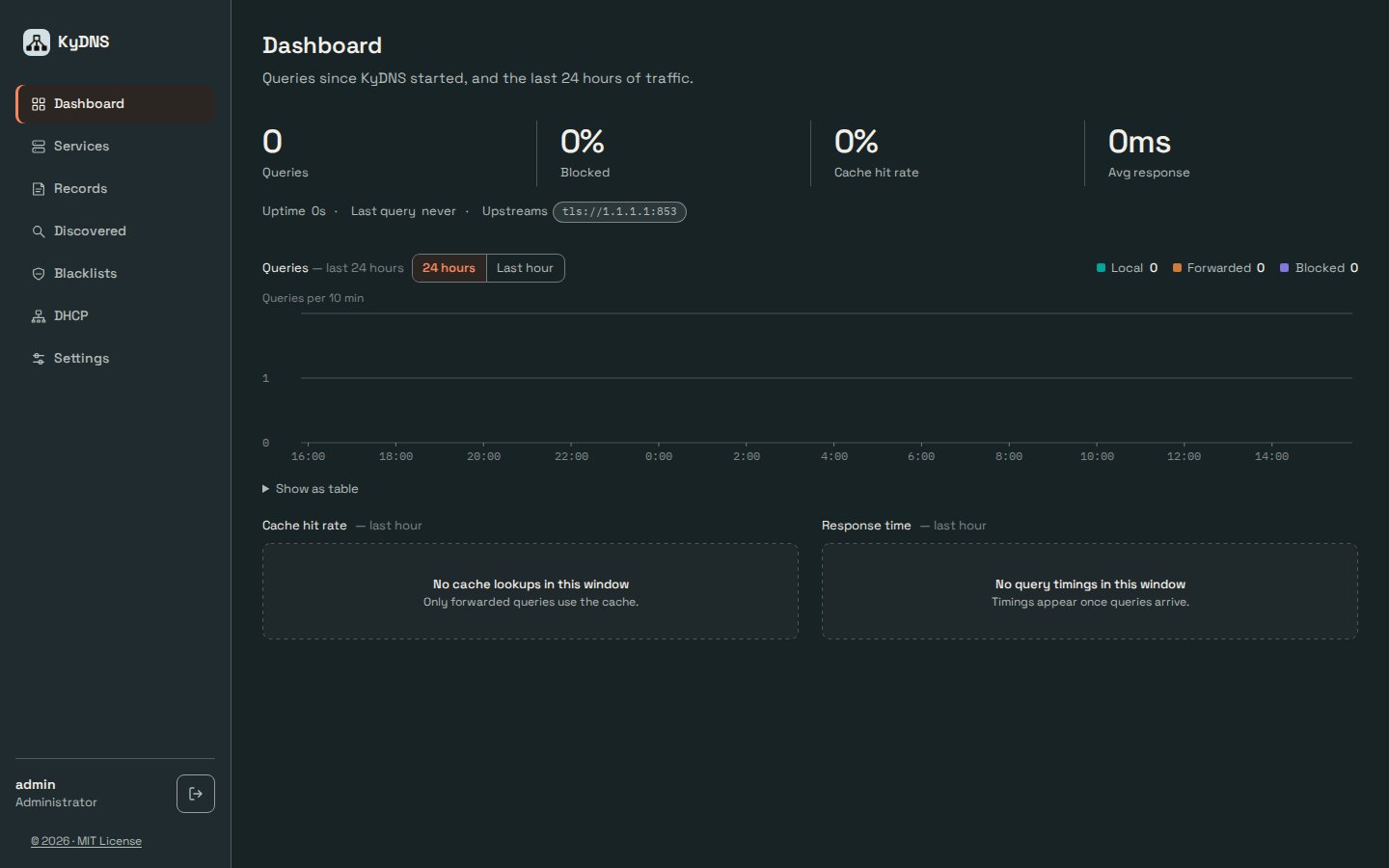
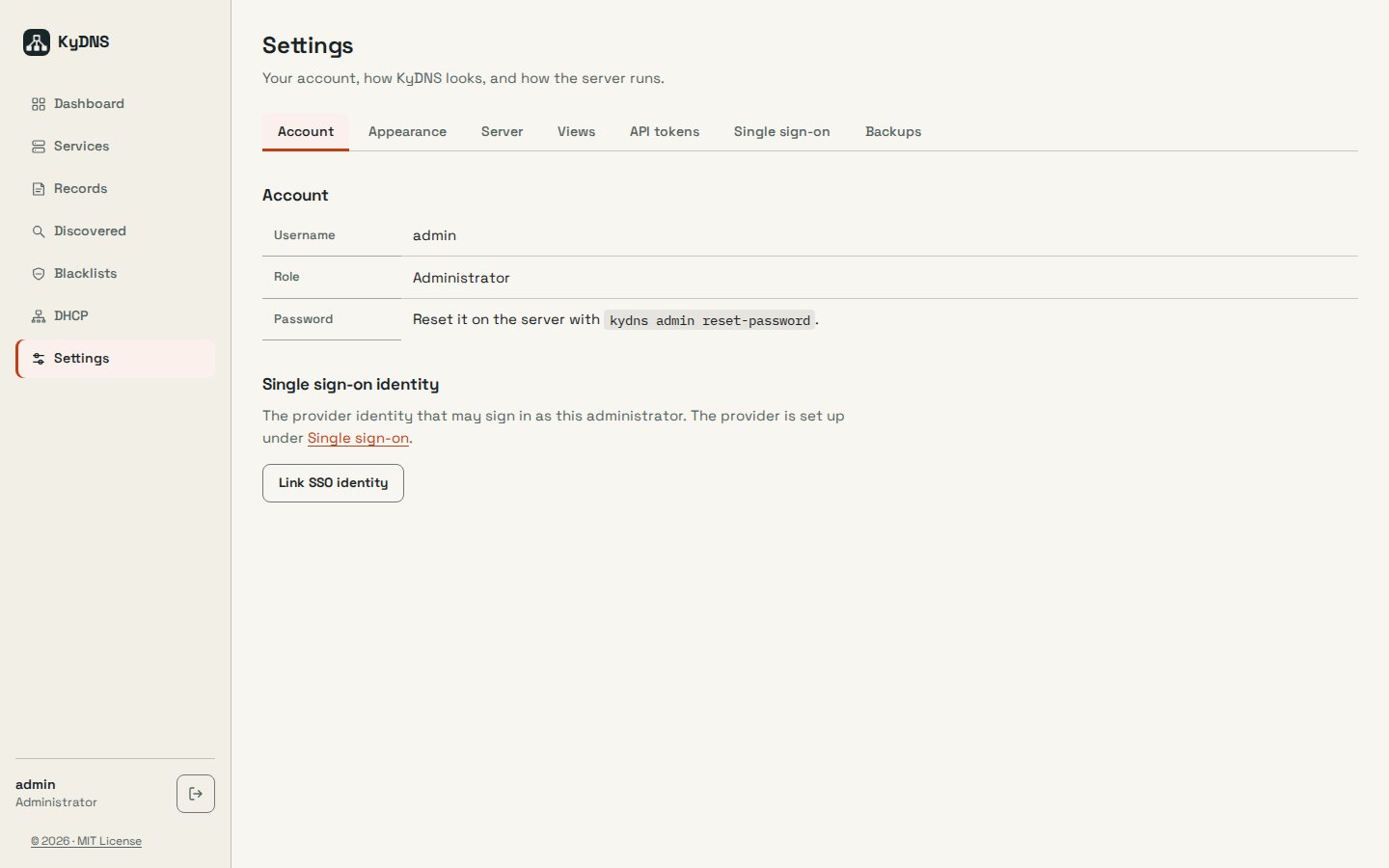
Open the app
About KyDNS
KyDNS is a DNS server and service directory for homes, homelabs and small teams. Give your services names like nas.home.arpa once, and every device on your network can reach them. It also blocks ads and trackers with built-in and your own block lists. Part of the Busnes Ky Suite; it works on its own.
Features
- Private service names, DNS records and per-network views
- Ad and tracker blocking with block lists, allow and deny rules
- Encrypted upstream DNS
- Query log and statistics
- Optional replication between two KyDNS servers, backups to KyRecovery and an MCP server for AI agents
How to use
- Copy the setup token from the app's logs.
- Open
http://[ZIMAOS-IP-ADDRESS]:6697/setup, enter the token and choose your admin password. - Add your services and names.
- Point a test device's DNS at your ZimaOS IP. When it works, set it in your router for every device.
Before you install
KyDNS answers DNS on port 53 of your ZimaOS box (UDP and TCP), so nothing else there may use it: stop AdGuard Home, Pi-hole or any other DNS app first. The admin page is on port 6697.
On the first start KyDNS prints a setup token in its logs and also writes it to setup-token in /DATA/AppData/kydns/data. Open http://[ZIMAOS-IP-ADDRESS]:6697/setup, enter it and choose a password. Test with one device before you change your router's DNS. Most settings (upstream resolvers, block lists, names) are changed on the admin page; the few others are in the Variables tab and are added in the app settings. The built-in DHCP server needs host networking, so it is not available here.
The settings in the first table are already in the app settings. To use any other one, open the app settings, add the variable with your value, save, and the app restarts with it. A setting you leave out uses its default.
In the app settings
| Variable | Default value | Description |
|---|---|---|
TZ | $TZ | Your time zone. It is filled in from your ZimaOS time zone. Leave it unless you need another. |
Admin page
| Variable | Default value | Description |
|---|---|---|
KYDNS_ | — | Extra names you open the admin page by, like kydns.home.arpa. It always answers on localhost and IP addresses. |
KYDNS_ | — | The address of a reverse proxy in front of the admin page, so KyDNS believes the visitor's IP from it. It does not limit who can connect. |
Backups
| Variable | Default value | Description |
|---|---|---|
KYDNS_ | 24h | How often KyDNS sends a sealed backup to a paired KyRecovery. |
KYDNS_ | — | A folder inside the container for local backups, like /var/lib/kydns/backups. |
KYDNS_ | 7 | How many local backups to keep. |
KYDNS_ | false | Set to true for a KyRecovery on your home network (it still needs https). |
name: kydns

services:
  kydns:
    image: ghcr.io/busnes-app/kydns-server:0.6.0.1
    container_name: kydns
    restart: unless-stopped
    stop_grace_period: 20s
    network_mode: bridge
    user: "0:0"
    environment:
      - TZ=$TZ
    ports:
      - target: 8053
        published: "6697"
        protocol: tcp
      - target: 53
        published: "53"
        protocol: udp
      - target: 53
        published: "53"
        protocol: tcp
    volumes:
      - type: bind
        source: /DATA/AppData/$AppID/data
        target: /var/lib/kydns
        bind:
          create_host_path: true
    deploy:
      resources:
        limits:
          cpus: "1.00"
          memory: 256M
        reservations:
          cpus: "0.00"
          memory: 32M
    labels:
      icon: https://cdn.jsdelivr.net/gh/HSinghHira/IceStore@main/Apps/kydns/icon.png
    x-casaos:
      id: com.icestore.kydns
      envs:
        - container: TZ
          description:
            en_US: >-
              Your time zone. It is filled in from your ZimaOS time zone.
              Leave it unless you need another.
      ports:
        - container: "8053"
          description:
            en_US: KyDNS admin web page and API, published on host as 6697
        - container: "53"
          description:
            en_US: >-
              DNS, published on host as 53 (UDP and TCP). Devices that use
              your ZimaOS as their DNS server ask here. Nothing else on the
              box may use port 53.
      volumes:
        - container: /var/lib/kydns
          description:
            en_US: >-
              The database (kydns.db) with your names, records and settings,
              and the setup-token and bootstrap-token files. Back it up.

x-casaos:
  id: com.icestore.kydns
  architectures:
    - amd64
    - arm64
  main: kydns
  author: HSinghHira
  category: Networking
  developer: Busnes-app
  icon: https://cdn.jsdelivr.net/gh/HSinghHira/IceStore@main/Apps/kydns/icon.png
  thumbnail: https://cdn.jsdelivr.net/gh/HSinghHira/IceStore@main/Apps/kydns/screenshot-1.jpg
  screenshot_link:
    - https://cdn.jsdelivr.net/gh/HSinghHira/IceStore@main/Apps/kydns/screenshot-1.jpg
    - https://cdn.jsdelivr.net/gh/HSinghHira/IceStore@main/Apps/kydns/screenshot-2.jpg
  title:
    en_US: KyDNS
  tagline:
    en_US: DNS for your home network with easy service names and ad blocking.
  description:
    en_US: >-
      Visit: [https://icestore.hsinghhira.me/app/kydns/](https://icestore.hsinghhira.me/app/kydns/) for full details


      KyDNS is a DNS server and service directory for homes, homelabs and
      small teams. Give your services names like nas.home.arpa once, and
      every device on your network can reach them. It also blocks ads and
      trackers with built-in and your own block lists. Part of the Busnes Ky
      Suite; it works on its own.


      **Features**


      - Private service names, DNS records and per-network views

      - Ad and tracker blocking with block lists, allow and deny rules

      - Encrypted upstream DNS

      - Query log and statistics

      - Optional replication between two KyDNS servers, backups to
        KyRecovery and an MCP server for AI agents


      **How to use?**


      1. Copy the setup token from the app's logs.


      2. Open http://[ZIMAOS-IP-ADDRESS]:6697/setup, enter the token and
         choose your admin password.


      3. Add your services and names.


      4. Point a test device's DNS at your ZimaOS IP. When it works, set it
         in your router for every device.
  tips:
    before_install:
      en_US: >-
        1. KyDNS needs port 53 on your ZimaOS box. Stop any other DNS app
           first (like AdGuard Home or Pi-hole), or the install fails.


        2. Start the installation. It is ready in a few seconds.


        3. Open the app's logs and copy the setup token (the line with
           setup-token). It is also in the setup-token file in the data
           folder (AppData, kydns, data).


        4. Open http://[ZIMAOS-IP-ADDRESS]:6697/setup, paste the token and
           choose your admin password.


        5. Test it from one device first: set that device's DNS server to
           your ZimaOS IP. When names work, set it in your router.


        6. More settings (backups, your proxy, extra admin names) are listed
           on the KyDNS page at https://icestore.hsinghhira.me/app/kydns/
           (Variables tab). You can add them now or later in the app
           settings.
  index: /
  port_map: "6697"
  scheme: http
  is_uncontrolled: false
  version: "0.6.0.1"
  update_at: "2026-11-09"
  release_notes:
    en_US: |-
      - First IceStore version: ghcr.io/busnes-app/kydns-server 0.6.0.1
      - Admin page on port 6697 and DNS on port 53 (UDP and TCP); the data folder is /DATA/AppData/kydns/data. Runs as root so it can use port 53 and write to that folder.
      - Uses the image's built-in config (data in /var/lib/kydns, admin on 0.0.0.0:8053). DHCP is not available in this setup.
  repo: "https://github.com/Busnes-app/KyDNS-server"
  support: "https://github.com/Busnes-app/KyDNS-server/issues"
  docs: "https://github.com/Busnes-app/KyDNS-server/blob/main/INSTALL.md"
Install KyDNS
Something not working with KyDNS?
Report it so it gets fixed, or ask for an app that is not here yet.
 ZimaOS
Add the store link, then find KyDNS in the App Store and install it.
 CasaOS
Add the store link, then find KyDNS in the App Store and install it.
 ReCasaOS
Add the store link, then find KyDNS in the App Store and install it.
 Homeio
Add the store link, then find KyDNS in the App Store and install it.
 MOS
Add the repository in MOS Hub Settings, then find KyDNS in Docker → MOS Hub and install it.


