
Fileship
Your own ShareX server and file cloud, with AI search that runs on your server.
- ghcr.io/hsinghhira/fileship:latest
- v6.3.1
- Updated 28 Oct 2026
- port 6131
- amd64 · arm64
- Productivity
- 59 stars
Screenshots
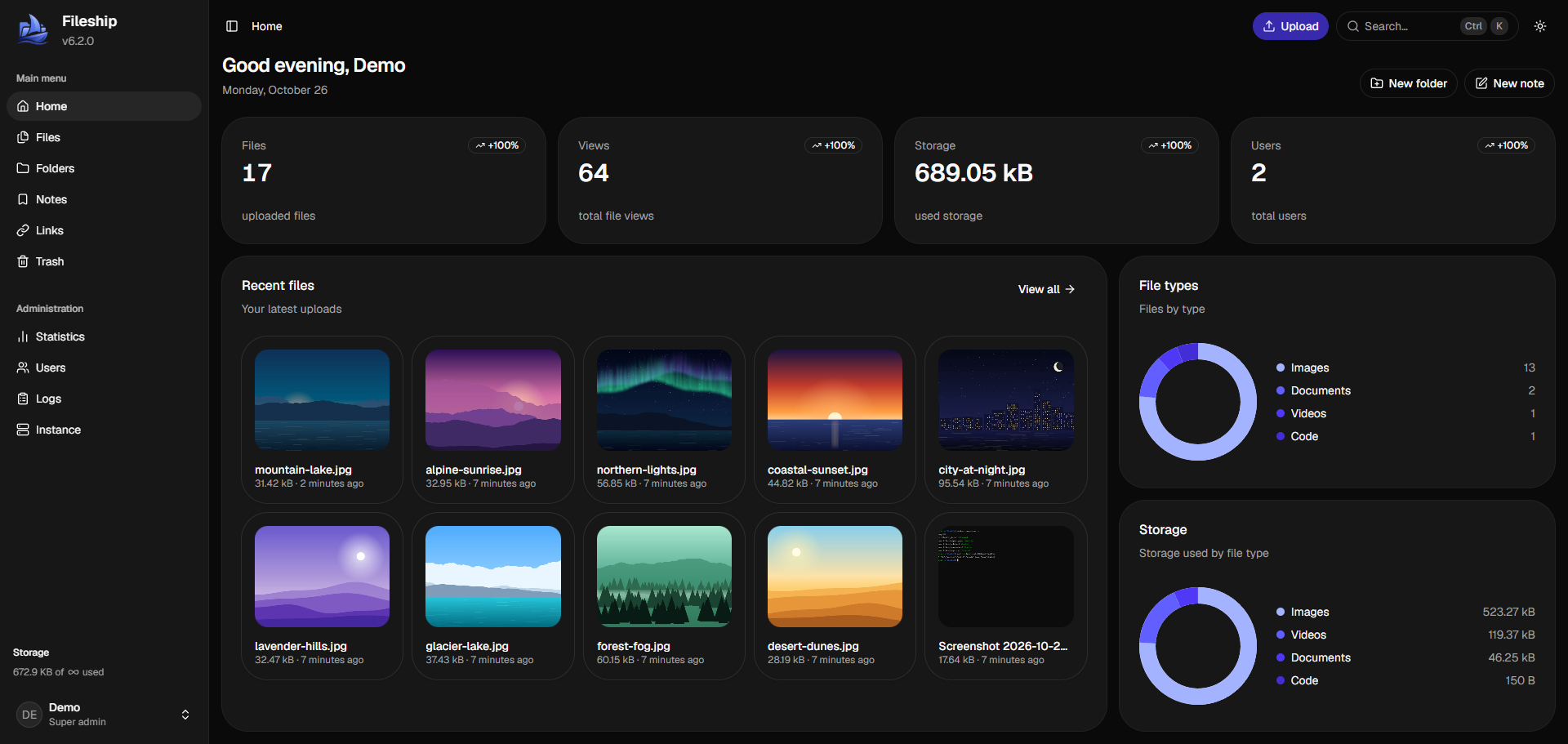
Open the app
About Fileship
Fileship is a self-hosted file and media platform: a ShareX upload server, a file cloud with folders and notes, short links and AI search that runs on your own server. This is Fileship in a single container, with PostgreSQL inside, one port and one data folder. The database passwords and the admin password are made for you on first start.
Features
- Files, nested shared folders, Markdown notes, short links and a trash
- Public sharing with passwords, expiry dates, view limits and rich embeds for Discord
- AI search, captions and OCR that run on your server (no GPU needed)
- Uploads on this server, or on S3, SFTP or FTP storage
- Many users with permissions, storage limits, passkeys, two-factor sign-in and single sign-on
- ShareX, browser extension, Windows app and phone app uploads
How to use
- Find the admin password in the app log, on the line that says "Fileship login is".
- Open Fileship from your dashboard and sign in as
admin. - Change the password in Settings, Security.
- Drop files on the page to upload them, or set up ShareX from Settings.
- Add other people in Administration, Users.
Before you install
Fileship works from any device at http://[ZIMAOS-IP-ADDRESS]:6131 with the defaults. PUBLIC_URL starts as http://localhost:6131; change it to http://[ZIMAOS-IP-ADDRESS]:6131 with your ZimaOS IP, like http://192.168.1.20:6131, or your own domain, so links in emails and single sign-on work. Leave ADMIN_PASSWORD blank to get a random one: it is in the app log on the line that says "Fileship login is", and in admin-password.txt in the app folder. It replaces upstream's default admin / password login, and is only used until you change the password in Fileship. The first start takes about two minutes. Sign-up, email, single sign-on, AI and the other settings are in the Variables tab; add them in the app settings. Settings saved in Administration, Instance win over them.
The AI preset starts at low (about 4 GB of memory). The app's memory limit is 4 GB; raise it in the app settings before you pick medium or high. One-click updates from the dashboard are off, because upstream's updater needs the Docker socket; the IceStore image follows new Fileship versions every week.
The settings in the first table are already in the app settings. To use any other one, open the app settings, add the variable with your value, save, and the app restarts with it. A setting you leave out uses its default.
In the app settings
| Variable | Default value | Description |
|---|---|---|
TZ | $TZ | Your time zone. It is filled in from your ZimaOS time zone. Leave it unless you need another. |
PUBLIC_ | http://localhost:6131 | The address you open Fileship at, like http://[ZIMAOS-IP-ADDRESS]:6131 (for example http://192.168.1.20:6131), or your own domain. Fileship works from any address without it, but links in emails and single sign-on only work once localhost is changed. |
ADMIN_ | — | The first password for the admin account. Leave it blank and the app makes one on first start and shows it in the app log. It is only used until you change the password in Fileship. |
Server
| Variable | Default value | Description |
|---|---|---|
NUXT_ | Fileship | The name shown in the browser title, embeds and the dashboard. |
NUXT_ | auto | Set to true to always give https links for uploads, like when Fileship is behind an HTTPS proxy that doesn't say so. |
Sign-up and accounts
| Variable | Default value | Description |
|---|---|---|
NUXT_ | false | Set to true to let anyone make an account from the sign-in page. |
NUXT_ | UploadFiles,TakeNotes,ShortenLinks | What people who sign up themselves may do, separated by commas: UploadFiles, TakeNotes, ShortenLinks. |
NUXT_ | -1 | Storage limit for people who sign up themselves, in MB. -1 means no limit. |
NUXT_ | — | Your Cloudflare Turnstile site key, to stop bots on the sign-in page. |
NUXT_ | — | Your Cloudflare Turnstile secret key. |
Email (SMTP)
| Variable | Default value | Description |
|---|---|---|
NUXT_ | — | Your mail server, like smtp.example.com. Email also needs NUXT_SMTP_FROM and PUBLIC_URL set to a real address. |
NUXT_ | 587 | The mail server's port. Usually 587 for starttls and 465 for tls. |
NUXT_ | starttls | starttls, tls or none. |
NUXT_ | — | The mail server user name. Leave it out if the server needs no sign-in. |
NUXT_ | — | The mail server password. |
NUXT_ | — | The sender address on emails, like [email protected]. |
Single sign-on (OIDC)
| Variable | Default value | Description |
|---|---|---|
NUXT_ | false | Set to true to sign in with an OpenID Connect provider like Pocket ID, Authentik or Google. Needs PUBLIC_URL set to a real address. The redirect URI is your PUBLIC_URL plus /api/auth/oidc/callback. |
NUXT_ | — | Your provider's issuer address, exactly as it publishes it, like https://id.example.com. |
NUXT_ | — | The client ID from your provider. |
NUXT_ | — | The client secret from your provider. Leave it out for a public client. |
NUXT_ | — | The provider name on the sign-in button, like Authentik. |
NUXT_ | false | Set to true to make an account for people who sign in through the provider and don't have one yet. |
NUXT_ | true | Set to false so everyone signs in through the provider. Super admins can still use their password. |
AI
| Variable | Default value | Description |
|---|---|---|
NUXT_ | true | Set to false to turn off AI search, captions and OCR. |
NUXT_ | low | low, medium or high. Higher finds more but needs more memory: about 4, 6 or 8 GB in all. Raise the app's memory limit for medium or high. |
NUXT_ | 1 | How many uploads the AI looks at at the same time. |
NUXT_ | 2 | How many CPU threads each AI job uses. |
Uploads
| Variable | Default value | Description |
|---|---|---|
NUXT_ | 25 | Size of each upload piece, in MB, at least 5. |
NUXT_ | 4 | The largest profile picture, in MB. |
NUXT_ | true | Set to false to keep photo details (EXIF, like location) in uploads. |
NUXT_ | 30 | Days deleted things stay in the trash. 0 deletes them right away. |
NUXT_ | true | Set to false to stop automatic account backups for everyone. |
Logs
| Variable | Default value | Description |
|---|---|---|
NUXT_ | true | Set to false to stop sending Fileship anonymous usage data. |
NUXT_ | 2 | 0, 1 or 2. Higher logs more. |
name: fileship

services:
  fileship:
    image: ghcr.io/hsinghhira/fileship:latest
    container_name: fileship
    restart: unless-stopped
    stop_grace_period: 90s
    privileged: true
    environment:
      - TZ=$TZ
      - PUBLIC_URL=http://localhost:6131
      - ADMIN_PASSWORD=
    ports:
      - target: 8080
        published: "6131"
        protocol: tcp
    volumes:
      - type: bind
        source: /DATA/AppData/$AppID/data
        target: /data
        bind:
          create_host_path: true
    healthcheck:
      test: ["CMD", "curl", "-fsS", "-o", "/dev/null", "http://127.0.0.1:8080/api/healthz"]
      interval: 30s
      timeout: 10s
      retries: 5
      start_period: 180s
    deploy:
      resources:
        limits:
          cpus: "4.00"
          memory: 4096M
        reservations:
          cpus: "0.25"
          memory: 512M
    labels:
      icon: https://cdn.jsdelivr.net/gh/HSinghHira/IceStore@main/Apps/fileship/icon.png
    x-casaos:
      id: com.icestore.fileship
      envs:
        - container: TZ
          description:
            en_US: >-
              Your time zone. It is filled in from your ZimaOS time zone.
              Leave it unless you need another.
        - container: PUBLIC_URL
          description:
            en_US: >-
              The address you open Fileship at, like
              http://[ZIMAOS-IP-ADDRESS]:6131 (for example
              http://192.168.1.20:6131), or your own domain. Fileship works
              from any address without it, but links in emails and single
              sign-on only work once localhost is changed.
        - container: ADMIN_PASSWORD
          description:
            en_US: >-
              The first password for the admin account. Leave it blank and
              the app makes one on first start and shows it in the app log.
              It is only used until you change the password in Fileship.
      ports:
        - container: "8080"
          description:
            en_US: Fileship dashboard, API, uploads and share links, published on host as 6131
      volumes:
        - container: /data
          description:
            en_US: >-
              Everything: the database, uploaded files, thumbnails, backups,
              AI models, Fileship's encryption key (fileship/secret.key),
              the database passwords and admin-password.txt. Back up the
              whole folder.

x-casaos:
  id: com.icestore.fileship
  architectures:
    - amd64
    - arm64
  main: fileship
  author: HSinghHira
  category: Productivity
  developer: hanzydev
  icon: https://cdn.jsdelivr.net/gh/HSinghHira/IceStore@main/Apps/fileship/icon.png
  thumbnail: https://cdn.jsdelivr.net/gh/HSinghHira/IceStore@main/Apps/fileship/screenshot-1.png
  screenshot_link:
    - https://cdn.jsdelivr.net/gh/HSinghHira/IceStore@main/Apps/fileship/screenshot-1.png
  title:
    en_US: Fileship
  tagline:
    en_US: Your own ShareX server and file cloud, with AI search that runs on your server.
  description:
    en_US: >-
      Fileship is a self-hosted file and media platform: a ShareX upload
      server, a file cloud with folders and notes, short links and AI search
      that runs on your own server. This is Fileship in a single container,
      with PostgreSQL inside, one port and one data folder. The database
      passwords and the admin password are made for you on first start.


      **Features**


      - Files, nested shared folders, Markdown notes, short links and a
        trash


      - Public sharing with passwords, expiry dates, view limits and rich
        embeds for Discord


      - AI search, captions and OCR that run on your server (no GPU
        needed)


      - Uploads on this server, or on S3, SFTP or FTP storage


      - Many users with permissions, storage limits, passkeys, two-factor
        sign-in and single sign-on


      - ShareX, browser extension, Windows app and phone app uploads


      **How to use?**


      1. Find the admin password in the app log, on the line that says
         "Fileship login is".


      2. Open Fileship from the Zima OS dashboard and sign in as admin.


      3. Change the password in Settings, Security.


      4. Drop files on the page to upload them, or set up ShareX from
         Settings.


      5. Add other people in Administration, Users.
  tips:
    before_install:
      en_US: >-
        1. Open the app configuration before you install.


        2. Optional: find PUBLIC_URL. Change localhost in it to your ZimaOS
           IP, so it reads http://[ZIMAOS-IP-ADDRESS]:6131 (like
           http://192.168.1.20:6131) and links in emails and single sign-on
           work. Fileship works from other devices either way.


        3. Leave ADMIN_PASSWORD blank to get a random one, or type your own.


        4. More settings, like sign-up, email, single sign-on and AI, are
           listed on the Fileship page at
           https://icestore.hsinghhira.me/app/fileship/ (Variables tab). You
           can add them now or later in the app settings.


        5. Start the installation.


        6. Wait about two minutes. The first start sets up the database.


        7. Open the app log. Find the line that says "Fileship login is". It
           shows the admin password. It is also in admin-password.txt in the
           app folder.


        8. Open http://[ZIMAOS-IP-ADDRESS]:6131 and sign in as admin with
           that password.


        9. Change the password in Settings, Security.
  index: /
  port_map: "6131"
  scheme: http
  is_uncontrolled: false
  version: "6.3.1"
  update_at: "2026-10-28"
  release_notes:
    en_US: |-
      - First release in IceStore: Fileship in a single container with one port (6131) and one data folder.
      - The database passwords and the admin password are made on first start, so each install gets its own. The default admin / password login is replaced.
      - The updater-agent is left out (it needs the Docker socket), so one-click updates from the dashboard are off. The IceStore image is updated to new Fileship versions every week instead.
      - The AI preset starts at low (upstream: medium) to use less memory. Change it with NUXT_AI_PRESET or in Administration, Instance.
      - ghcr.io/hanzydev/fileship 6.3.1
      - PostgreSQL 16 inside
  repo: "https://github.com/hanzydev/Fileship"
  support: "https://github.com/hanzydev/Fileship/issues"
  docs: "https://github.com/hanzydev/Fileship/tree/main/docs"
Install Fileship
 ZimaOS
Add the store link, then find Fileship in the App Store and install it.
 CasaOS
Add the store link, then find Fileship in the App Store and install it.
 Homeio
Add the store link, then find Fileship in the App Store and install it.
Something not working with Fileship? Report a problem or request another app.


