
Folbum
Turn your ZimaOS Photos folders into albums
- ghcr.io/theashutoshn/folbum:v0.2.1
- v0.2.1
- Updated 23 Nov 2026
- port 6799
- amd64 · arm64
- Media
- 0 stars
Screenshots
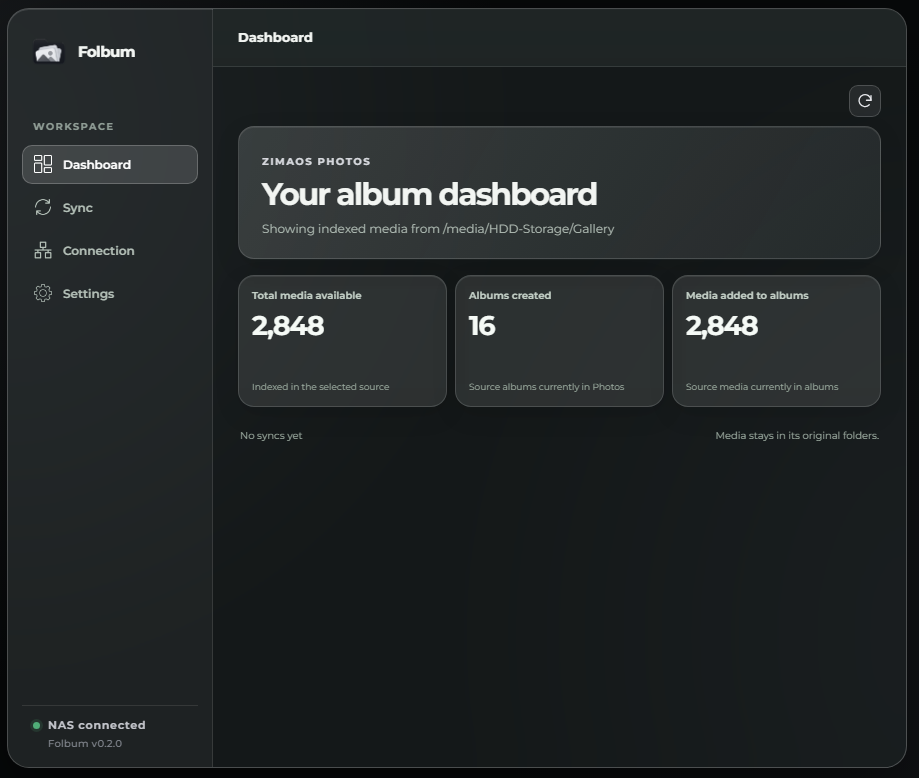
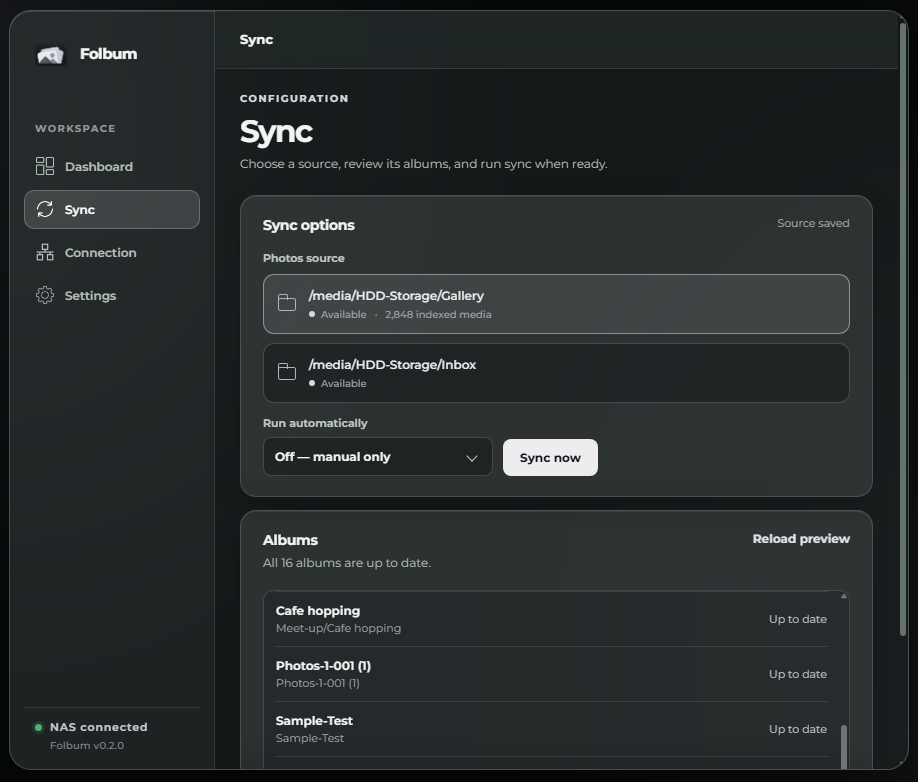
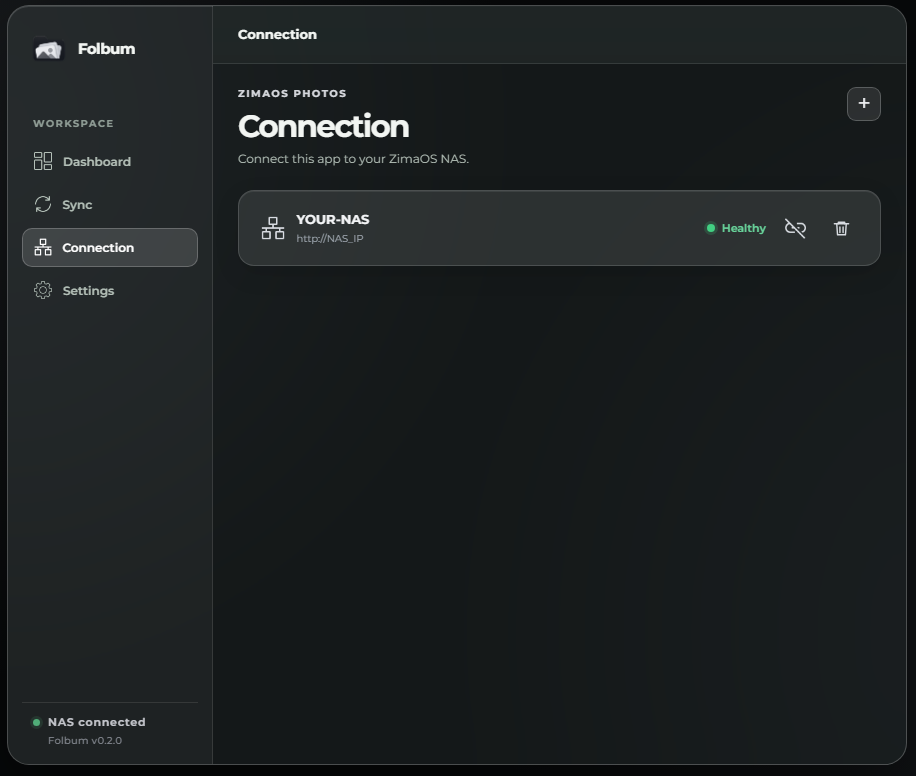
Open the app
About Folbum
Folbum makes an album in ZimaOS Photos for every folder that Photos has indexed. Each album is named after its folder and points at the original photos and videos, so nothing is copied or moved. Preview the changes, sync, and let it keep the albums up to date.
Features
- One album per media folder, named after the folder (two folders with the same name are told apart by their paths)
- Preview what will be made or updated before you sync
- Repeat syncs add new files and keep what is already there
- Automatic sync on a timer
- Optional Dashboard check of files on disk against the Photos index
How to use
- Open Folbum from your dashboard and make your account.
- In Connection, press + and enter your ZimaOS address and login. Tick Keep NAS connected to keep it after restarts.
- In Sync, pick a Photos source, read the preview and run the sync.
- Open ZimaOS Photos to see your new albums. Pick an automatic sync interval in Folbum to keep them current.
Before you install
Right after installing, open http://[ZIMAOS-IP-ADDRESS]:6799 and make your account (the password needs at least 12 characters); until you do, anyone on your network can. In Connection, use http://[ZIMAOS-IP-ADDRESS] as the NAS address: inside the container, localhost is Folbum itself. Folbum is an unofficial helper for ZimaOS Photos and needs Photos installed. Your account, settings and saved ZimaOS sign-in are in /DATA/AppData/folbum/data; keep that folder private. For the Dashboard disk check, add DISK_GALLERY_ROOT and DISK_SOURCE_PATH in the app settings, both set to the source path shown in Sync (like /media/HDD-Storage/Gallery); /DATA and /media are shared read-only for it.
The settings in the first table are already in the app settings. To use any other one, open the app settings, add the variable with your value, save, and the app restarts with it. A setting you leave out uses its default.
In the app settings
| Variable | Default value | Description |
|---|---|---|
TZ | $TZ | Your time zone. It is filled in from your ZimaOS time zone. |
DATA_ | /app/data | Where Folbum keeps its account, settings and sync history inside the container. Leave it as /app/data. |
Dashboard disk check
| Variable | Default value | Description |
|---|---|---|
DISK_ | — | The folder Folbum walks to compare files on disk with the Photos index, like /media/HDD-Storage/Gallery. /DATA and /media are already shared read-only. Leave blank to turn the check off. |
DISK_ | — | The Photos source path exactly as Folbum shows it in Sync, like /media/HDD-Storage/Gallery. The check only runs for this source. Leave blank to turn the check off. |
name: folbum

services:
  folbum:
    image: ghcr.io/theashutoshn/folbum:v0.2.1
    container_name: folbum
    user: "0:0"
    restart: unless-stopped
    network_mode: bridge
    environment:
      - TZ=$TZ
      - DATA_DIR=/app/data
    ports:
      - target: 8765
        published: "6799"
        protocol: tcp
    volumes:
      - type: bind
        source: /DATA/AppData/$AppID/data
        target: /app/data
        bind:
          create_host_path: true
      - type: bind
        source: /DATA
        target: /DATA
        read_only: true
      - type: bind
        source: /media
        target: /media
        read_only: true
    tmpfs:
      - /tmp:size=16m
    security_opt:
      - no-new-privileges:true
    healthcheck:
      test: ["CMD", "python", "-c", "import urllib.request; urllib.request.urlopen('http://127.0.0.1:8765/api/health',timeout=5)"]
      interval: 30s
      timeout: 6s
      retries: 3
      start_period: 20s
    deploy:
      resources:
        limits:
          memory: 256M
        reservations:
          memory: 32M
    labels:
      icon: https://cdn.jsdelivr.net/gh/HSinghHira/IceStore@main/Apps/folbum/icon.png
    x-casaos:
      id: com.icestore.folbum
      envs:
        - container: TZ
          description:
            en_US: >-
              Your time zone. It is filled in from your ZimaOS time zone.
        - container: DATA_DIR
          description:
            en_US: >-
              Where Folbum keeps its account, settings and sync history
              inside the container. Leave it as /app/data.
      ports:
        - container: "8765"
          description:
            en_US: Folbum web app, published on host as 6799
      volumes:
        - container: /app/data
          description:
            en_US: >-
              Your Folbum account, settings, sync history and saved ZimaOS
              sign-in. Keep it private and back it up.
        - container: /DATA
          description:
            en_US: >-
              Your ZimaOS storage, read-only at the same path. Only the
              optional Dashboard disk check reads it; Folbum never changes
              your photos.
        - container: /media
          description:
            en_US: >-
              Your other ZimaOS disks, read-only at the same path, like
              /media/HDD-Storage/Gallery. Only the optional Dashboard disk
              check reads it.

x-casaos:
  id: com.icestore.folbum
  architectures:
    - amd64
    - arm64
  main: folbum
  author: HSinghHira
  category: Media
  developer: Ashutosh
  icon: https://cdn.jsdelivr.net/gh/HSinghHira/IceStore@main/Apps/folbum/icon.png
  thumbnail: https://cdn.jsdelivr.net/gh/HSinghHira/IceStore@main/Apps/folbum/screenshot-1.png
  screenshot_link:
    - https://cdn.jsdelivr.net/gh/HSinghHira/IceStore@main/Apps/folbum/screenshot-1.png
    - https://cdn.jsdelivr.net/gh/HSinghHira/IceStore@main/Apps/folbum/screenshot-2.png
    - https://cdn.jsdelivr.net/gh/HSinghHira/IceStore@main/Apps/folbum/screenshot-3.png
  title:
    en_US: Folbum
  tagline:
    en_US: Turn your ZimaOS Photos folders into albums
  description:
    en_US: >-
      Folbum makes an album in ZimaOS Photos for every folder that Photos
      has indexed. Each album is named after its folder and points at the
      original photos and videos, so nothing is copied or moved. Preview
      the changes, sync, and let it keep the albums up to date.


      **Features**


      - One album per media folder, named after the folder

      - Preview what will be made or updated before you sync

      - Repeat syncs add new files and keep what is already there

      - Automatic sync on a timer

      - Optional Dashboard check of files on disk against the Photos index


      **How to use?**


      1. Open Folbum from the ZimaOS dashboard and make your account.

      2. In Connection, press + and enter your ZimaOS address and login.

      3. In Sync, pick a Photos source, read the preview and run the sync.

      4. Open ZimaOS Photos to see your new albums.
  tips:
    before_install:
      en_US: >-
        1. Start the installation. It is ready in a few seconds.


        2. Right away, open Folbum and make your account. The password needs
           at least 12 characters. Until you do, anyone on your network can.


        3. In Connection, use http://[ZIMAOS-IP-ADDRESS] as the address, not
           localhost. Then type your ZimaOS username and password.


        4. Folbum is an unofficial helper. It only makes albums; your photos
           stay where they are.
  index: /
  port_map: "6799"
  scheme: http
  is_uncontrolled: false
  version: "0.2.1"
  update_at: "2026-11-23"
  release_notes:
    en_US: |-
      - First IceStore release, on port 6799 (upstream uses 8765)
      - The official ghcr.io/theashutoshn/folbum v0.2.1 image
      - Runs as root so it can write its ZimaOS data folder, replacing upstream's one-time permissions container
      - /DATA and /media are shared read-only for the optional Dashboard disk check
  repo: "https://github.com/theashutoshn/Folbum"
  support: "https://github.com/theashutoshn/Folbum/issues"
  docs: "https://github.com/theashutoshn/Folbum#readme"
Install Folbum
Something not working with Folbum?
Report it so it gets fixed, or ask for an app that is not here yet.
 ZimaOS
Add the store link, then find Folbum in the App Store and install it.
 CasaOS
Add the store link, then find Folbum in the App Store and install it.
 ReCasaOS
Add the store link, then find Folbum in the App Store and install it.
 Homeio
Add the store link, then find Folbum in the App Store and install it.
 MOS
Add the repository in MOS Hub Settings, then find Folbum in Docker → MOS Hub and install it.


