
Gotify
Send and receive push notifications through a simple API.
- ghcr.io/hsinghhira/gotify:latest
- v3.1.1
- Updated 16 Nov 2026
- port 6730
- amd64 · arm64
- Others
- 16.2k stars
Screenshots
Open the app
About Gotify
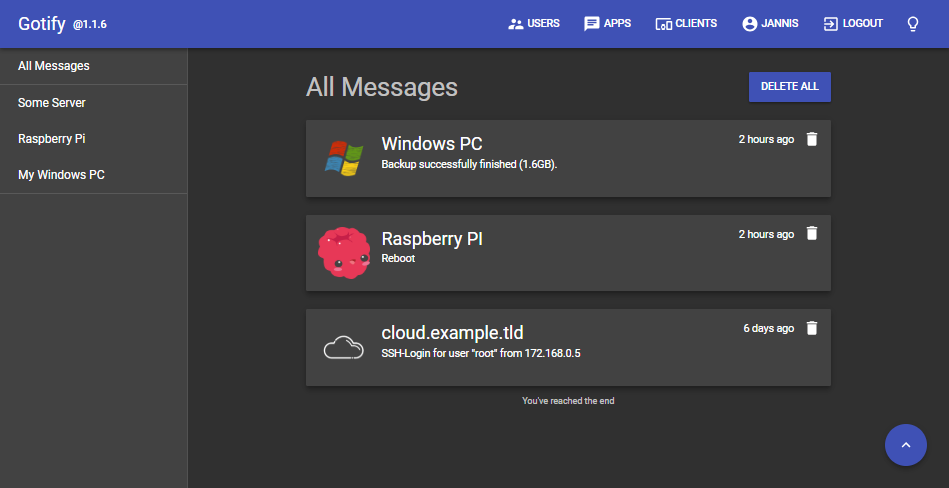
Gotify is your own push notification server. Scripts, backups, the *arr apps, Home Assistant and many other tools send it a message with one web request, and you get it at once in the web page or the Android app.
Features
- Send a message with one curl command or any HTTP client
- Live messages in the browser and the Android app (WebSocket)
- One token per sending app, with its own name and picture
- Several users, each with their own apps and clients
- Optional sign-in with OIDC (Authentik, Pocket ID, Keycloak and others)
- Plugins to add features
How to use
- Open
http://[ZIMAOS-IP-ADDRESS]:6730and sign in as admin. The password is in the app's logs, in the box marked CREDENTIALS. - Go to Apps, create an app and copy its token.
- Send a test message:
curl "http://[ZIMAOS-IP-ADDRESS]:6730/message?token=YOUR_TOKEN" -F "title=Hello" -F "message=It works" - Install the Gotify Android app and sign in with the same address to get messages on your phone.
Before you install
Leave GOTIFY_DEFAULTUSER_PASS blank and the app makes a random admin password on first start. It is printed in the app's logs, in the box marked CREDENTIALS, and saved in /DATA/AppData/gotify/data/password.txt. It is only used on the very first start: change it later in Gotify under Users. Sign-up, OIDC sign-in and the other settings are in the Variables tab; add them in the app settings. It starts in a few seconds.
The settings in the first table are already in the app settings. To use any other one, open the app settings, add the variable with your value, save, and the app restarts with it. A setting you leave out uses its default.
In the app settings
| Variable | Default value | Description |
|---|---|---|
TZ | $TZ | Your time zone. It is filled in from your ZimaOS time zone. Leave it unless you need another. |
GOTIFY_ | admin | The name of the first admin user, made on the very first start. admin is fine. |
GOTIFY_ | — | The first admin's password. Leave it blank and the app makes a random one on first start; find it in the app's logs, in the box marked CREDENTIALS. Only used on the very first start; change it later in Gotify under Users. |
Sign-up and accounts
| Variable | Default value | Description |
|---|---|---|
GOTIFY_ | false | Set to true to let anyone with the address make their own account. |
GOTIFY_ | 10 | How hard passwords are hashed (bcrypt cost). Higher is safer but slower to sign in. |
GOTIFY_ | true | Set to false to turn off username and password sign-in, so only OIDC works. |
Sign in with OIDC
| Variable | Default value | Description |
|---|---|---|
GOTIFY_ | false | Set to true to add a sign-in button for your OIDC provider (Authentik, Pocket ID, Keycloak and others). |
GOTIFY_ | — | The provider's issuer address, like https://auth.example.com/application/o/gotify/. |
GOTIFY_ | — | The client ID from your provider. |
GOTIFY_ | — | The client secret from your provider. |
GOTIFY_ | — | Gotify's callback address, like http://192.168.1.20:6730/auth/oidc/callback. Add the same address in your provider. |
GOTIFY_ | true | Set to false so only people who already have a Gotify account can sign in with OIDC. |
GOTIFY_ | — | Groups from your provider whose members become Gotify admins, comma separated. |
GOTIFY_ | OIDC | The name shown on the sign-in button. |
Server
| Variable | Default value | Description |
|---|---|---|
GOTIFY_ | — | Addresses of reverse proxies in front of Gotify, comma separated, so it sees each visitor's real address. |
GOTIFY_ | false | Set to true when you only open Gotify over https. |
GOTIFY_ | — | Other web addresses allowed to open the live message stream, comma separated. |
Features
| Variable | Default value | Description |
|---|---|---|
GOTIFY_ | true | Set to false to turn off the built-in MCP server for AI assistants. |
Logs
| Variable | Default value | Description |
|---|---|---|
GOTIFY_ | info | debug, info, warn or error. |
name: gotify

services:
  gotify:
    image: ghcr.io/hsinghhira/gotify:latest
    container_name: gotify
    restart: unless-stopped
    stop_grace_period: 20s
    network_mode: bridge
    environment:
      - TZ=$TZ
      - GOTIFY_DEFAULTUSER_NAME=admin
      - GOTIFY_DEFAULTUSER_PASS=
    ports:
      - target: 80
        published: "6730"
        protocol: tcp
    volumes:
      - type: bind
        source: /DATA/AppData/$AppID/data
        target: /app/data
        bind:
          create_host_path: true
    healthcheck:
      test: ["CMD", "curl", "-fsS", "http://127.0.0.1:80/health"]
      interval: 30s
      timeout: 5s
      retries: 3
      start_period: 20s
    deploy:
      resources:
        limits:
          cpus: "0.50"
          memory: 256M
        reservations:
          cpus: "0.00"
          memory: 16M
    labels:
      icon: https://cdn.jsdelivr.net/gh/HSinghHira/IceStore@main/Apps/gotify/icon.png
    x-casaos:
      id: com.icestore.gotify
      envs:
        - container: TZ
          description:
            en_US: >-
              Your time zone. It is filled in from your ZimaOS time zone.
              Leave it unless you need another.
        - container: GOTIFY_DEFAULTUSER_NAME
          description:
            en_US: >-
              The name of the first admin user, made on the very first start.
              admin is fine.
        - container: GOTIFY_DEFAULTUSER_PASS
          description:
            en_US: >-
              The first admin's password. Leave it blank and the app makes a
              random one on first start; find it in the app's logs, in the
              box marked CREDENTIALS. Only used on the very first start;
              change it later in Gotify under Users.
      ports:
        - container: "80"
          description:
            en_US: Gotify web page and API, published on host as 6730
      volumes:
        - container: /app/data
          description:
            en_US: >-
              Gotify's database, app images, plugins and the first admin
              password (password.txt). Back this folder up.

x-casaos:
  id: com.icestore.gotify
  architectures:
    - amd64
    - arm64
  main: gotify
  author: HSinghHira
  category: Others
  developer: Gotify
  icon: https://cdn.jsdelivr.net/gh/HSinghHira/IceStore@main/Apps/gotify/icon.png
  screenshot_link:
    - https://cdn.jsdelivr.net/gh/HSinghHira/IceStore@main/Apps/gotify/screenshot-1.png
  thumbnail: https://cdn.jsdelivr.net/gh/HSinghHira/IceStore@main/Apps/gotify/screenshot-1.png
  title:
    en_US: Gotify
  tagline:
    en_US: Send and receive push notifications through a simple API.
  description:
    en_US: >-
      Visit: [https://icestore.hsinghhira.me/app/gotify/](https://icestore.hsinghhira.me/app/gotify/) for full details


      Gotify is your own push notification server. Scripts, backups, the
      *arr apps, Home Assistant and many other tools send it a message with
      one web request, and you get it at once in the web page or the
      Android app.


      **Features**


      - Send a message with one curl command or any HTTP client

      - Live messages in the browser and the Android app (WebSocket)

      - One token per sending app, with its own name and picture

      - Several users, each with their own apps and clients

      - Optional sign-in with OIDC (Authentik, Pocket ID, Keycloak and others)

      - Plugins to add features


      **How to use?**


      1. Open http://[ZIMAOS-IP-ADDRESS]:6730 and sign in as admin. The
         password is in the app's logs, in the box marked CREDENTIALS.


      2. Go to Apps, create an app and copy its token.


      3. Send a test message to
         http://[ZIMAOS-IP-ADDRESS]:6730/message?token=YOUR_TOKEN with a
         title and a message field.


      4. Install the Gotify Android app and sign in with the same address to
         get messages on your phone.
  tips:
    before_install:
      en_US: >-
        1. Leave GOTIFY_DEFAULTUSER_PASS blank to get a random password, or
           type your own.


        2. Start the installation. It is ready in a few seconds.


        3. Your login details and the app's address are in the app's logs,
           in the box marked CREDENTIALS. It is printed again on every start.


        4. Open http://[ZIMAOS-IP-ADDRESS]:6730 in your browser, like
           http://192.168.1.20:6730 on your laptop, and sign in.


        5. More settings, like sign-up and OIDC sign-in, are listed on the
           Gotify page at https://icestore.hsinghhira.me/app/gotify/
           (Variables tab). You can add them now or later in the app
           settings.
  index: /
  port_map: "6730"
  scheme: http
  is_uncontrolled: false
  version: "3.1.1"
  update_at: "2026-11-16"
  release_notes:
    en_US: |-
      - First IceStore version, built on gotify/server 3.1.1
      - Each install makes its own random admin password on first start instead of admin/admin
      - Web page and API on port 6730
  repo: "https://github.com/gotify/server"
  support: "https://github.com/gotify/server/issues"
  docs: "https://gotify.net/docs/"
Install Gotify
Something not working with Gotify?
Report it so it gets fixed, or ask for an app that is not here yet.
 ZimaOS
Add the store link, then find Gotify in the App Store and install it.
 CasaOS
Add the store link, then find Gotify in the App Store and install it.
 ReCasaOS
Add the store link, then find Gotify in the App Store and install it.
 Homeio
Add the store link, then find Gotify in the App Store and install it.
 MOS
Add the repository in MOS Hub Settings, then find Gotify in Docker → MOS Hub and install it.


