
Mealie
Recipe manager and meal planner that imports recipes from any site
- ghcr.io/hsinghhira/mealie:latest
- v3.31.0
- Updated 21 Nov 2026
- port 6767
- amd64 · arm64
- Home
- 14k stars
Screenshots
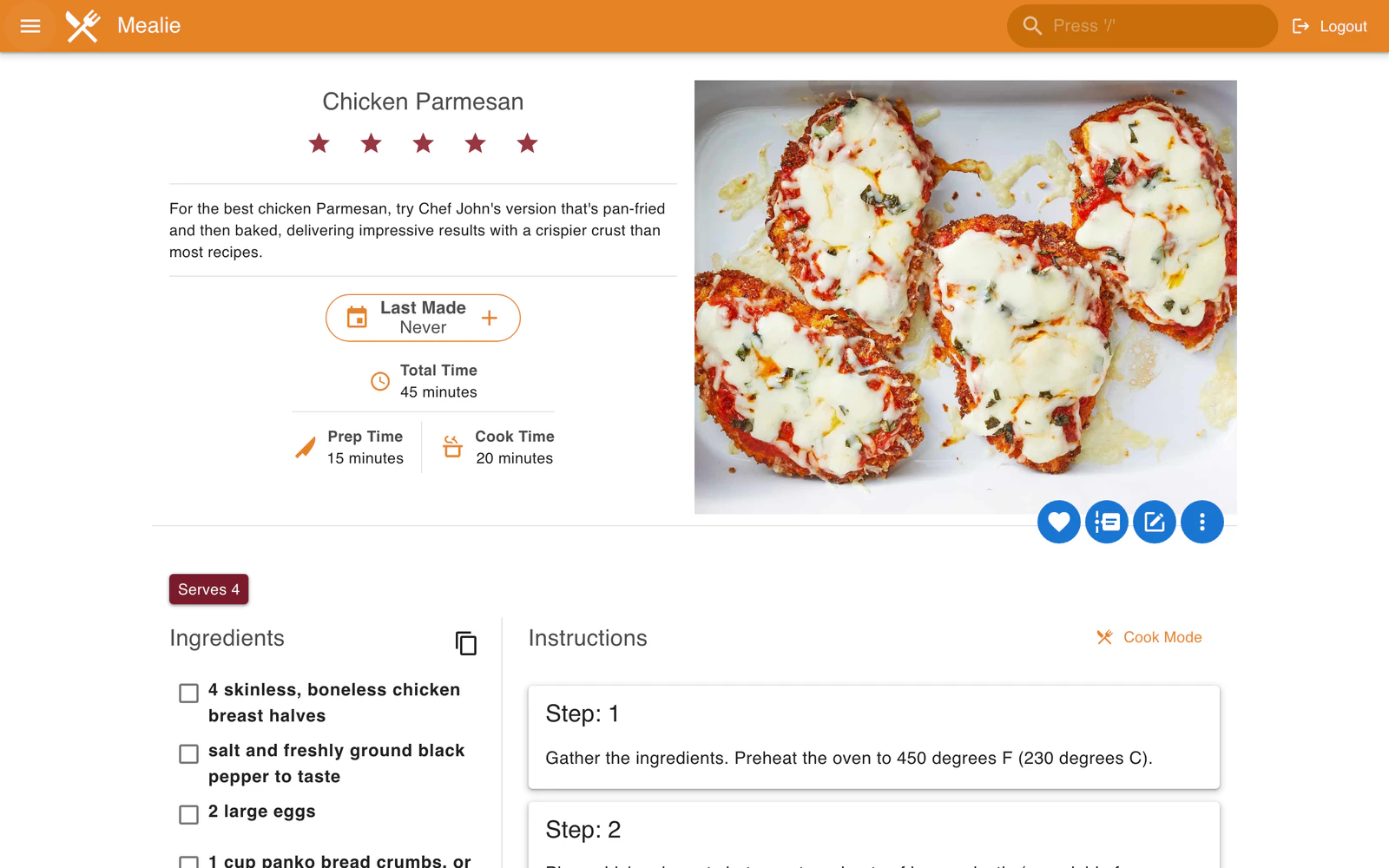
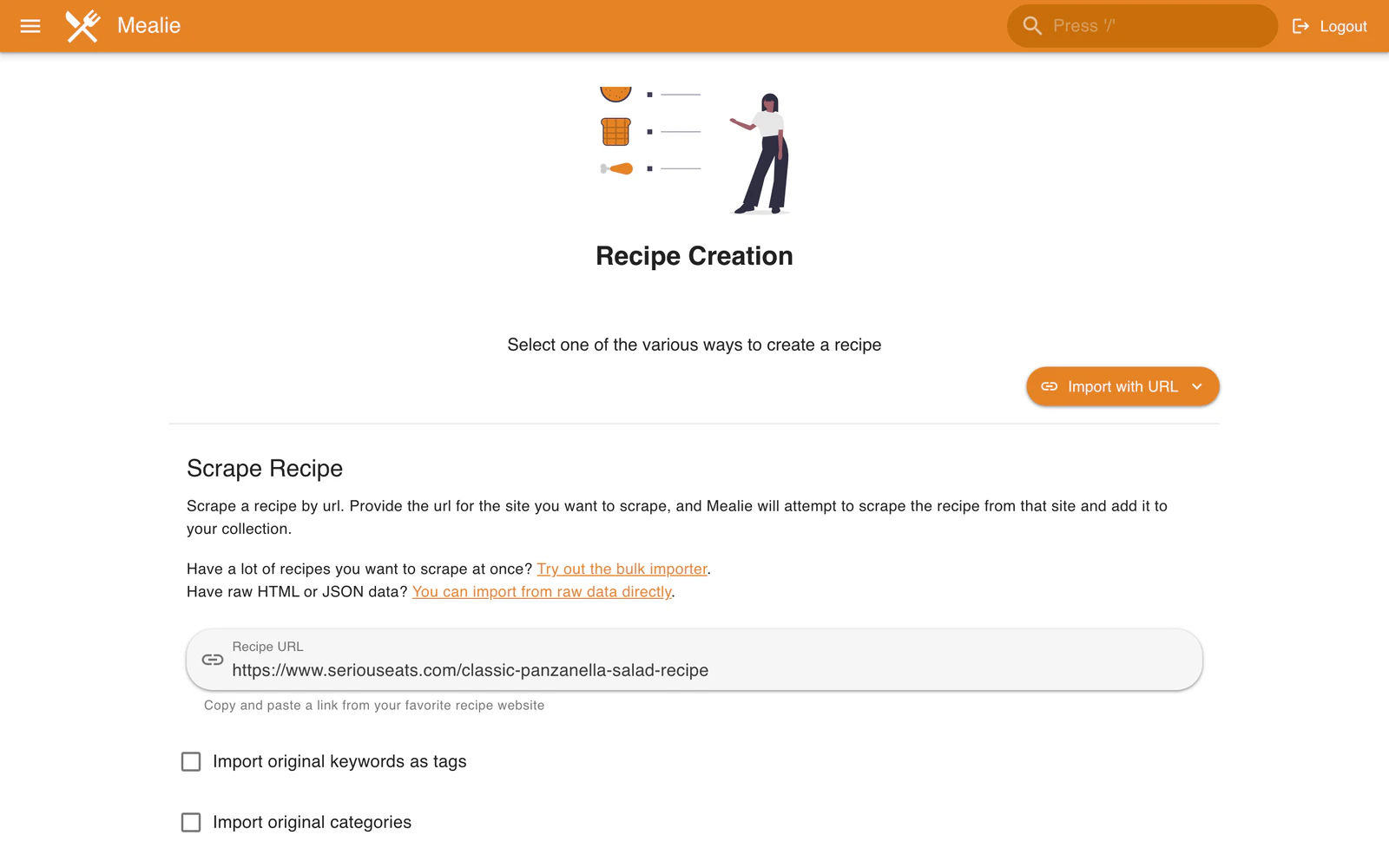
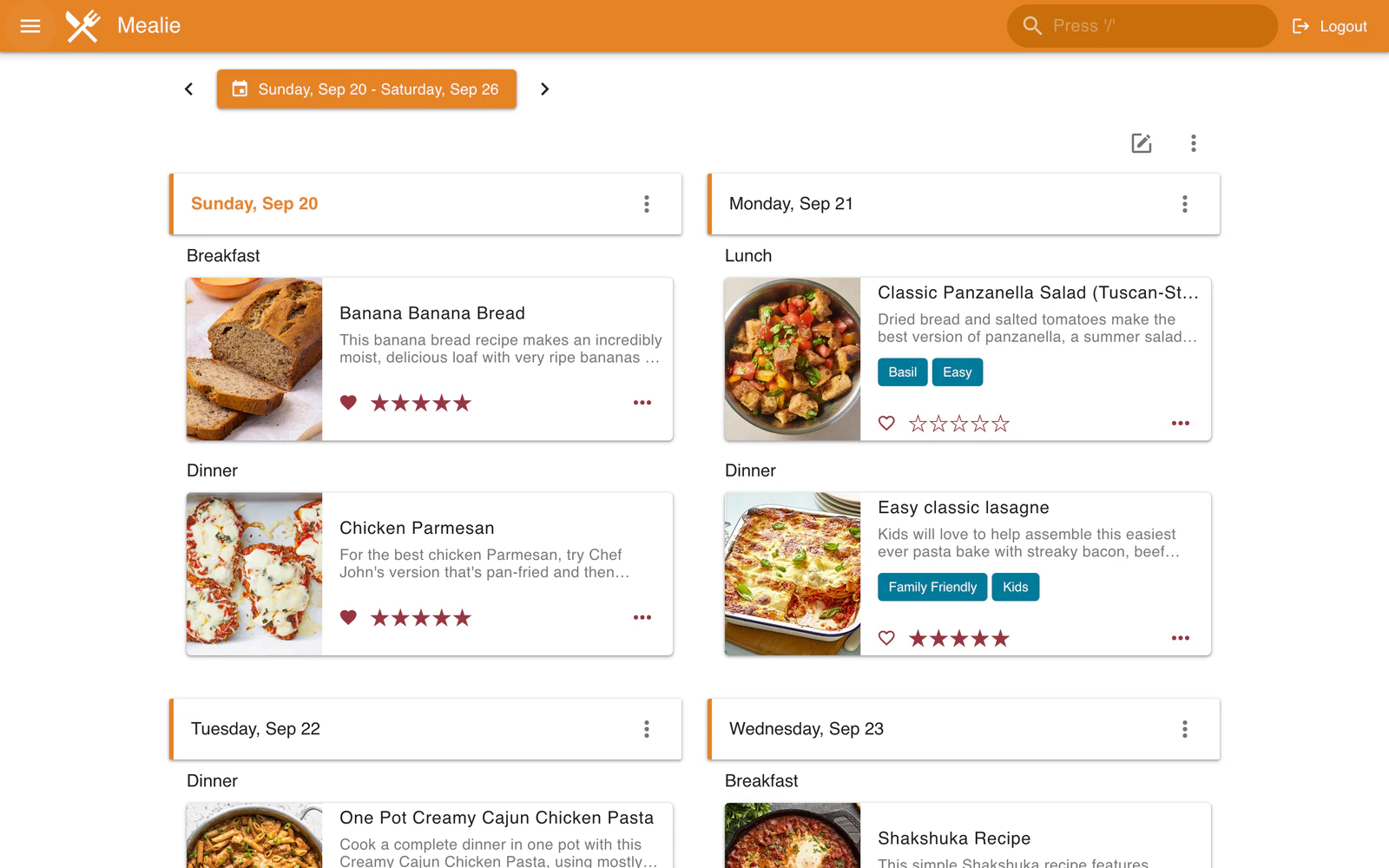
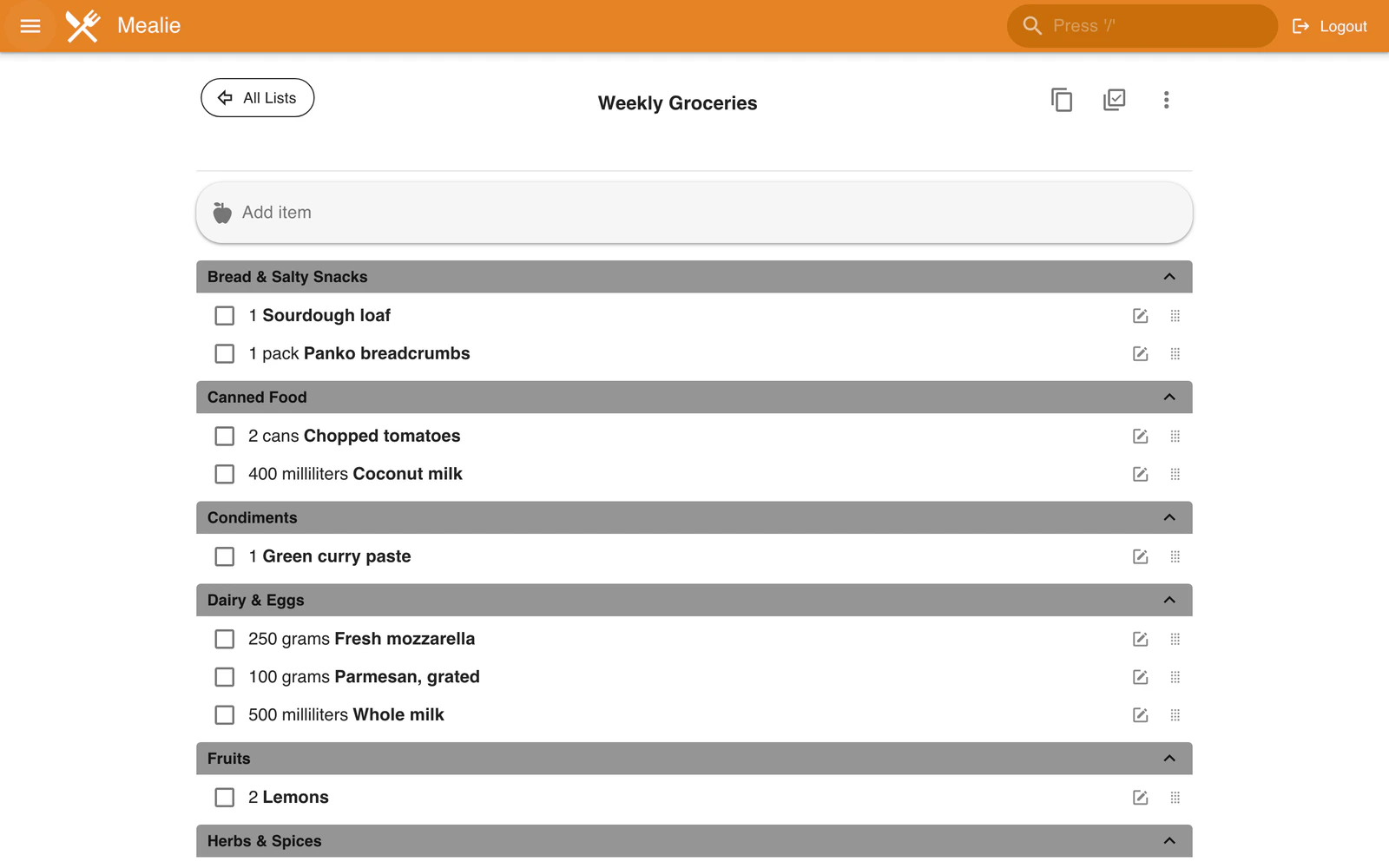
Open the app
About Mealie
Mealie keeps your family's recipes in one place. Paste a link from any recipe site and Mealie saves the ingredients, steps and picture, then helps you plan the week's meals and make the shopping list. The database is built in, so it is one container with nothing else to set up.
Features
- Import recipes from a link, by hand, or from a photo with AI
- Meal planner for the week, with rules for each day
- Shopping lists made from your meal plan
- Scale recipes, cooking mode and nutrition facts
- Households and groups for family and friends
- Home Assistant card, REST API and webhooks
How to use
- Open Mealie from your dashboard.
- Sign in as [email protected] with the password from the app's logs (the box marked CREDENTIALS).
- Follow the setup steps, then change your email and password in your profile.
- Click Create, then Import, and paste a link to a recipe.
- Open the Meal Planner to plan your week.
Before you install
You can install it as it is and open it at http://[ZIMAOS-IP-ADDRESS]:6767. Mealie's first admin is [email protected]; instead of the well-known default password, this app gives it a password made on first start, shown in the app's logs in the box marked CREDENTIALS and saved in /DATA/AppData/mealie/data/.admin_password. Change the email and password in your profile. Change localhost in BASE_URL to your ZimaOS IP for working links in emails. Email, sign-in with OIDC and AI are in the Variables tab and are added in the app settings. It is ready in about a minute.
The settings in the first table are already in the app settings. To use any other one, open the app settings, add the variable with your value, save, and the app restarts with it. A setting you leave out uses its default.
In the app settings
| Variable | Default value | Description |
|---|---|---|
TZ | $TZ | Your time zone. It is filled in from your ZimaOS time zone and used for the meal planner. |
PUID | $PUID | The user that owns the files Mealie writes. It is filled in by ZimaOS. Leave it. |
PGID | $PGID | The group that owns the files Mealie writes. It is filled in by ZimaOS. Leave it. |
BASE_ | http://localhost:6767 | The address you open Mealie at, used for links in emails and shared recipes. Change localhost to your ZimaOS IP, like http://192.168.1.20:6767, for working links. |
ALLOW_ | false | false means only people you invite can make an account. Set it to true to let anyone sign up on the sign-in page. |
MEALIE_ | — | The password for the first admin, [email protected]. Leave it empty and one is made for you: it is shown in the app's logs, in the box marked CREDENTIALS. Only used until you change it in Mealie. |
Server
| Variable | Default value | Description |
|---|---|---|
TOKEN_ | 48 | How many hours people stay signed in. |
DAILY_ | 23:45 | When the daily jobs run, like meal plan reminders, as HH:MM. |
Email (SMTP)
| Variable | Default value | Description |
|---|---|---|
SMTP_ | — | Your email server, like smtp.gmail.com, for invites and password resets. |
SMTP_ | 587 | Your email server port, usually 587 or 465. |
SMTP_ | TLS | TLS for port 587, SSL for port 465, or NONE. |
SMTP_ | — | The user name for your email server. |
SMTP_ | — | The password for your email server. |
SMTP_ | — | The address emails are sent from. |
SMTP_ | Mealie | The name emails are sent from. |
Sign in with OIDC
| Variable | Default value | Description |
|---|---|---|
OIDC_ | false | Set to true to sign in with Pocket ID, Authentik or another OIDC provider. |
OIDC_ | — | The provider's discovery address, ending in /.well-known/openid-configuration. |
OIDC_ | — | The client ID from your provider. The redirect address to enter there is your Mealie address plus /login. |
OIDC_ | — | The client secret from your provider. |
OIDC_ | OAuth | The name on the sign-in button. |
OIDC_ | false | Set to true to skip Mealie's sign-in page and go straight to the provider. |
OIDC_ | — | Members of this provider group become Mealie admins. |
AI
| Variable | Default value | Description |
|---|---|---|
OPENAI_ | — | An OpenAI (or compatible) API key to import recipes from photos and parse ingredients. |
OPENAI_ | — | The API address of a compatible server, like your Ollama's /v1. |
OPENAI_ | gpt-4o | The model to use. |
Logs
| Variable | Default value | Description |
|---|---|---|
LOG_ | info | How much Mealie writes to the log: error, warning, info or debug. |
name: mealie

services:
  mealie:
    image: ghcr.io/hsinghhira/mealie:latest
    container_name: mealie
    restart: unless-stopped
    stop_grace_period: 40s
    network_mode: bridge
    environment:
      - TZ=$TZ
      - PUID=$PUID
      - PGID=$PGID
      - BASE_URL=http://localhost:6767
      - ALLOW_SIGNUP=false
      - MEALIE_ADMIN_PASSWORD=
    ports:
      - target: 9000
        published: "6767"
        protocol: tcp
    volumes:
      - type: bind
        source: /DATA/AppData/$AppID/data
        target: /app/data
        bind:
          create_host_path: true
    healthcheck:
      test: ["CMD", "curl", "-fsS", "-o", "/dev/null", "http://127.0.0.1:9000/api/app/about"]
      interval: 30s
      timeout: 10s
      retries: 5
      start_period: 120s
    deploy:
      resources:
        limits:
          cpus: "2.00"
          memory: 1024M
        reservations:
          cpus: "0.10"
          memory: 256M
    labels:
      icon: https://cdn.jsdelivr.net/gh/HSinghHira/IceStore@main/Apps/mealie/icon.png
    x-casaos:
      id: com.icestore.mealie
      envs:
        - container: TZ
          description:
            en_US: >-
              Your time zone. It is filled in from your ZimaOS time zone and
              used for the meal planner.
        - container: PUID
          description:
            en_US: >-
              The user that owns the files Mealie writes. It is filled in by
              ZimaOS. Leave it.
        - container: PGID
          description:
            en_US: >-
              The group that owns the files Mealie writes. It is filled in by
              ZimaOS. Leave it.
        - container: BASE_URL
          description:
            en_US: >-
              The address you open Mealie at, used for links in emails and
              shared recipes. Change localhost to your ZimaOS IP, like
              http://192.168.1.20:6767, for working links.
        - container: ALLOW_SIGNUP
          description:
            en_US: >-
              false means only people you invite can make an account. Set it
              to true to let anyone sign up on the sign-in page.
        - container: MEALIE_ADMIN_PASSWORD
          description:
            en_US: >-
              The password for the first admin, [email protected]. Leave
              it empty and one is made for you: it is shown in the app's logs,
              in the box marked CREDENTIALS. Only used until you change it in
              Mealie.
      ports:
        - container: "9000"
          description:
            en_US: Mealie web UI and API, published on host as 6767
      volumes:
        - container: /app/data
          description:
            en_US: >-
              Everything: the SQLite database, recipe images, backups and the
              secret keys Mealie makes on first start. Back it up.

x-casaos:
  id: com.icestore.mealie
  architectures:
    - amd64
    - arm64
  main: mealie
  author: HSinghHira
  category: Home
  developer: Mealie
  icon: https://cdn.jsdelivr.net/gh/HSinghHira/IceStore@main/Apps/mealie/icon.png
  thumbnail: https://cdn.jsdelivr.net/gh/HSinghHira/IceStore@main/Apps/mealie/screenshot-1.webp
  screenshot_link:
    - https://cdn.jsdelivr.net/gh/HSinghHira/IceStore@main/Apps/mealie/screenshot-1.webp
    - https://cdn.jsdelivr.net/gh/HSinghHira/IceStore@main/Apps/mealie/screenshot-2.webp
    - https://cdn.jsdelivr.net/gh/HSinghHira/IceStore@main/Apps/mealie/screenshot-3.webp
    - https://cdn.jsdelivr.net/gh/HSinghHira/IceStore@main/Apps/mealie/screenshot-4.webp
  title:
    en_US: Mealie
  tagline:
    en_US: Recipe manager and meal planner that imports recipes from any site
  description:
    en_US: >-
      Mealie keeps your family's recipes in one place. Paste a link from any
      recipe site and Mealie saves the ingredients, steps and picture, then
      helps you plan the week's meals and make the shopping list. The
      database is built in, so it is one container with nothing else to set
      up.


      **Features**


      - Import recipes from a link, by hand, or from a photo with AI

      - Meal planner for the week, with rules for each day

      - Shopping lists made from your meal plan

      - Scale recipes, cooking mode and nutrition facts

      - Households and groups for family and friends

      - Home Assistant card, REST API and webhooks


      **How to use?**


      1. Open Mealie from the ZimaOS dashboard.

      2. Sign in as [email protected] with the password from the app's
         logs (the box marked CREDENTIALS).

      3. Follow the setup steps, then change your email and password in
         your profile.

      4. Click Create, then Import, and paste a link to a recipe.

      5. Open the Meal Planner to plan your week.
  tips:
    before_install:
      en_US: >-
        1. You can leave everything as it is.


        2. Change localhost in BASE_URL to your ZimaOS IP if you want working
           links in emails and shared recipes.


        3. More settings, like email and sign-in with OIDC, are listed on the
           Mealie page at https://icestore.hsinghhira.me/app/mealie/
           (Variables tab). You can add them now or later in the app
           settings.


        4. Start the installation. It is ready in about a minute.


        5. Open the app's logs. Find the box marked CREDENTIALS. It has the
           admin email and password.


        6. Open http://[ZIMAOS-IP-ADDRESS]:6767 and sign in.
  index: /
  port_map: "6767"
  scheme: http
  is_uncontrolled: false
  version: "v3.31.0"
  update_at: "2026-11-21"
  release_notes:
    en_US: |-
      - First IceStore release, on port 6767
      - Built on ghcr.io/mealie-recipes/mealie v3.31.0, with SQLite as the database
      - The published default admin password (MyPassword) is replaced on first start with one made for this install; the login is in the CREDENTIALS box in the logs
  repo: "https://github.com/mealie-recipes/mealie"
  support: "https://github.com/mealie-recipes/mealie/issues"
  docs: "https://docs.mealie.io/"
Install Mealie
Something not working with Mealie?
Report it so it gets fixed, or ask for an app that is not here yet.
 ZimaOS
Add the store link, then find Mealie in the App Store and install it.
 CasaOS
Add the store link, then find Mealie in the App Store and install it.
 ReCasaOS
Add the store link, then find Mealie in the App Store and install it.
 Homeio
Add the store link, then find Mealie in the App Store and install it.
 MOS
Add the repository in MOS Hub Settings, then find Mealie in Docker → MOS Hub and install it.


