
tududi
Tasks, projects and notes organised by areas, with a Telegram bot
- ghcr.io/hsinghhira/tududi:1.0.1
- v2.1.1
- Updated 21 Nov 2026
- port 6763
- amd64 · arm64
- Productivity
- 3.6k stars
Screenshots
Open the app
About tududi
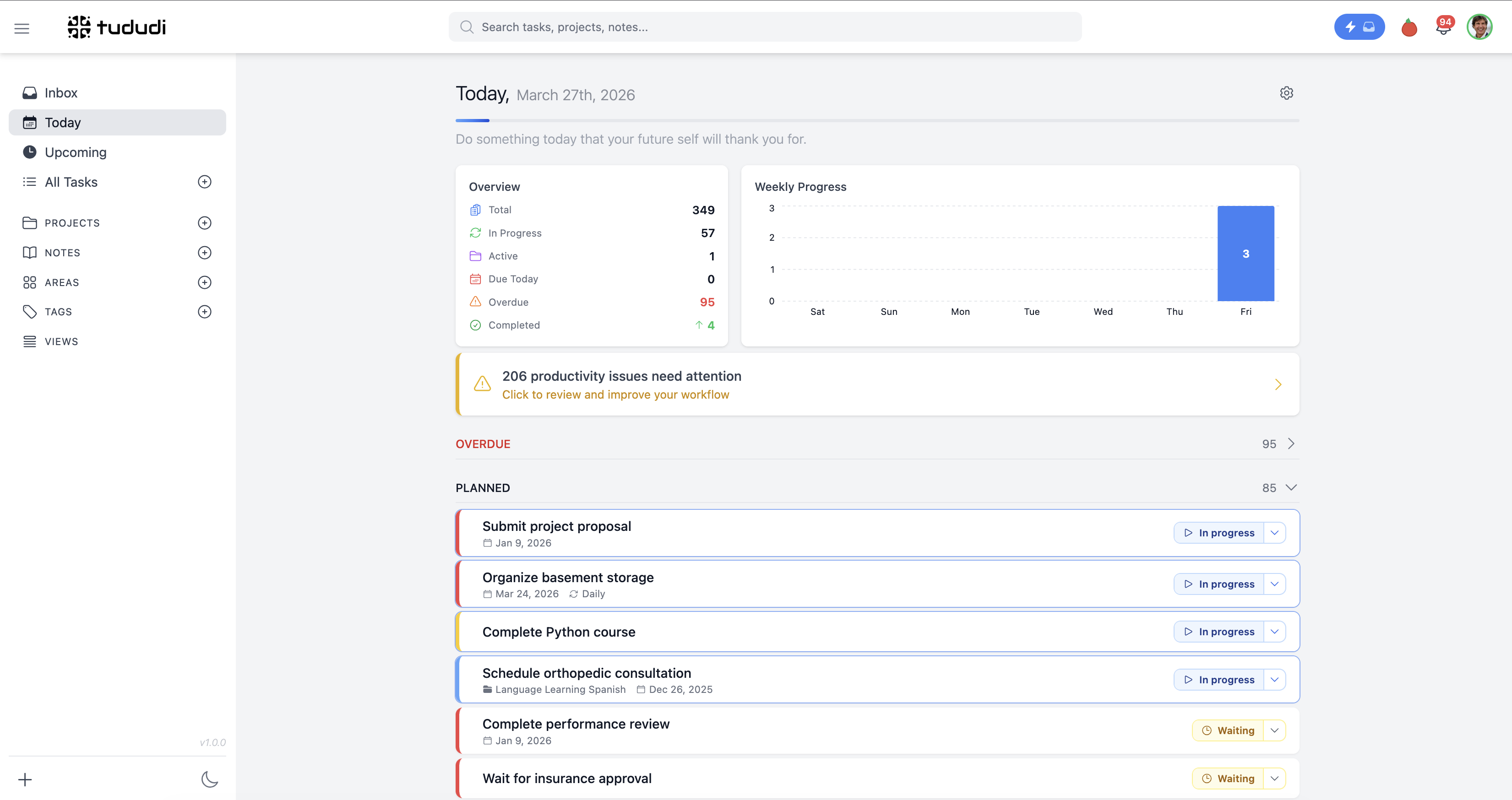
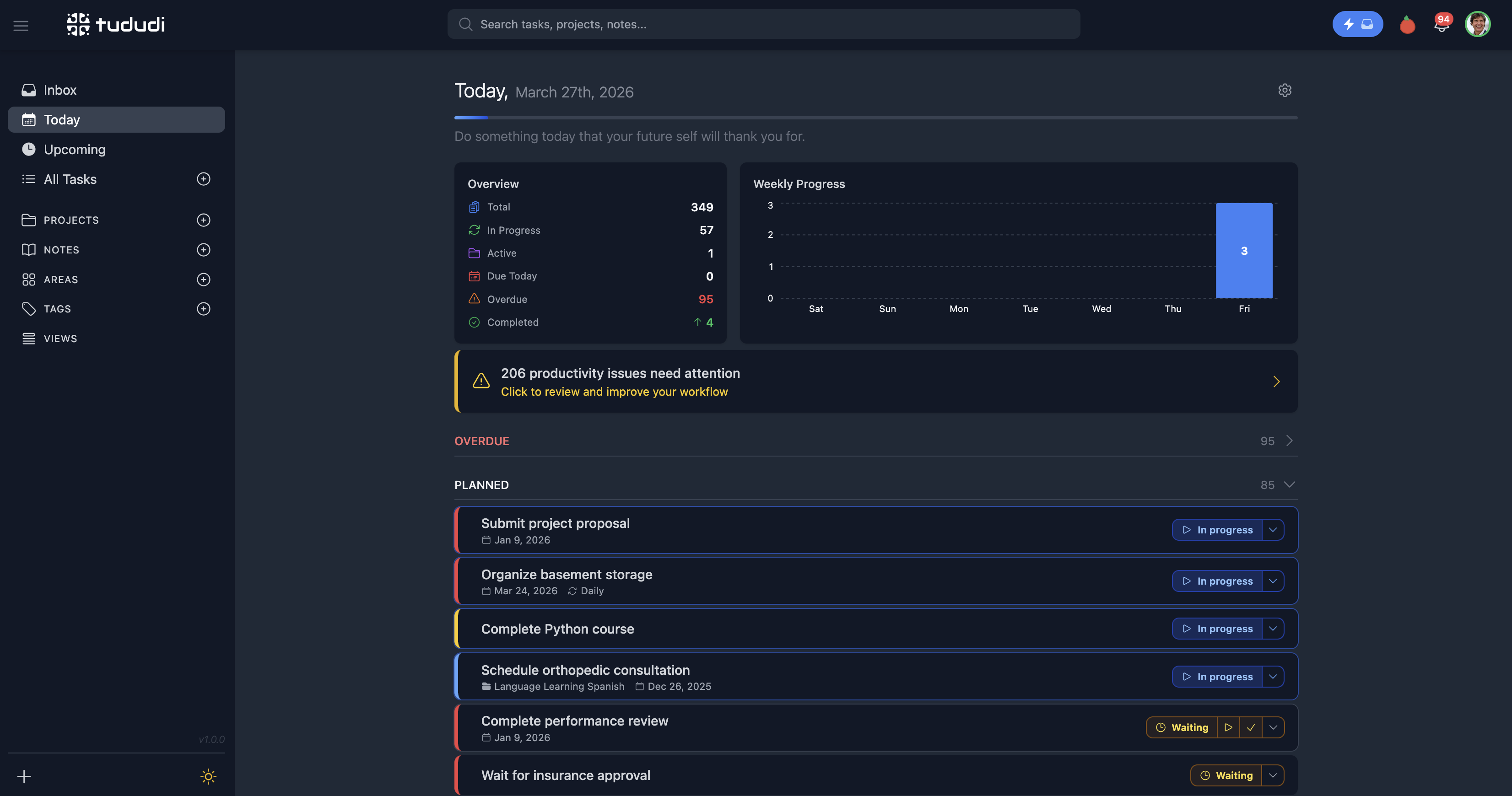
tududi keeps your tasks, projects and notes in one place. Group projects into areas of your life, see what is due today, and add tasks from your phone. PostgreSQL is built in, so it is one container with nothing else to set up.
Features
- Tasks with due dates, priorities, repeats and subtasks
- Projects with tasks and notes, grouped into areas
- Today view and a daily overview of what is due
- Add tasks from Telegram, and sync with CalDAV apps
- Installable on your phone, works offline
- Sign in with OIDC (Pocket ID, Authentik), in 26 languages
How to use
- Open tududi from your dashboard.
- Sign in with the email and the password from the app's logs (the box marked CREDENTIALS).
- Change your password under Profile.
- Make an area, a project, and add your first tasks.
- Check the Today view each morning.
Before you install
You can install it as it is and open it at http://[ZIMAOS-IP-ADDRESS]:6763. The first account is TUDUDI_USER_EMAIL ([email protected] unless you change it) with a password made on first start, shown in the app's logs in the box marked CREDENTIALS and saved in /DATA/AppData/tududi/data/.admin_password. Both are only used while tududi has no users yet. Set BASE_URL to the address you use when you turn on email or sign-in with OIDC. Those and the other settings are in the Variables tab and are added in the app settings. The first start takes about 2 minutes.
The settings in the first table are already in the app settings. To use any other one, open the app settings, add the variable with your value, save, and the app restarts with it. A setting you leave out uses its default.
In the app settings
| Variable | Default value | Description |
|---|---|---|
TZ | $TZ | Your time zone. It is filled in from your ZimaOS time zone. |
PUID | $PUID | The user that owns the files tududi writes. It is filled in by ZimaOS. Leave it. |
PGID | $PGID | The group that owns the files tududi writes. It is filled in by ZimaOS. Leave it. |
TUDUDI_ | [email protected] | The email of the first account. Only used while tududi has no users yet. |
TUDUDI_ | — | The first account's password. Leave it empty and one is made for you: it is shown in the app's logs, in the box marked CREDENTIALS. Change it later in tududi itself. |
Server
| Variable | Default value | Description |
|---|---|---|
BASE_ | — | The address people open tududi at, like http://192.168.1.20:6763 or https://tasks.example.com. Needed for sign-in with OIDC and for links in emails. |
TUDUDI_ | — | Other sites allowed to call tududi's API from a browser, comma separated. Not needed for tududi itself. |
TUDUDI_ | false | Set to true when tududi is behind a reverse proxy. |
TUDUDI_ | — | The key that signs sign-in cookies. It is made on first start and kept in /data/secrets.env. Only set it to use your own. |
FILE_ | 10 | The biggest attachment people can upload, in MB. |
Sign-up and accounts
| Variable | Default value | Description |
|---|---|---|
PASSWORD_ | true | Set to false to turn off email and password sign-in, so people only sign in with OIDC. |
Email (SMTP)
| Variable | Default value | Description |
|---|---|---|
ENABLE_ | false | Set to true to send emails: password resets and invites. |
EMAIL_ | — | Your email server, like smtp.gmail.com. |
EMAIL_ | 587 | Your email server port, usually 587 or 465. |
EMAIL_ | false | Set to true for port 465. |
EMAIL_ | — | The user name for your email server. |
EMAIL_ | — | The password for your email server. |
EMAIL_ | — | The address emails are sent from. |
EMAIL_ | Tududi | The name emails are sent from. |
Sign in with OIDC
| Variable | Default value | Description |
|---|---|---|
OIDC_ | false | Set to true to sign in with Pocket ID, Authentik, Google or another OIDC provider. Also set BASE_URL. You can set providers up in Profile instead. |
OIDC_ | — | The name on the sign-in button, like Pocket ID. |
OIDC_ | — | A short id for the provider, like pocketid. |
OIDC_ | — | The provider's address, like https://id.example.com. |
OIDC_ | — | The client ID from your provider. |
OIDC_ | — | The client secret from your provider. |
OIDC_ | openid profile email | The scopes to ask for. |
OIDC_ | true | Set to false so only people who already have an account can sign in with OIDC. |
Features
| Variable | Default value | Description |
|---|---|---|
TELEGRAM_ | false | Set to true to show the Telegram bot settings, so people can add tasks from Telegram. |
CALDAV_ | false | Set to true to sync tasks with CalDAV apps and servers. |
CALDAV_ | false | Set to true to sync with CalDAV servers on your own network, like Nextcloud or Radicale on your ZimaOS. |
AI
| Variable | Default value | Description |
|---|---|---|
LLM_ | — | An OpenAI (or compatible) API key for the daily brief and task insights. Each user can also set their own in Profile. |
LLM_ | https://api.openai.com/v1 | The API address, for example your Ollama server's /v1. |
LLM_ | gpt-4o-mini | The model to use. |
name: tududi

services:
  tududi:
    image: ghcr.io/hsinghhira/tududi:1.0.1
    container_name: tududi
    restart: unless-stopped
    stop_grace_period: 90s
    network_mode: bridge
    environment:
      - TZ=$TZ
      - PUID=$PUID
      - PGID=$PGID
      - [email protected]
      - TUDUDI_USER_PASSWORD=
    ports:
      - target: 3002
        published: "6763"
        protocol: tcp
    volumes:
      - type: bind
        source: /DATA/AppData/$AppID/data
        target: /data
        bind:
          create_host_path: true
      - type: bind
        source: /DATA/AppData/$AppID/uploads
        target: /app/uploads
        bind:
          create_host_path: true
      - type: bind
        source: /DATA/AppData/$AppID/backups
        target: /app/backups
        bind:
          create_host_path: true
    healthcheck:
      test: ["CMD", "wget", "-q", "-O", "/dev/null", "http://127.0.0.1:3002/api/health"]
      interval: 30s
      timeout: 10s
      retries: 5
      start_period: 180s
    deploy:
      resources:
        limits:
          cpus: "2.00"
          memory: 1024M
        reservations:
          cpus: "0.10"
          memory: 256M
    labels:
      icon: https://cdn.jsdelivr.net/gh/HSinghHira/IceStore@main/Apps/tududi/icon.png
    x-casaos:
      id: com.icestore.tududi
      envs:
        - container: TZ
          description:
            en_US: >-
              Your time zone. It is filled in from your ZimaOS time zone.
        - container: PUID
          description:
            en_US: >-
              The user that owns the files tududi writes. It is filled in by
              ZimaOS. Leave it.
        - container: PGID
          description:
            en_US: >-
              The group that owns the files tududi writes. It is filled in by
              ZimaOS. Leave it.
        - container: TUDUDI_USER_EMAIL
          description:
            en_US: >-
              The email of the first account. Only used while tududi has no
              users yet.
        - container: TUDUDI_USER_PASSWORD
          description:
            en_US: >-
              The first account's password. Leave it empty and one is made
              for you: it is shown in the app's logs, in the box marked
              CREDENTIALS. Change it later in tududi itself.
      ports:
        - container: "3002"
          description:
            en_US: tududi web UI, API and CalDAV, published on host as 6763
      volumes:
        - container: /data
          description:
            en_US: >-
              The PostgreSQL database with every task, note and user, and
              secrets.env with this install's own session secret and
              database password. Back it up.
        - container: /app/uploads
          description:
            en_US: >-
              Attachments, avatars and project images. Back it up.
        - container: /app/backups
          description:
            en_US: >-
              Backups you make in tududi's settings.

x-casaos:
  id: com.icestore.tududi
  architectures:
    - amd64
    - arm64
  main: tududi
  author: HSinghHira
  category: Productivity
  developer: Chris Veleris
  icon: https://cdn.jsdelivr.net/gh/HSinghHira/IceStore@main/Apps/tududi/icon.png
  thumbnail: https://cdn.jsdelivr.net/gh/HSinghHira/IceStore@main/Apps/tududi/screenshot-1.png
  screenshot_link:
    - https://cdn.jsdelivr.net/gh/HSinghHira/IceStore@main/Apps/tududi/screenshot-1.png
    - https://cdn.jsdelivr.net/gh/HSinghHira/IceStore@main/Apps/tududi/screenshot-2.png
  title:
    en_US: tududi
  tagline:
    en_US: Tasks, projects and notes organised by areas, with a Telegram bot
  description:
    en_US: >-
      tududi keeps your tasks, projects and notes in one place. Group
      projects into areas of your life, see what is due today, and add tasks
      from your phone. PostgreSQL is built in, so it is one container with
      nothing else to set up.


      **Features**


      - Tasks with due dates, priorities, repeats and subtasks

      - Projects with tasks and notes, grouped into areas

      - Today view and a daily overview of what is due

      - Add tasks from Telegram, and sync with CalDAV apps

      - Installable on your phone, works offline

      - Sign in with OIDC (Pocket ID, Authentik), in 26 languages


      **How to use?**


      1. Open tududi from the ZimaOS dashboard.

      2. Sign in with the email and the password from the app's logs (the
         box marked CREDENTIALS).

      3. Change your password under Profile.

      4. Make an area, a project, and add your first tasks.

      5. Check the Today view each morning.
  tips:
    before_install:
      en_US: >-
        1. Set TUDUDI_USER_EMAIL to your email if you like.


        2. More settings, like email, sign-in with OIDC and AI, are listed
           on the tududi page at https://icestore.hsinghhira.me/app/tududi/
           (Variables tab). You can add them now or later in the app
           settings.


        3. Start the installation. The first start takes about 2 minutes.


        4. Open the app's logs. Find the box marked CREDENTIALS. It has the
           email and password.


        5. Open http://[ZIMAOS-IP-ADDRESS]:6763 and sign in.
  index: /
  port_map: "6763"
  scheme: http
  is_uncontrolled: false
  version: "2.1.1"
  update_at: "2026-11-21"
  release_notes:
    en_US: |-
      - Added the PostgreSQL extensions package (pg_trgm and friends), the same fix as PLANKA (image 1.0.1)
      - First IceStore release, on port 6763
      - Built on chrisvel/tududi 2.1.1, with PostgreSQL 16 added inside the same container
      - Each install makes its own session secret, database password and first account password on first start; the login is in the CREDENTIALS box in the logs
  repo: "https://github.com/chrisvel/tududi"
  support: "https://github.com/chrisvel/tududi/issues"
  docs: "https://github.com/chrisvel/tududi/tree/main/docs"
Install tududi
Something not working with tududi?
Report it so it gets fixed, or ask for an app that is not here yet.
 ZimaOS
Add the store link, then find tududi in the App Store and install it.
 CasaOS
Add the store link, then find tududi in the App Store and install it.
 ReCasaOS
Add the store link, then find tududi in the App Store and install it.
 Homeio
Add the store link, then find tududi in the App Store and install it.
 MOS
Add the repository in MOS Hub Settings, then find tududi in Docker → MOS Hub and install it.


