
TutorLoom
Self-hosted learning platform for institutes and training teams.
- ghcr.io/hsinghhira/tutorloom:latest
- v1.0.0
- Updated 30 Oct 2026
- port 6177
- amd64
- Productivity
- 53 stars
Screenshots
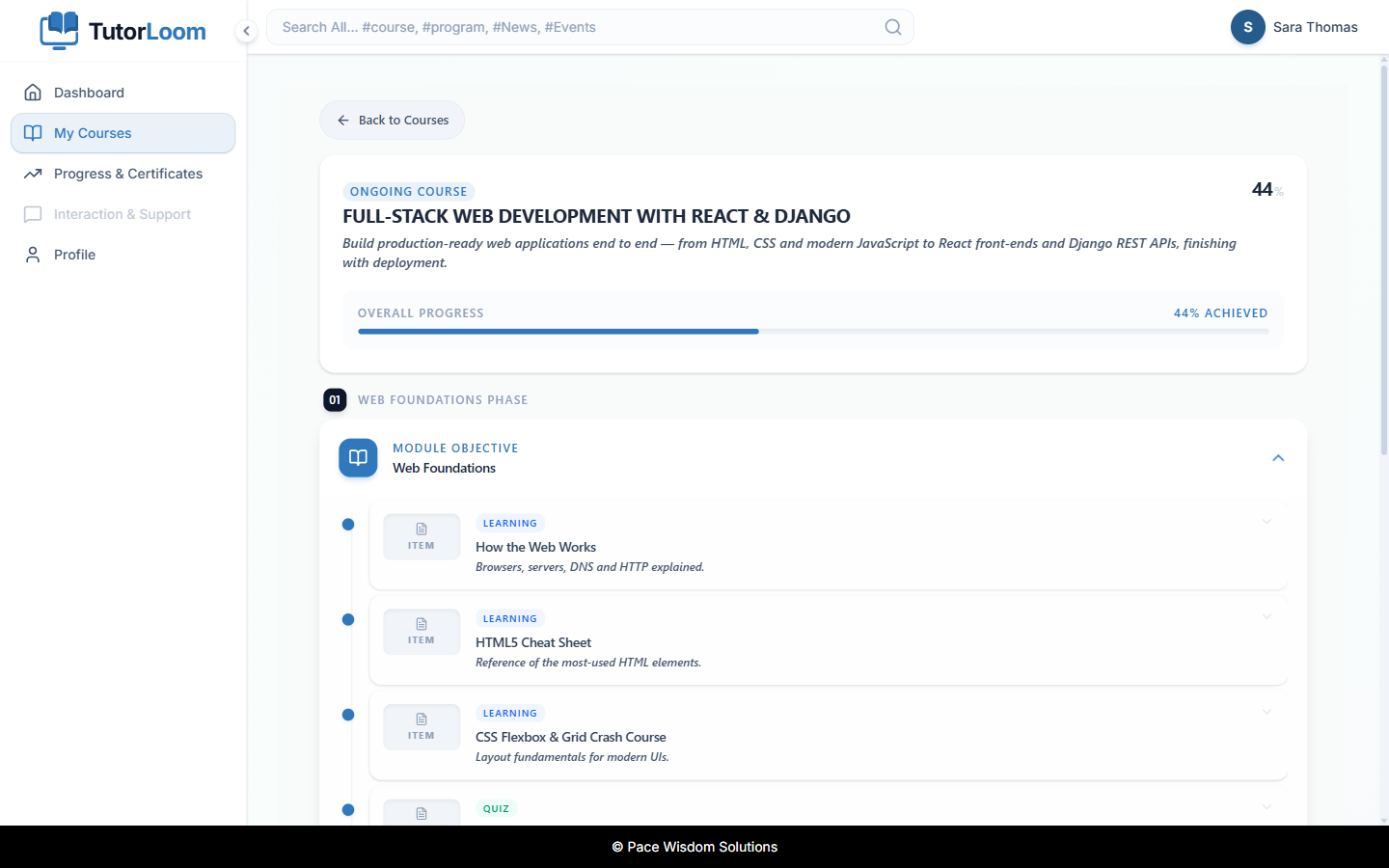
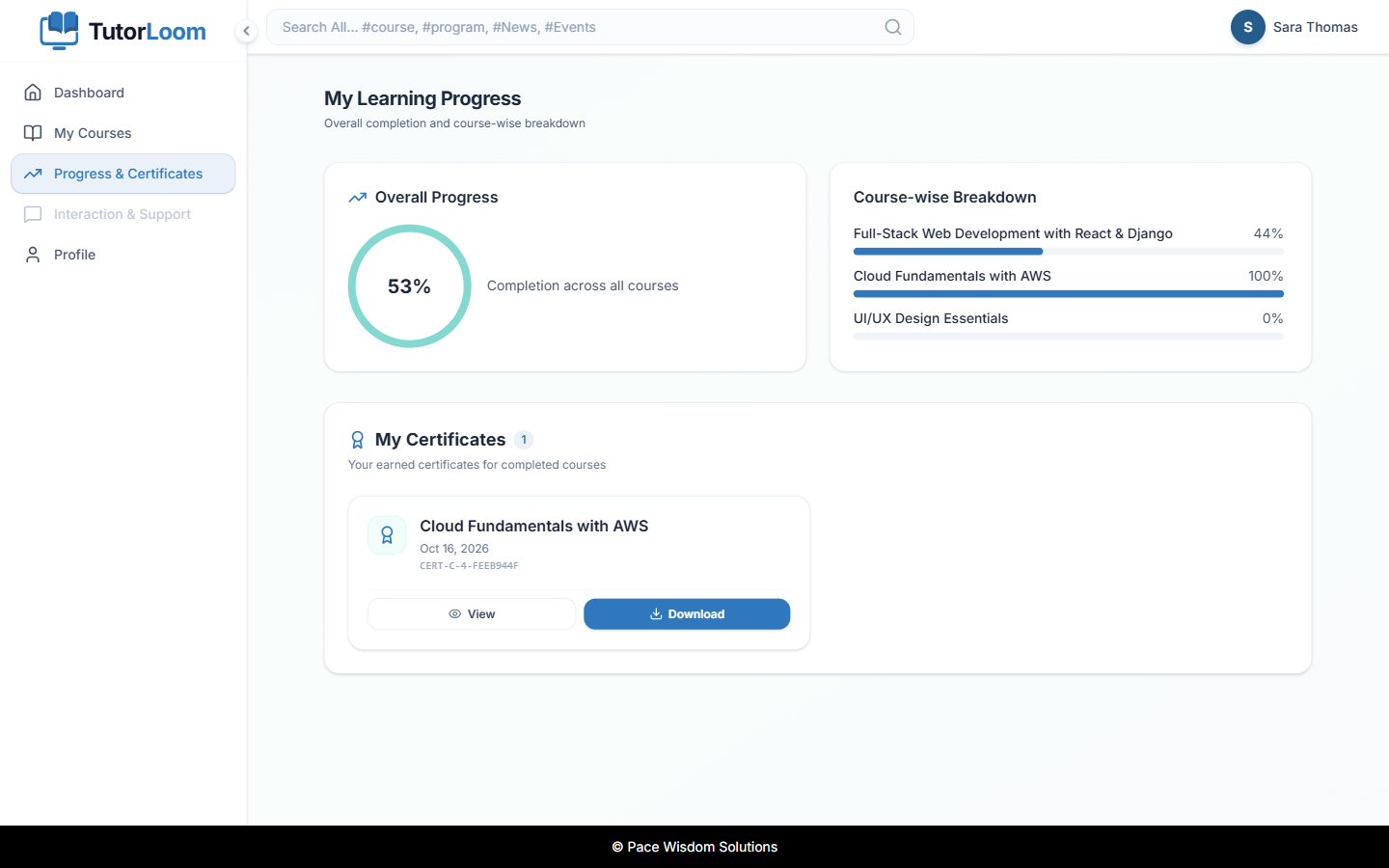
Open the app
About TutorLoom
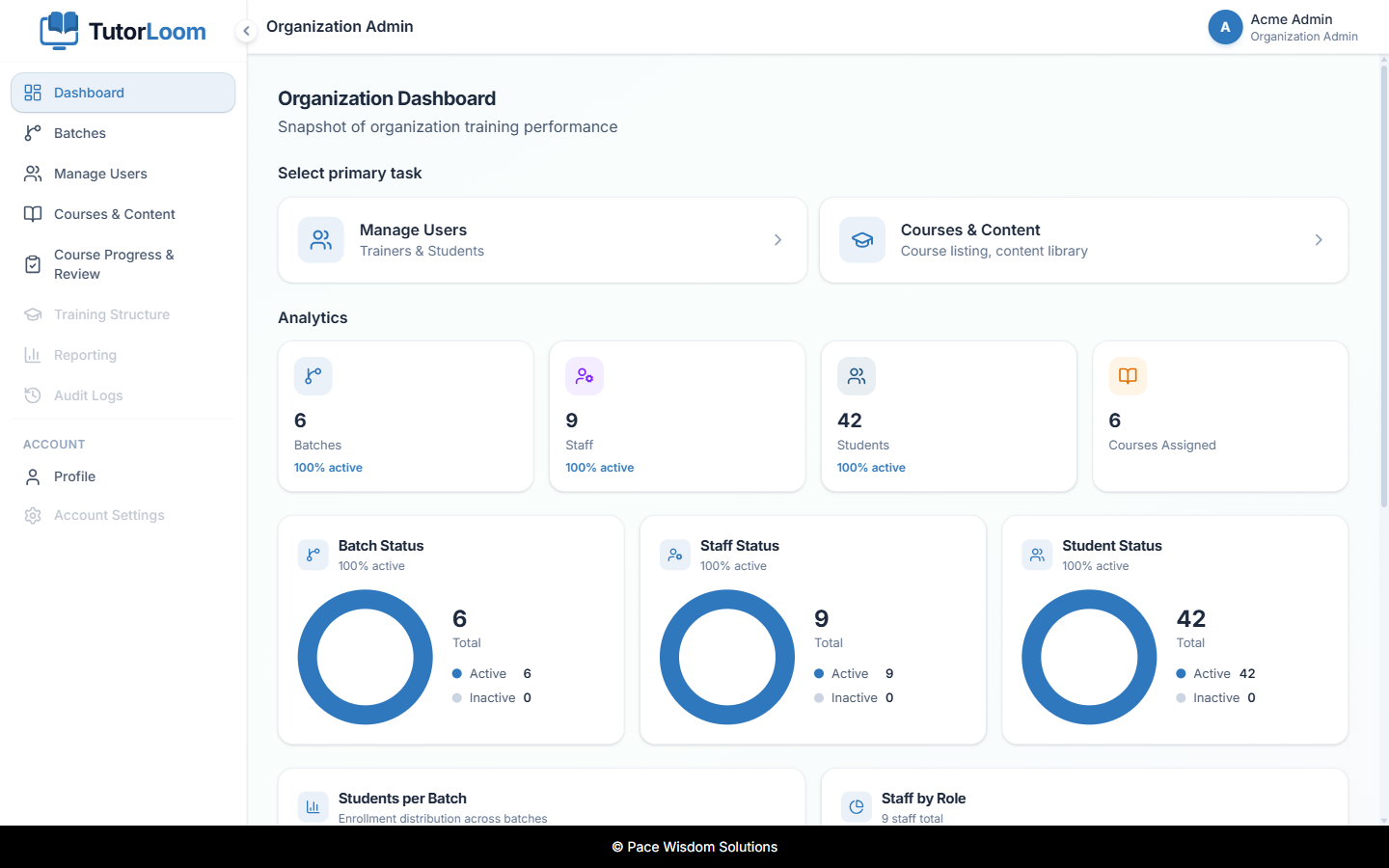
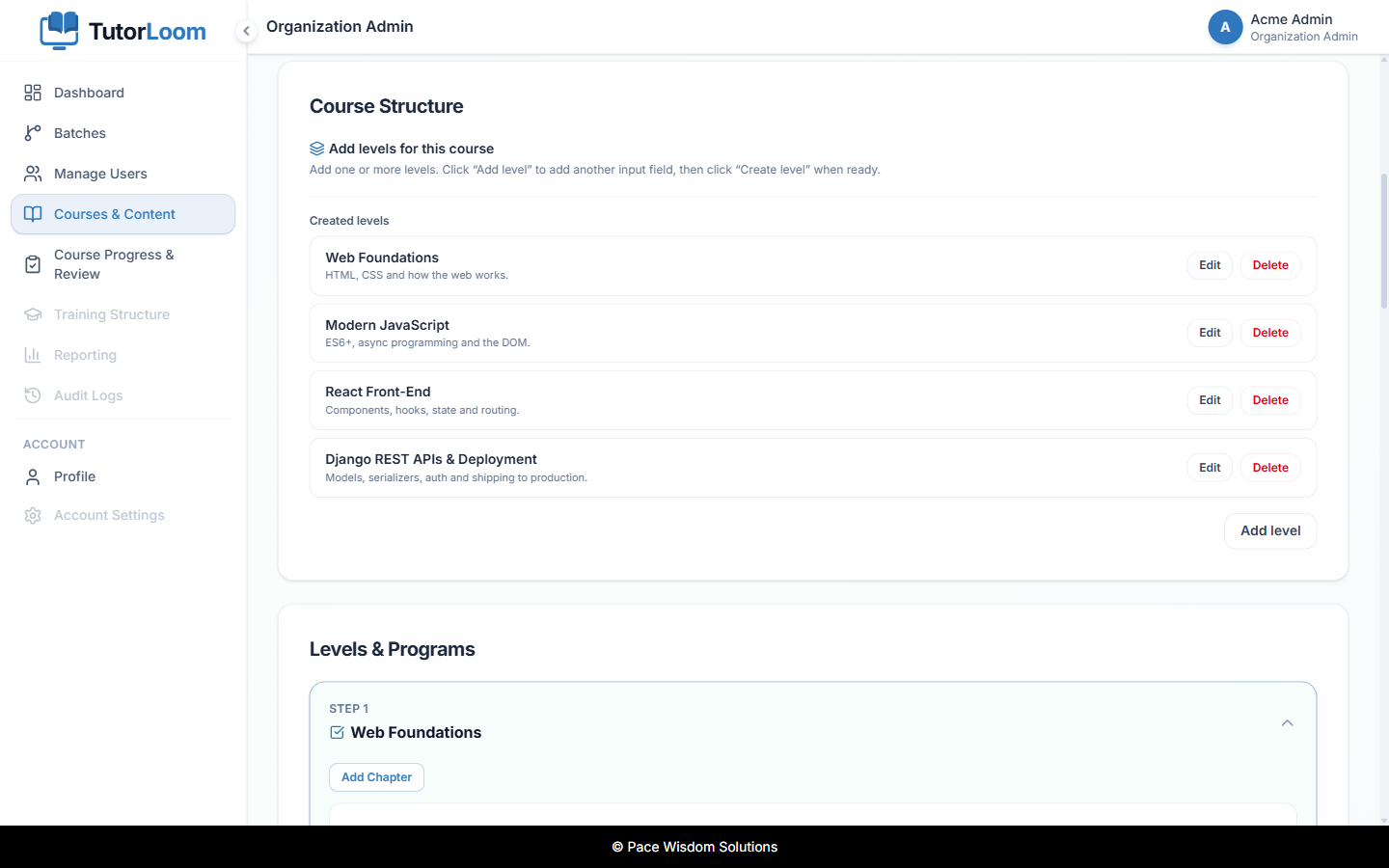
TutorLoom is a learning management system (LMS) for training institutes and teams: build courses, enrol learners in batches, grade their work and follow their progress. This is TutorLoom in a single container, with the Django API, the background worker, the web app, PostgreSQL and Redis inside, one port and one data folder. The secret key, database passwords and the first admin account are made for you on first start.
Features
- Course builder with levels, chapters and steps: videos, documents, tasks and quizzes, with prerequisites
- Batches of learners, with invites one by one or in bulk from CSV or Excel
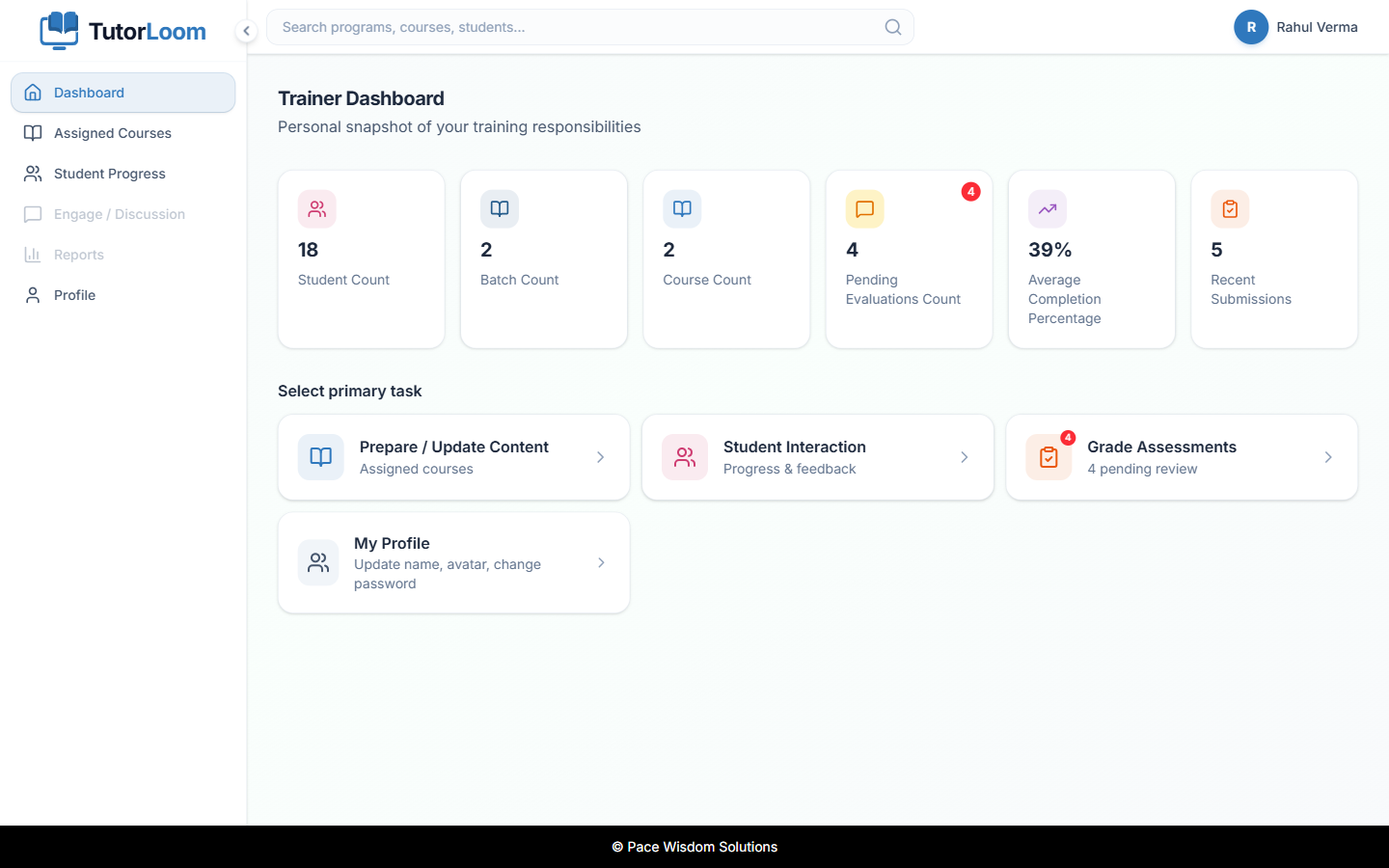
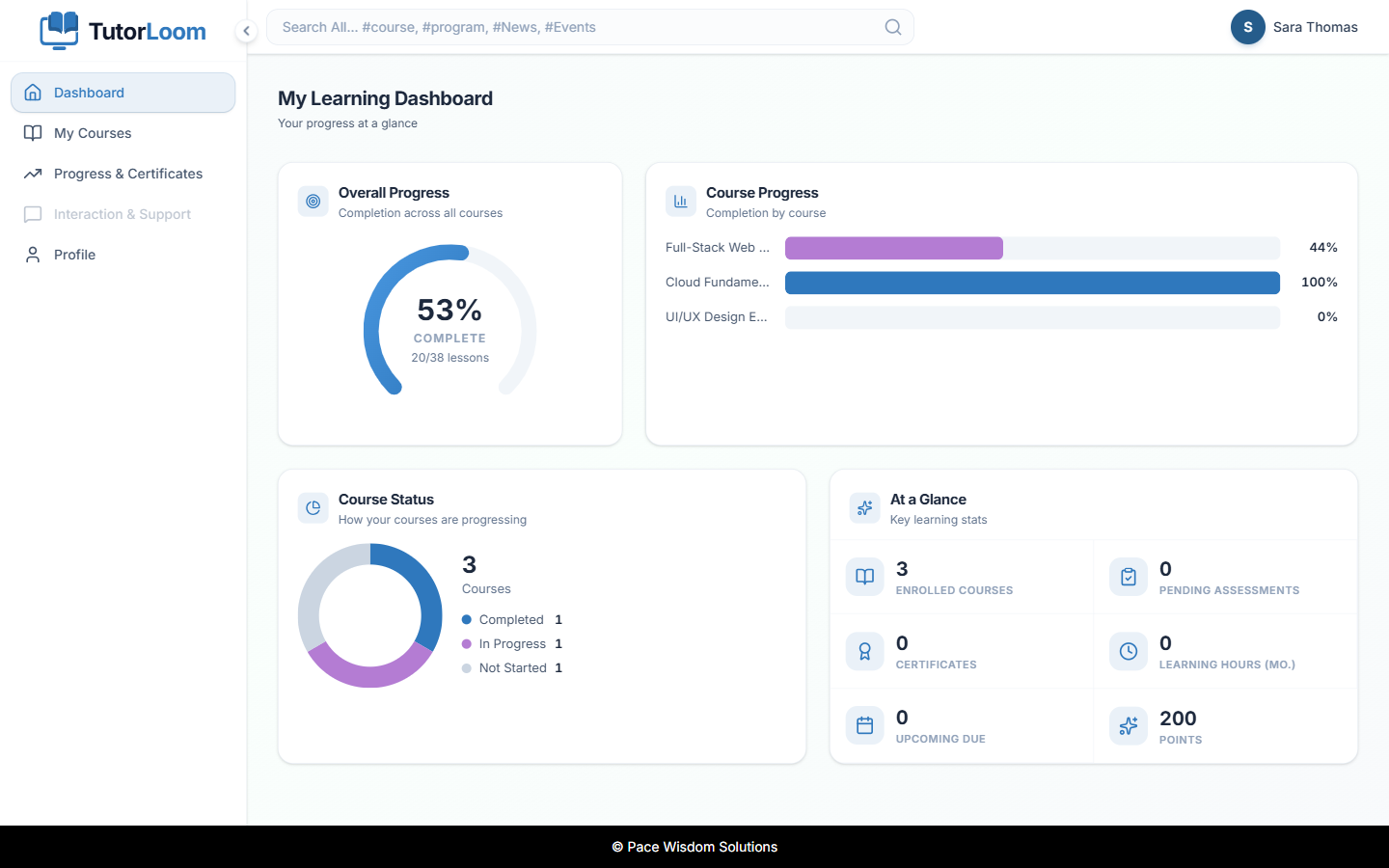
- Portals for institute admins, trainers and students
- Grading queue with scores and written feedback, progress export to Excel and certificates
- Many organizations in one install, each with its own people and courses
- REST API with Swagger docs at
/api/docs/
How to use
- Open TutorLoom from your dashboard.
- Sign in with
ADMIN_EMAILand the password from the app logs (the line "TutorLoom login is"). - Add trainers and students, make courses in the course builder and put learners in batches.
- Trainers grade submissions; students follow their roadmap.
- The Django admin is at
http://[ZIMAOS-IP-ADDRESS]:6177/admin/, with the same login.
Before you install
Set ADMIN_EMAIL to your own email first: on the first start it becomes the admin of a new organization (named by TUTORLOOM_ORG_NAME, "My Academy" if you leave it out). Leave ADMIN_PASSWORD empty to get a new password; it is in the app logs on the line "TutorLoom login is" and in admin-password.txt in the data folder. PUBLIC_URL starts as http://localhost:6177; change localhost to your ZimaOS IP, like http://192.168.1.20:6177, so links in invite emails work on other devices. The web app itself opens from any address. Until you add email settings, invite and password-reset emails are only written to the app logs. The first start takes about three minutes. Email, S3 storage and the other settings are in the Variables tab; add them in the app settings. The image is amd64 only.
The settings in the first table are already in the app settings. To use any other one, open the app settings, add the variable with your value, save, and the app restarts with it. A setting you leave out uses its default.
In the app settings
| Variable | Default value | Description |
|---|---|---|
TZ | $TZ | Your time zone. It is filled in from your ZimaOS time zone. Leave it unless you need another. |
PUBLIC_ | http://localhost:6177 | The address you open TutorLoom at, like http://192.168.1.20:6177. Used for the links in invite and password-reset emails. Change localhost to your ZimaOS IP so those links work from other devices. |
ADMIN_ | [email protected] | Your email. It becomes the first admin account (Institute Admin and Django admin). Set it before the first start. |
ADMIN_ | — | The password for that account. Leave it empty and one is made for you; it is in the app logs on the line "TutorLoom login is". Only used on the first start. |
First start
| Variable | Default value | Description |
|---|---|---|
TUTORLOOM_ | My Academy | The name of the first organization. Only used on the very first start; rename it later in TutorLoom. |
TUTORLOOM_ | Batch 1 | The name of the first batch of learners. Only used on the very first start. |
Email (SMTP)
| Variable | Default value | Description |
|---|---|---|
EMAIL_ | — | Your mail server, like smtp.gmail.com. Leave it out to only write emails to the app logs. |
EMAIL_ | 587 | Your mail server's port. |
EMAIL_ | True | Set to False for a mail server without STARTTLS. |
EMAIL_ | — | The user name for your mail server. |
EMAIL_ | — | The password for your mail server. |
DEFAULT_ | [email protected] | The sender address on invite and password-reset emails. |
Email (Amazon SES)
| Variable | Default value | Description |
|---|---|---|
AWS_ | — | An Amazon SES access key, to send emails through SES instead of SMTP. |
AWS_ | — | The Amazon SES secret key. |
AWS_ | ap-south-1 | The Amazon SES region, like us-east-1. |
File storage
| Variable | Default value | Description |
|---|---|---|
USE_ | False | Set to True to keep uploads in Amazon S3 instead of the data folder. |
AWS_ | — | The S3 access key, when USE_S3 is True. |
AWS_ | — | The S3 secret key. |
AWS_ | — | The S3 bucket name. |
AWS_ | ap-south-1 | The S3 region, like us-east-1. |
Security
| Variable | Default value | Description |
|---|---|---|
THROTTLE_ | 5/minute | How many sign-in tries one address may make, like 10/minute. |
THROTTLE_ | 5/hour | How many password-reset emails one address may ask for. |
THROTTLE_ | 10/minute | How often one address may renew its sign-in token. |
ALLOWED_ | * | The addresses TutorLoom may be opened at, comma separated, like lms.example.com,192.168.1.20. Leave it out to allow any address. |
NUM_ | 1 | How many reverse proxies are in front of TutorLoom, counting the one inside the container. Set to 2 behind your own proxy, so sign-in limits see the real visitor address. |
Performance
| Variable | Default value | Description |
|---|---|---|
TUTORLOOM_ | 3 | How many web processes answer requests. Raise it for many people at once; each one needs about 100 MB of memory. |
TUTORLOOM_ | 2 | How many background jobs (bulk uploads, emails, certificates) run at once. |
name: tutorloom

services:
  tutorloom:
    image: ghcr.io/hsinghhira/tutorloom:latest
    container_name: tutorloom
    restart: unless-stopped
    stop_grace_period: 90s
    privileged: true
    environment:
      - TZ=$TZ
      - PUBLIC_URL=http://localhost:6177
      - [email protected]
      - ADMIN_PASSWORD=
    ports:
      - target: 8080
        published: "6177"
        protocol: tcp
    volumes:
      - type: bind
        source: /DATA/AppData/$AppID/data
        target: /data
        bind:
          create_host_path: true
    healthcheck:
      test: ["CMD", "curl", "-fsS", "-o", "/dev/null", "http://127.0.0.1:8080/admin/login/"]
      interval: 30s
      timeout: 10s
      retries: 5
      start_period: 180s
    deploy:
      resources:
        limits:
          cpus: "2.00"
          memory: 2048M
        reservations:
          cpus: "0.25"
          memory: 512M
    labels:
      icon: https://cdn.jsdelivr.net/gh/HSinghHira/IceStore@main/Apps/tutorloom/icon.png
    x-casaos:
      id: com.icestore.tutorloom
      envs:
        - container: TZ
          description:
            en_US: >-
              Your time zone. It is filled in from your ZimaOS time zone.
              Leave it unless you need another.
        - container: PUBLIC_URL
          description:
            en_US: >-
              The address you open TutorLoom at, like http://192.168.1.20:6177.
              Used for the links in invite and password-reset emails. Change
              localhost to your ZimaOS IP so those links work from other
              devices.
        - container: ADMIN_EMAIL
          description:
            en_US: >-
              Your email. It becomes the first admin account (Institute Admin
              and Django admin). Set it before the first start.
        - container: ADMIN_PASSWORD
          description:
            en_US: >-
              The password for that account. Leave it empty and one is made
              for you; it is in the app logs on the line "TutorLoom login is".
              Only used on the first start.
      ports:
        - container: "8080"
          description:
            en_US: TutorLoom web app, API (/api), API docs (/api/docs/) and Django admin (/admin/), published on host as 6177
      volumes:
        - container: /data
          description:
            en_US: >-
              The database (organizations, courses, people, progress),
              uploads in media/, Redis data, secret keys
              (state/secrets.env) and the first password
              (admin-password.txt). Back it up.

x-casaos:
  id: com.icestore.tutorloom
  architectures:
    - amd64
  main: tutorloom
  author: HSinghHira
  category: Productivity
  developer: Pace Wisdom
  icon: https://cdn.jsdelivr.net/gh/HSinghHira/IceStore@main/Apps/tutorloom/icon.png
  thumbnail: https://cdn.jsdelivr.net/gh/HSinghHira/IceStore@main/Apps/tutorloom/screenshot-1.png
  screenshot_link:
    - https://cdn.jsdelivr.net/gh/HSinghHira/IceStore@main/Apps/tutorloom/screenshot-1.png
    - https://cdn.jsdelivr.net/gh/HSinghHira/IceStore@main/Apps/tutorloom/screenshot-2.png
    - https://cdn.jsdelivr.net/gh/HSinghHira/IceStore@main/Apps/tutorloom/screenshot-3.png
    - https://cdn.jsdelivr.net/gh/HSinghHira/IceStore@main/Apps/tutorloom/screenshot-4.png
    - https://cdn.jsdelivr.net/gh/HSinghHira/IceStore@main/Apps/tutorloom/screenshot-5.png
    - https://cdn.jsdelivr.net/gh/HSinghHira/IceStore@main/Apps/tutorloom/screenshot-6.png
  title:
    en_US: TutorLoom
  tagline:
    en_US: Self-hosted learning platform for institutes and training teams.
  description:
    en_US: >-
      Visit: [https://icestore.hsinghhira.me/app/tutorloom/](https://icestore.hsinghhira.me/app/tutorloom/) for full details


      TutorLoom is a learning management system (LMS) for training
      institutes and teams: build courses, enrol learners in batches, grade
      their work and follow their progress. This is TutorLoom in a single
      container, with the Django API, the background worker, the web app,
      PostgreSQL and Redis inside, one port and one data folder. The secret
      key, database passwords and the first admin account are made for you
      on first start.


      **Features**


      - Course builder with levels, chapters and steps: videos, documents,
        tasks and quizzes, with prerequisites

      - Batches of learners, with invites one by one or in bulk from CSV or
        Excel

      - Portals for institute admins, trainers and students

      - Grading queue with scores and written feedback, progress export to
        Excel and certificates

      - Many organizations in one install, each with its own people and
        courses

      - REST API with Swagger docs at /api/docs/


      **How to use?**


      1. Open TutorLoom from the Zima OS dashboard.

      2. Sign in with ADMIN_EMAIL and the password from the app logs (the
         line "TutorLoom login is").

      3. Add trainers and students, make courses in the course builder and
         put learners in batches.

      4. Trainers grade submissions; students follow their roadmap.
  tips:
    before_install:
      en_US: >-
        1. Open the app configuration before you install.


        2. Change ADMIN_EMAIL to your own email. It becomes the first admin
           account.


        3. Leave ADMIN_PASSWORD empty to get a new password, or type your
           own.


        4. Find PUBLIC_URL. It starts as http://localhost:6177. Change
           localhost to your ZimaOS IP, like http://192.168.1.20:6177, so
           links in emails work on other devices.


        5. Emails are only written to the app logs at first. To send real
           emails, add the email settings. They are listed on the TutorLoom
           page at https://icestore.hsinghhira.me/app/tutorloom/ (Variables
           tab), with the name of your first organization and other
           settings. You can add them now or later in the app settings.


        6. Start the installation.


        7. Wait about three minutes. The first start sets up the database.


        8. Open the app logs and find the line that says "TutorLoom login
           is". It shows your email and the password.


        9. Open http://[ZIMAOS-IP-ADDRESS]:6177 and sign in with them.


        10. The Django admin is at http://[ZIMAOS-IP-ADDRESS]:6177/admin/,
            with the same login.
  index: /
  port_map: "6177"
  scheme: http
  is_uncontrolled: false
  version: "v1.0.0"
  update_at: "2026-10-30"
  release_notes:
    en_US: |-
      - First version in IceStore, on port 6177
      - Single container: TutorLoom's Django API (gunicorn), Celery worker and web app, with PostgreSQL 16 and Redis inside
      - Built from upstream release v1.0.0 (upstream publishes no image), on python 3.14.10-slim and node 22.23.4-slim
      - Database migrations run on every start; the first organization, batch and admin account are made on the first start
      - Secret key and database passwords are made on first start and kept in /data/state/secrets.env
      - The web app calls the API on the same address, so it works from any address you open it at
      - amd64 only for now: the Python build is too slow and fragile under arm64 emulation
      - Left out: the mobile app (build it from upstream's student_mobile_app folder and point it at this server)
  repo: "https://github.com/pacewisdomhq/TutorLoom"
  support: "https://github.com/pacewisdomhq/TutorLoom/issues"
  docs: "https://github.com/pacewisdomhq/TutorLoom#readme"
Install TutorLoom
 ZimaOS
Add the store link, then find TutorLoom in the App Store and install it.
 CasaOS
Add the store link, then find TutorLoom in the App Store and install it.
 Homeio
Add the store link, then find TutorLoom in the App Store and install it.
Something not working with TutorLoom? Report a problem or request another app.


