
BookStack
Wiki that keeps your documentation in shelves, books, chapters and pages
- ghcr.io/hsinghhira/bookstack:latest
- v26.09.3-ls300
- Updated 21 Nov 2026
- port 6758
- amd64 · arm64
- Productivity
- 19.1k stars
Screenshots
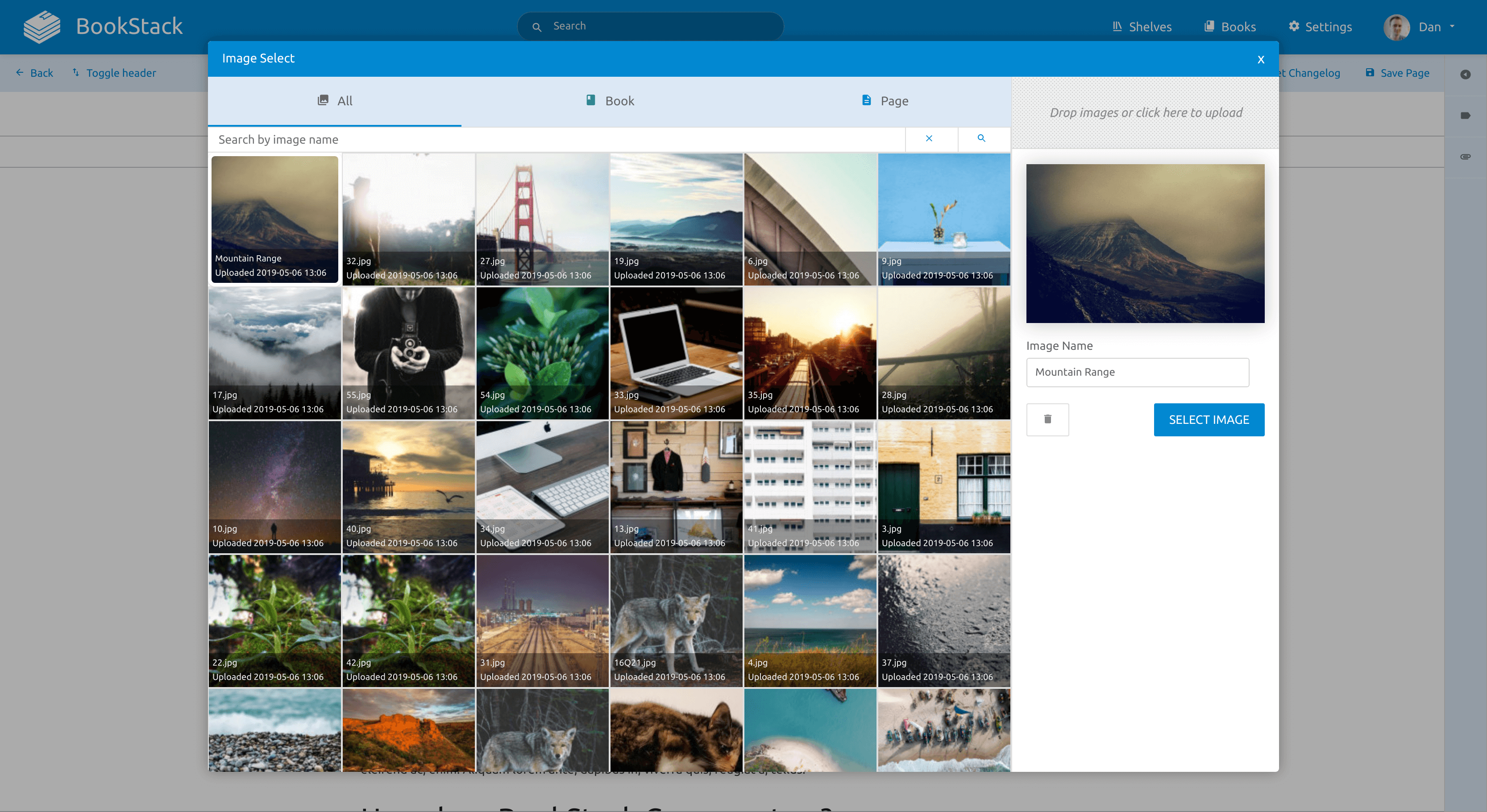
Open the app
About BookStack
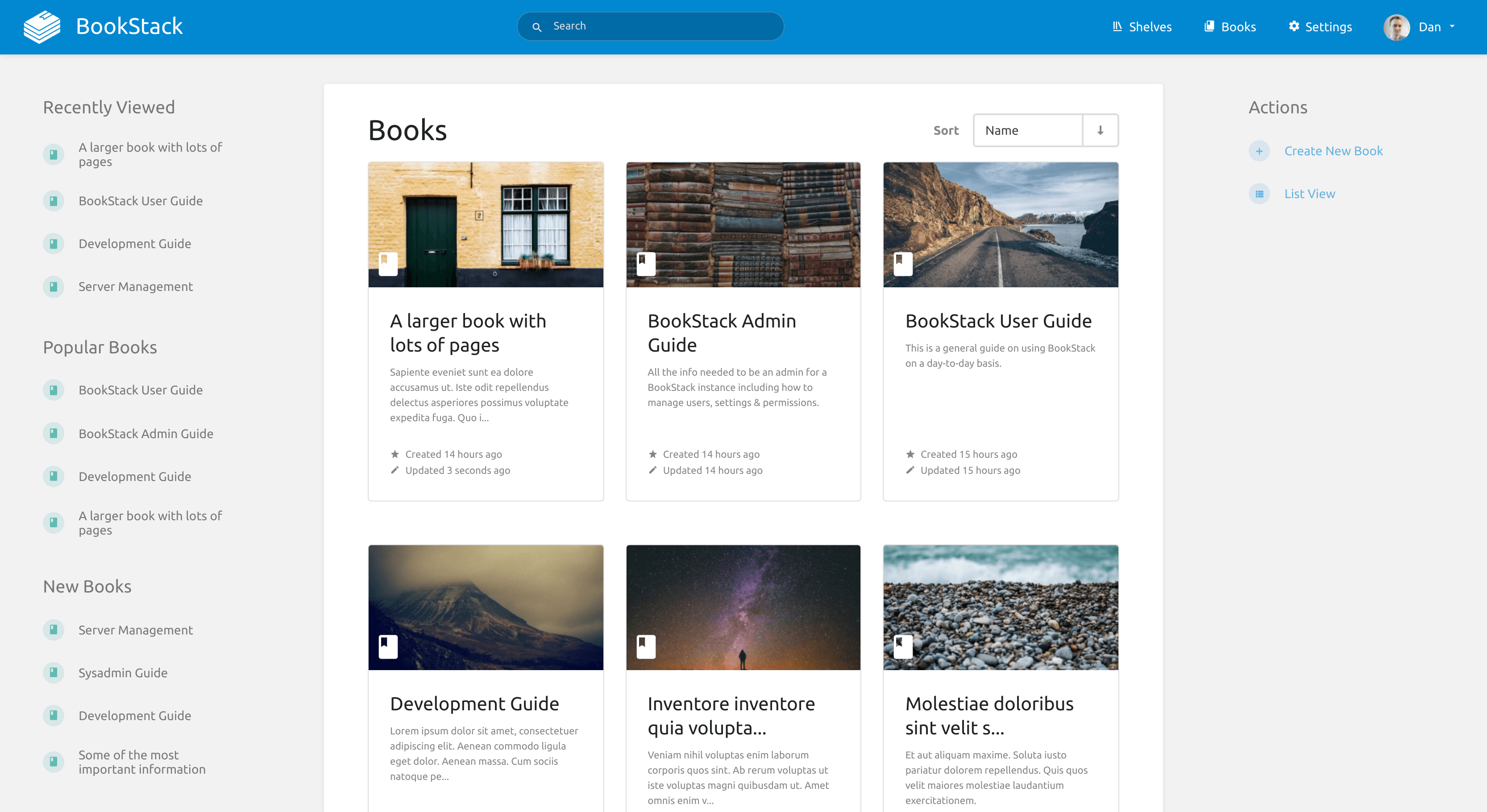
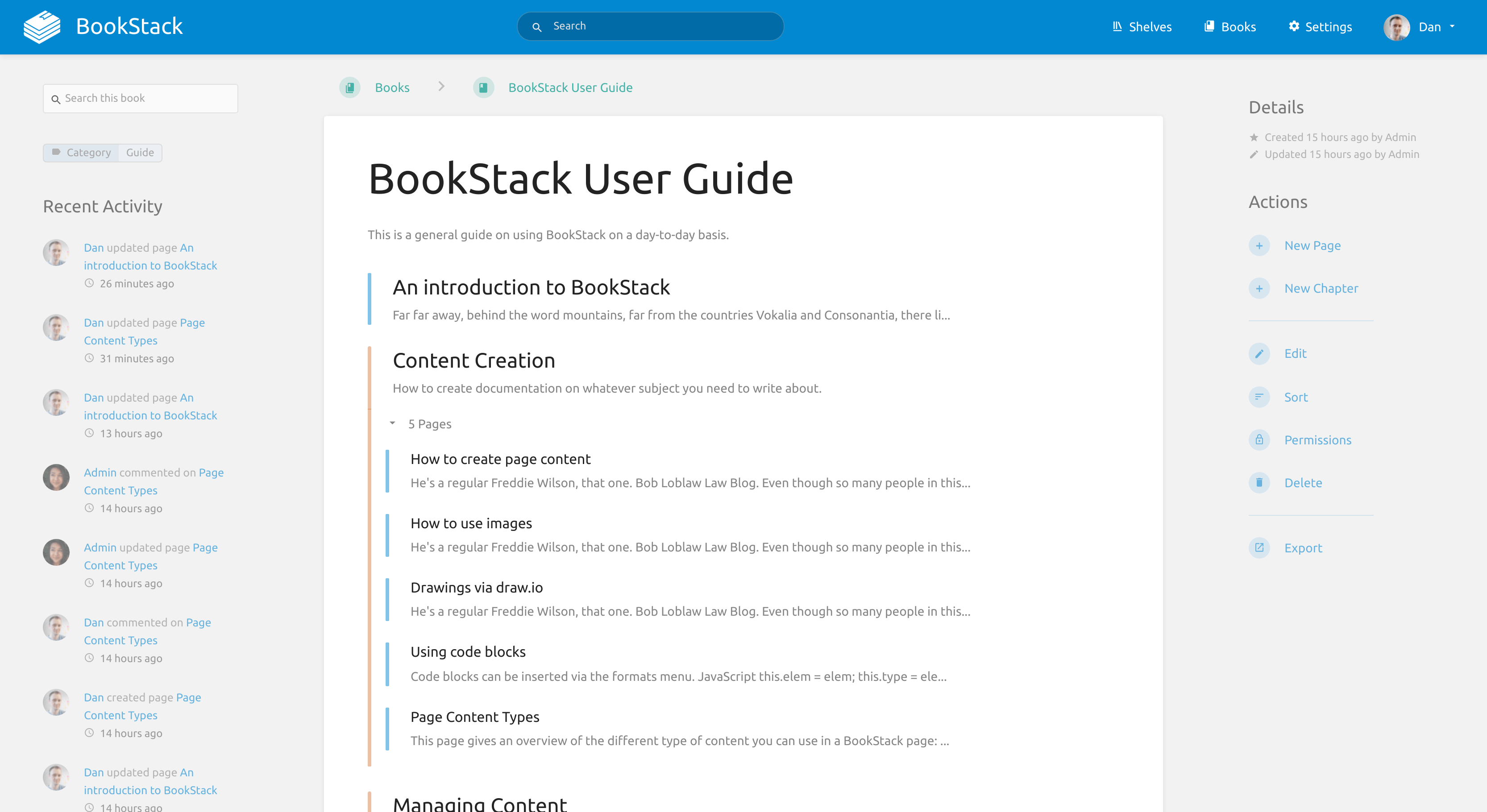
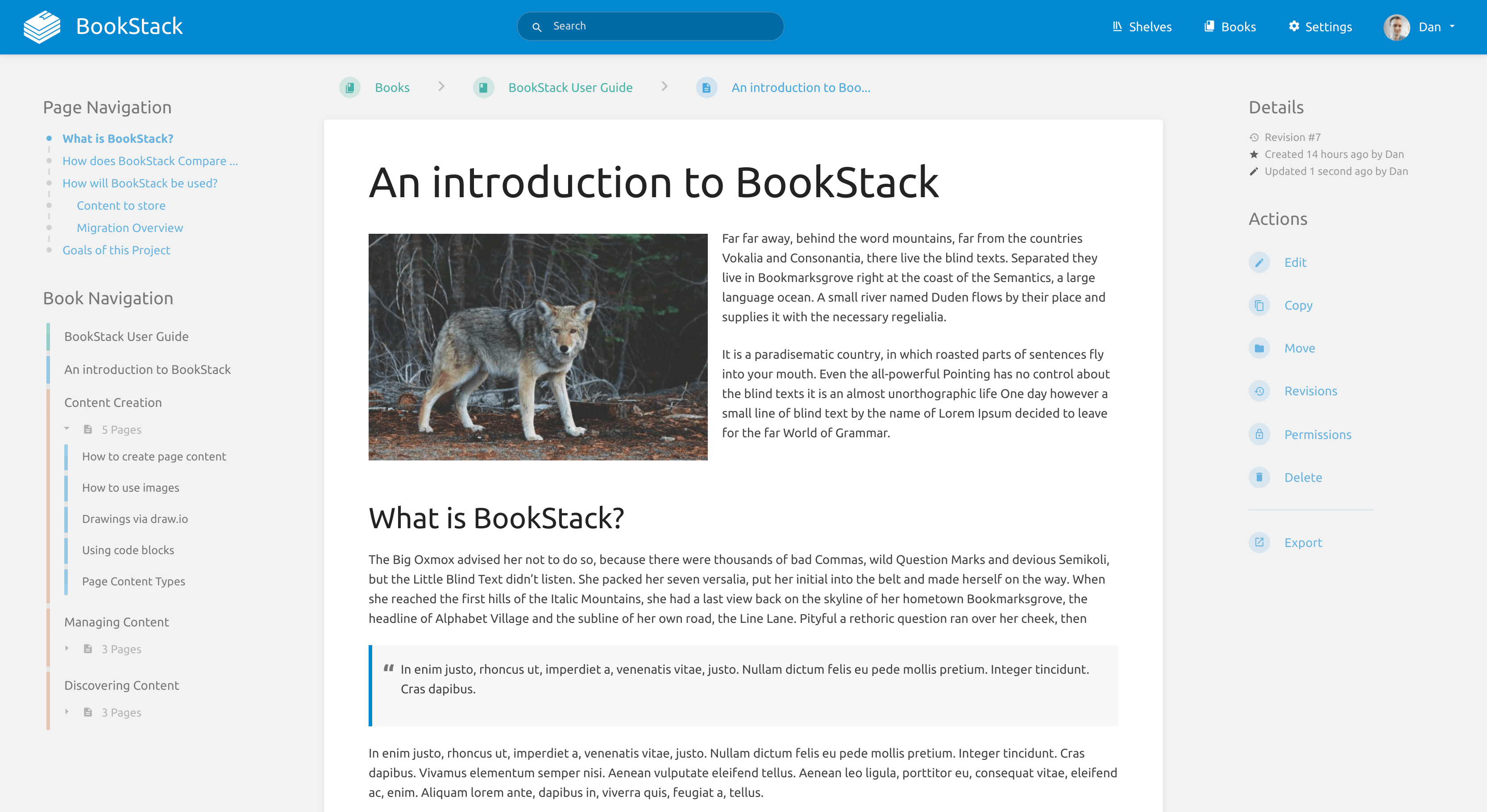
BookStack is a simple wiki for your notes and documentation. You write pages, group them into chapters and books, and put the books on shelves. MariaDB is built in, so it is one container with nothing else to set up.
Features
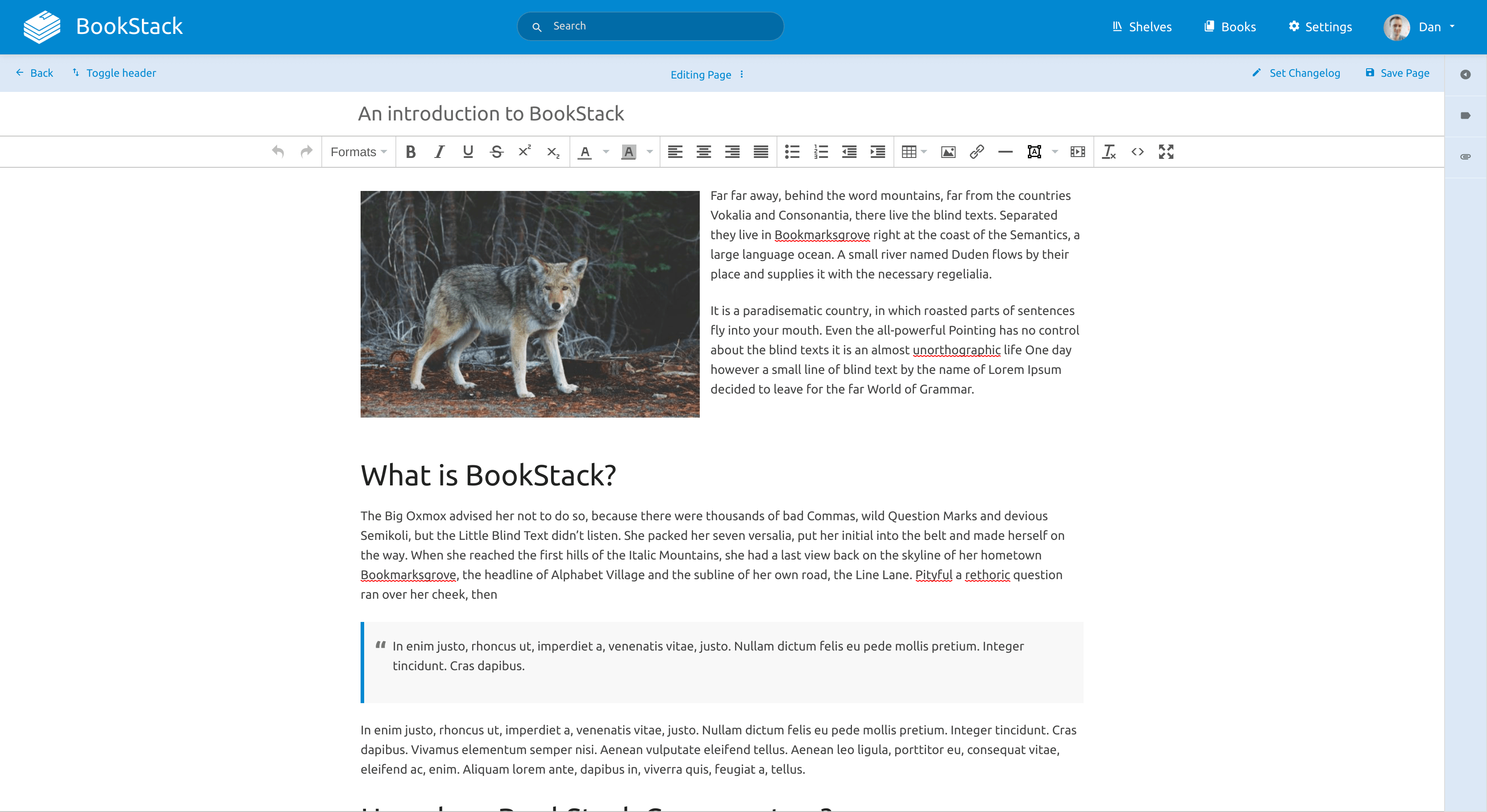
- Easy editor that works like a word processor, or write in Markdown
- Shelves, books, chapters and pages, with search across all of them
- Images, file attachments and drawings with diagrams.net
- Page history, so you can see and undo every change
- Users, roles and rights per book, plus two-factor sign-in
- Sign in with OIDC (Pocket ID, Authentik), LDAP or SAML, and a REST API
How to use
- Open BookStack from your dashboard.
- Sign in as [email protected] with the password from the app's logs (the box marked CREDENTIALS).
- Open My Account and change the email and password to your own.
- Click Books, then Create New Book, and add your first page.
- Under Settings, Users, invite the people who should read or write.
Before you install
You can install it as it is. A password for the first admin ([email protected]) is made on first start and shown in the app's logs, in the box marked CREDENTIALS; it is also saved in /DATA/AppData/bookstack/config/.admin_password. Open it at http://[ZIMAOS-IP-ADDRESS]:6758. APP_URL is empty, so BookStack follows the address in your browser; set it only when you use a domain, like https://wiki.example.com. Email, sign-in with OIDC and the other settings are in the Variables tab and are added in the app settings. The first start takes about 2 minutes while the database is made.
The settings in the first table are already in the app settings. To use any other one, open the app settings, add the variable with your value, save, and the app restarts with it. A setting you leave out uses its default.
In the app settings
| Variable | Default value | Description |
|---|---|---|
TZ | $TZ | Your time zone. It is filled in from your ZimaOS time zone. |
PUID | $PUID | The user that owns the files BookStack writes. It is filled in by ZimaOS. Leave it. |
PGID | $PGID | The group that owns the files BookStack writes. It is filled in by ZimaOS. Leave it. |
APP_ | — | Leave it empty and BookStack uses the address in your browser. Set it when you open BookStack through a domain, like https://wiki.example.com, so links in emails point there. |
ADMIN_ | — | The password for the first admin, [email protected]. Leave it empty and one is made for you: it is shown in the app's logs, in the box marked CREDENTIALS. Only used once; change it later in BookStack itself. |
Server
| Variable | Default value | Description |
|---|---|---|
APP_ | — | The key that protects sign-in sessions. It is made on first start and kept in the config folder as .app_key. Only set it to use your own. |
APP_ | — | The time zone for dates in BookStack, like Europe/Berlin. Leave it out to use TZ. |
APP_ | en | The language for new users and visitors, like de, fr or es. Each user can pick their own in My Account. |
APP_ | false | Set to true to show BookStack dark for everyone who hasn't picked a mode. |
SESSION_ | 120 | Minutes until people who stopped using BookStack are signed out. |
QUEUE_ | sync | Set to database so emails and webhooks are sent in the background instead of while you wait. |
Email (SMTP)
| Variable | Default value | Description |
|---|---|---|
MAIL_ | localhost | Your email server, like smtp.gmail.com. Needed for password resets and invites. |
MAIL_ | 587 | Your email server port, usually 587 or 465. |
MAIL_ | — | The user name for your email server. |
MAIL_ | — | The password for your email server. |
MAIL_ | — | tls for port 587, ssl for port 465. Leave it out for none. |
MAIL_ | [email protected] | The address emails are sent from. |
MAIL_ | BookStack | The name emails are sent from. |
MAIL_ | true | Set to false if your email server uses a self-signed certificate. |
Sign in with OIDC
| Variable | Default value | Description |
|---|---|---|
AUTH_ | standard | Set to oidc to sign in with Pocket ID, Authentik, Keycloak or another OIDC provider instead of email and password. |
OIDC_ | SSO | The name on the sign-in button. |
OIDC_ | — | The client ID from your OIDC provider. |
OIDC_ | — | The client secret from your OIDC provider. |
OIDC_ | — | The provider's address, like https://id.example.com. The redirect address to enter there is your BookStack address plus /oidc/callback. |
OIDC_ | false | Set to true so BookStack finds the provider's settings on its own. Almost always what you want. |
OIDC_ | name | Which field from the provider becomes the user's name. |
OIDC_ | false | Set to true to give users BookStack roles from their provider groups. |
OIDC_ | groups | Which field from the provider lists the user's groups. |
Embedding
| Variable | Default value | Description |
|---|---|---|
ALLOWED_ | — | Sites allowed to show BookStack inside a frame, space separated, like https://dash.example.com. |
ALLOWED_ | https://*.draw.io https://*.youtube.com https://*.youtube-nocookie.com https://*.vimeo.com | Sites whose videos and pages may be embedded in BookStack pages, space separated. |
name: bookstack

services:
  bookstack:
    image: ghcr.io/hsinghhira/bookstack:latest
    container_name: bookstack
    restart: unless-stopped
    stop_grace_period: 60s
    network_mode: bridge
    environment:
      - TZ=$TZ
      - PUID=$PUID
      - PGID=$PGID
      - APP_URL=
      - ADMIN_PASSWORD=
    ports:
      - target: 80
        published: "6758"
        protocol: tcp
    volumes:
      - type: bind
        source: /DATA/AppData/$AppID/config
        target: /config
        bind:
          create_host_path: true
    healthcheck:
      test: ["CMD", "curl", "-fsS", "--max-time", "5", "http://127.0.0.1:80/status"]
      interval: 30s
      timeout: 10s
      retries: 5
      start_period: 180s
    deploy:
      resources:
        limits:
          cpus: "2.00"
          memory: 1024M
        reservations:
          cpus: "0.10"
          memory: 256M
    labels:
      icon: https://cdn.jsdelivr.net/gh/HSinghHira/IceStore@main/Apps/bookstack/icon.png
    x-casaos:
      id: com.icestore.bookstack
      envs:
        - container: TZ
          description:
            en_US: >-
              Your time zone. It is filled in from your ZimaOS time zone.
        - container: PUID
          description:
            en_US: >-
              The user that owns the files BookStack writes. It is filled in
              by ZimaOS. Leave it.
        - container: PGID
          description:
            en_US: >-
              The group that owns the files BookStack writes. It is filled in
              by ZimaOS. Leave it.
        - container: APP_URL
          description:
            en_US: >-
              Leave it empty and BookStack uses the address in your browser.
              Set it when you open BookStack through a domain, like
              https://wiki.example.com, so links in emails point there.
        - container: ADMIN_PASSWORD
          description:
            en_US: >-
              The password for the first admin, [email protected]. Leave it
              empty and one is made for you: it is shown in the app's logs,
              in the box marked CREDENTIALS. Only used once; change it later
              in BookStack itself.
      ports:
        - container: "80"
          description:
            en_US: BookStack web UI, published on host as 6758
      volumes:
        - container: /config
          description:
            en_US: >-
              Everything: the MariaDB database (mysql), uploaded files and
              images (www), backups, and .app_key, this install's own key
              made on first start. Back it up.

x-casaos:
  id: com.icestore.bookstack
  architectures:
    - amd64
    - arm64
  main: bookstack
  author: HSinghHira
  category: Productivity
  developer: BookStack
  icon: https://cdn.jsdelivr.net/gh/HSinghHira/IceStore@main/Apps/bookstack/icon.png
  thumbnail: https://cdn.jsdelivr.net/gh/HSinghHira/IceStore@main/Apps/bookstack/screenshot-1.png
  screenshot_link:
    - https://cdn.jsdelivr.net/gh/HSinghHira/IceStore@main/Apps/bookstack/screenshot-1.png
    - https://cdn.jsdelivr.net/gh/HSinghHira/IceStore@main/Apps/bookstack/screenshot-2.png
    - https://cdn.jsdelivr.net/gh/HSinghHira/IceStore@main/Apps/bookstack/screenshot-3.png
    - https://cdn.jsdelivr.net/gh/HSinghHira/IceStore@main/Apps/bookstack/screenshot-4.png
    - https://cdn.jsdelivr.net/gh/HSinghHira/IceStore@main/Apps/bookstack/screenshot-5.png
  title:
    en_US: BookStack
  tagline:
    en_US: Wiki that keeps your documentation in shelves, books, chapters and pages
  description:
    en_US: >-
      BookStack is a simple wiki for your notes and documentation. You write
      pages, group them into chapters and books, and put the books on
      shelves. MariaDB is built in, so it is one container with nothing else
      to set up.


      **Features**


      - Easy editor that works like a word processor, or write in Markdown

      - Shelves, books, chapters and pages, with search across all of them

      - Images, file attachments and drawings with diagrams.net

      - Page history, so you can see and undo every change

      - Users, roles and rights per book, plus two-factor sign-in

      - Sign in with OIDC (Pocket ID, Authentik), LDAP or SAML, and a REST
        API


      **How to use?**


      1. Open BookStack from the ZimaOS dashboard.

      2. Sign in as [email protected] with the password from the app's logs
         (the box marked CREDENTIALS).

      3. Open My Account and change the email and password to your own.

      4. Click Books, then Create New Book, and add your first page.

      5. Under Settings, Users, invite the people who should read or write.
  tips:
    before_install:
      en_US: >-
        1. You can leave everything as it is. A password for the first admin
           is made for you.


        2. More settings, like email, sign-in with OIDC and the language,
           are listed on the BookStack page at
           https://icestore.hsinghhira.me/app/bookstack/ (Variables tab).
           You can add them now or later in the app settings.


        3. Start the installation. The first start takes about 2 minutes.


        4. Open the app's logs. Find the box marked CREDENTIALS. It has the
           admin email and password.


        5. Open http://[ZIMAOS-IP-ADDRESS]:6758 and sign in.


        6. Change the email and password in My Account.
  index: /
  port_map: "6758"
  scheme: http
  is_uncontrolled: false
  version: "v26.09.3-ls300"
  update_at: "2026-11-21"
  release_notes:
    en_US: |-
      - First IceStore release, on port 6758
      - Built on lscr.io/linuxserver/bookstack v26.09.3-ls300, with MariaDB added inside the same container
      - Each install makes its own APP_KEY, database password and admin password on first start; the login is in the CREDENTIALS box in the logs
      - APP_URL is empty by default, so BookStack follows the address in your browser
  repo: "https://github.com/BookStackApp/BookStack"
  support: "https://github.com/BookStackApp/BookStack/issues"
  docs: "https://www.bookstackapp.com/docs/"
Install BookStack
Something not working with BookStack?
Report it so it gets fixed, or ask for an app that is not here yet.
 ZimaOS
Add the store link, then find BookStack in the App Store and install it.
 CasaOS
Add the store link, then find BookStack in the App Store and install it.
 ReCasaOS
Add the store link, then find BookStack in the App Store and install it.
 Homeio
Add the store link, then find BookStack in the App Store and install it.
 MOS
Add the repository in MOS Hub Settings, then find BookStack in Docker → MOS Hub and install it.


