
KyNotes
End-to-end encrypted notes with text, handwriting and team notebooks.
- ghcr.io/busnes-app/kynotes-server:0.6.0
- v0.6.0
- Updated 9 Nov 2026
- port 6696
- amd64
- Productivity
- 0 stars
Screenshots
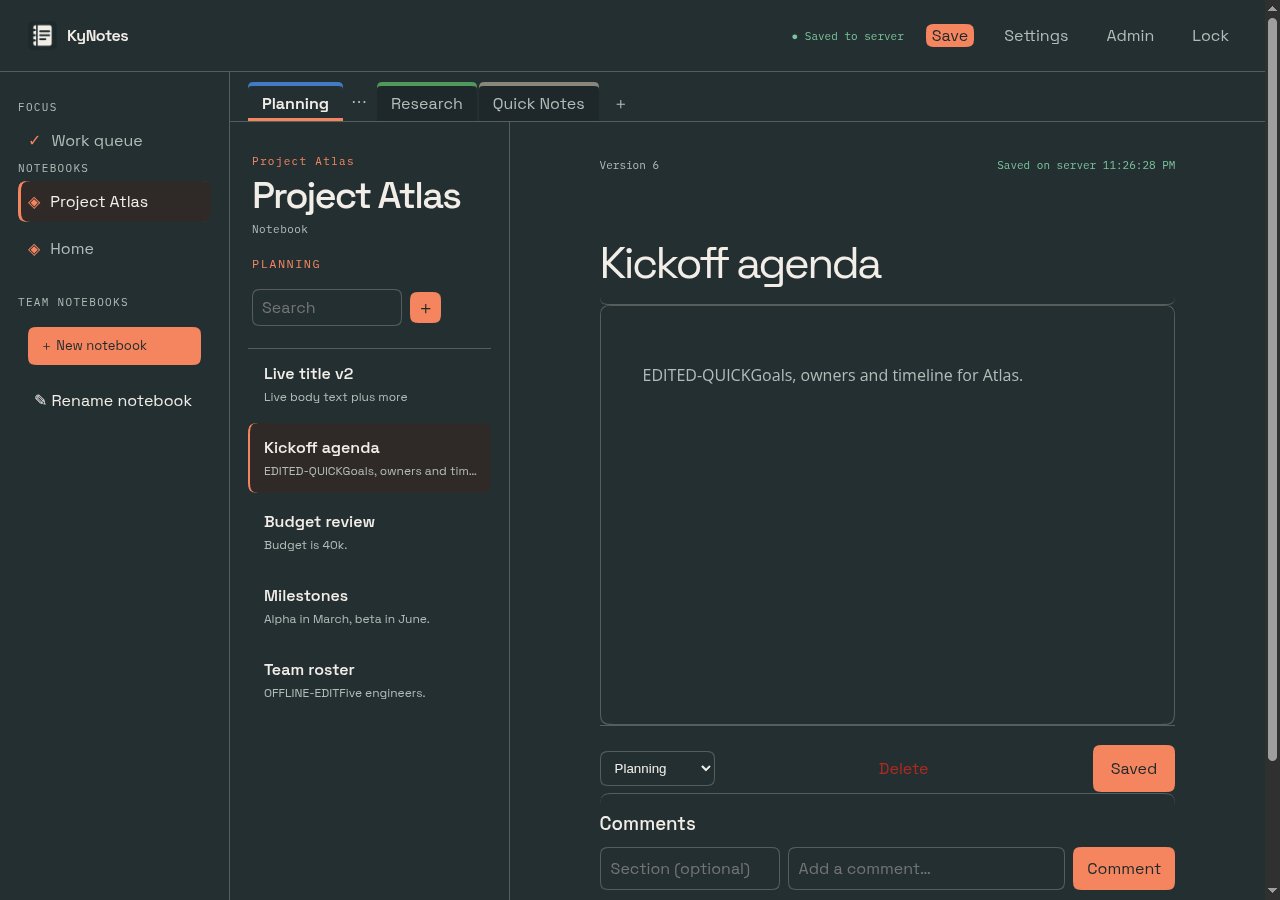
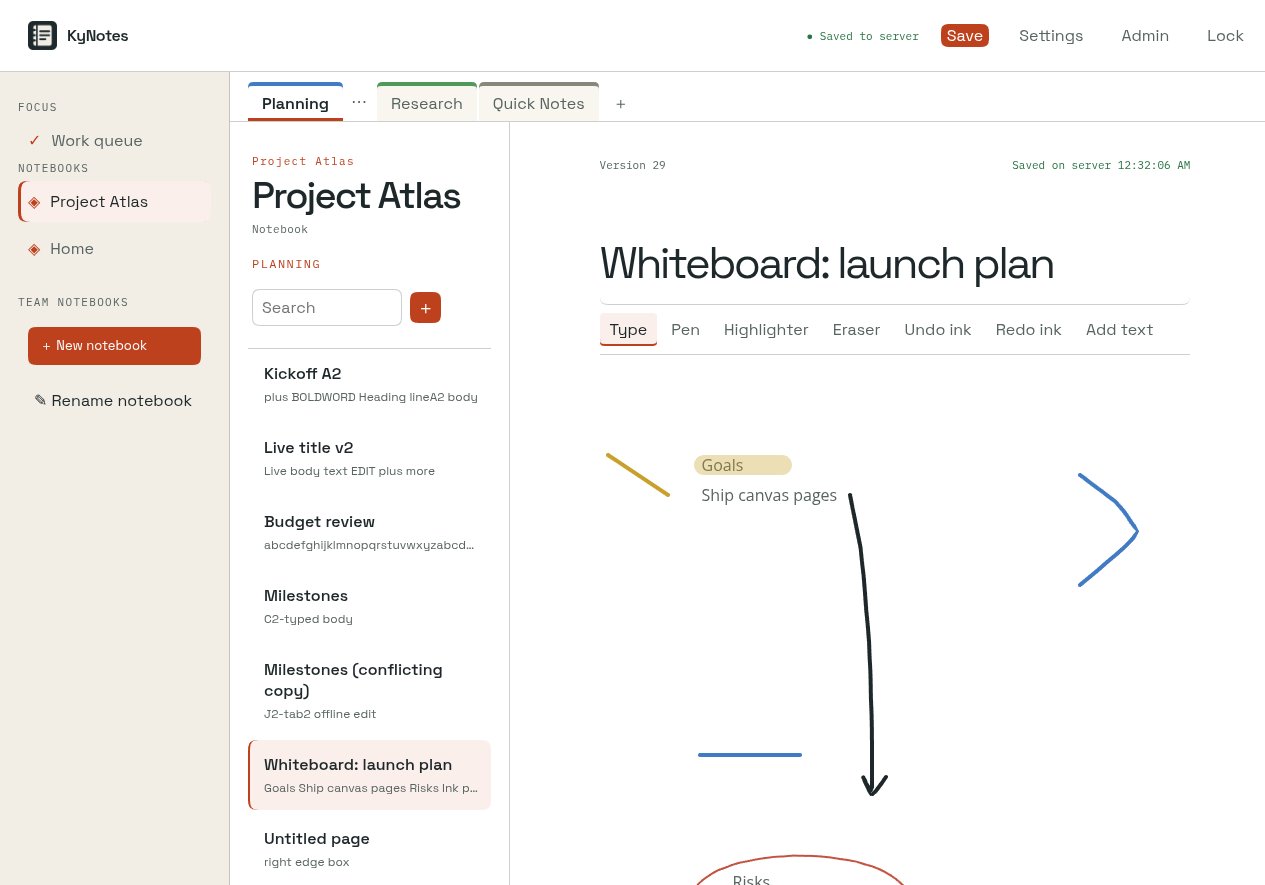
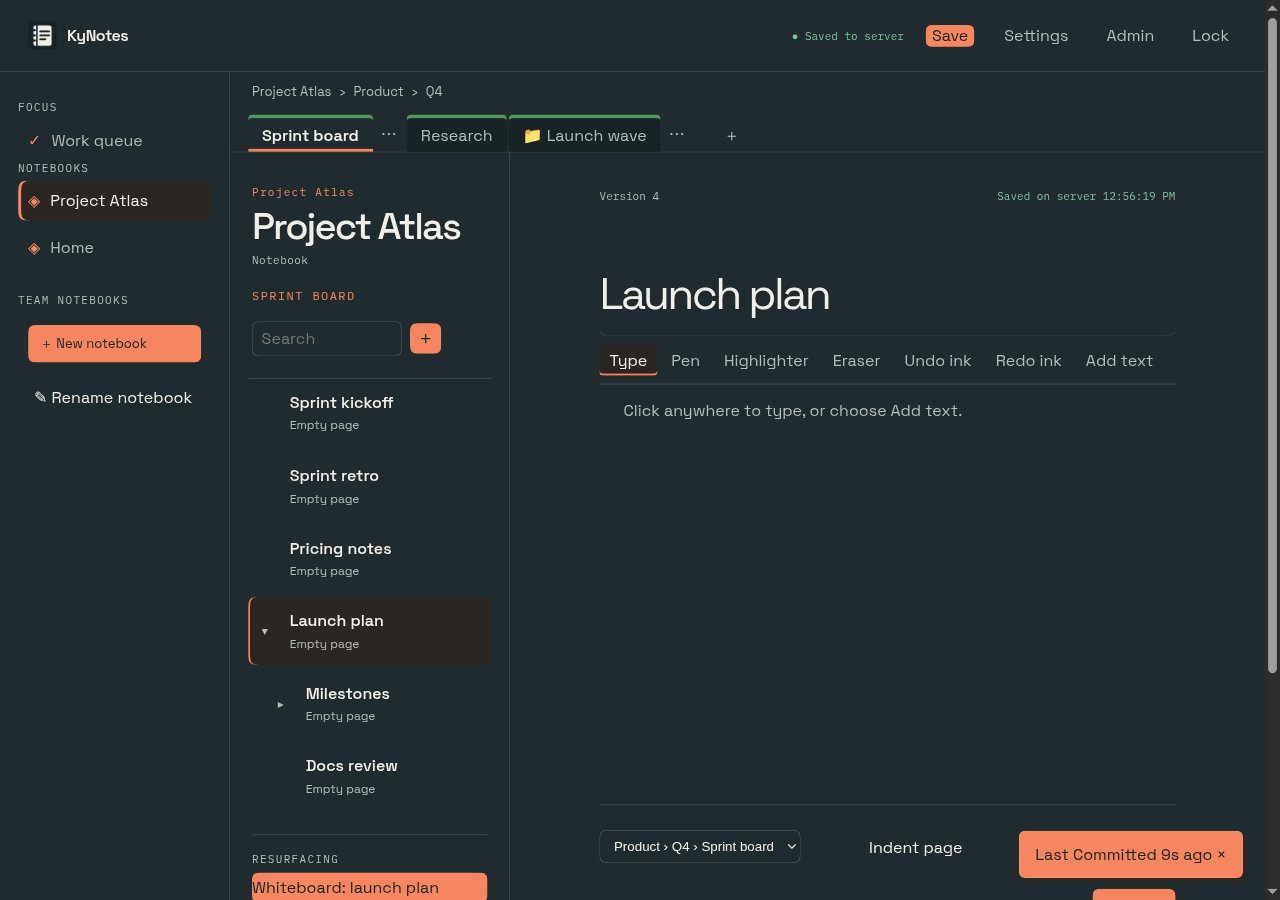
Open the app
About KyNotes
KyNotes is a browser notebook for encrypted text, handwriting, attachments and tasks, with shared team notebooks. Notes are decrypted in your browser, so the server (and its administrator) never reads them. Part of the Busnes Ky Suite; it works on its own or with KyIdentity sign-in.
Features
- Notebooks, sections and pages with text, ink canvases and attachments
- Tasks and a work queue across your notebooks
- Team notebooks with shared keys
- Separate administrator and everyday accounts; optional KyIdentity sign-in
- Sealed backups to KyRecovery, and an MCP server for AI agents
How to use
- Put KyNotes behind your reverse proxy with an https domain.
- Copy the setup token from the app's logs.
- Open your https address, enter the token and make the administrator and your everyday account.
- Sign in with your everyday account and start writing.
Before you install
KyNotes needs https. Browsers only allow the encryption it uses on an https address, or on the box itself at http://localhost:6696. Set up a reverse proxy with your own domain, like https://notes.example.com, pointed at http://[ZIMAOS-IP-ADDRESS]:6696, and set TRUSTED_PROXY_CIDRS to the proxy's address.
On the first start KyNotes prints a one-time setup token in its logs (the setup_token line), on every start until setup is done. The setup page asks for it and makes an administrator account (manages KyNotes, can't open notes) and an everyday account (writes notes). Keep the recovery codes it shows. It starts in a few seconds. More settings (backups, the attachment mirror) are in the Variables tab; add them in the app settings. The image is built for amd64 only.
The settings in the first table are already in the app settings. To use any other one, open the app settings, add the variable with your value, save, and the app restarts with it. A setting you leave out uses its default.
In the app settings
| Variable | Default value | Description |
|---|---|---|
TZ | $TZ | Your time zone. It is filled in from your ZimaOS time zone. Leave it unless you need another. |
PORT | 8080 | The port KyNotes listens on inside the container. Leave it as 8080. |
KYNOTES_ | /data | Where KyNotes keeps its data inside the container. Leave it as /data. |
Reverse proxy
| Variable | Default value | Description |
|---|---|---|
TRUSTED_ | — | The address of your reverse proxy as KyNotes sees it, like 172.17.0.1/32, so it believes the visitor's IP from the proxy. Only your proxy; never a whole network. |
First accounts
| Variable | Default value | Description |
|---|---|---|
BOOTSTRAP_ | — | Make the administrator account on first start instead of on the setup page. Use it with BOOTSTRAP_ADMIN_PASS. |
BOOTSTRAP_ | — | The administrator's first password. It must be changed at the first sign-in. |
BOOTSTRAP_ | — | Make an everyday (note-writing) account on first start, with a different name from the administrator. |
BOOTSTRAP_ | — | The everyday account's first password. |
Backups
| Variable | Default value | Description |
|---|---|---|
KYNOTES_ | 24h | How often KyNotes sends a sealed backup to a paired KyRecovery. 0 turns it off; the admin page setting wins. |
KYNOTES_ | — | A folder inside the container for local sealed backups, like /data/backups. |
KYNOTES_ | 7 | How many local backups to keep. |
KYNOTES_ | false | Set to true for a KyRecovery on your home network (it still needs https). |
Attachment mirror
| Variable | Default value | Description |
|---|---|---|
KYNOTES_ | — | Where to mirror the encrypted attachments (S3, SFTP, SMB or a folder). Backups don't include them, so set this for a complete backup. See upstream's deployment guide for the format. |
KYNOTES_ | — | The user name or S3 access key for the mirror. |
KYNOTES_ | — | The password or S3 secret key for the mirror. |
KYNOTES_ | — | The S3 endpoint, for an S3 mirror that isn't AWS. |
KYNOTES_ | — | The S3 region of the mirror. |
name: kynotes

services:
  kynotes:
    image: ghcr.io/busnes-app/kynotes-server:0.6.0
    container_name: kynotes
    restart: unless-stopped
    stop_grace_period: 60s
    network_mode: bridge
    user: "0:0"
    environment:
      - TZ=$TZ
      - PORT=8080
      - KYNOTES_DATA_DIR=/data
    ports:
      - target: 8080
        published: "6696"
        protocol: tcp
    volumes:
      - type: bind
        source: /DATA/AppData/$AppID/data
        target: /data
        bind:
          create_host_path: true
    healthcheck:
      test: ["CMD", "/kynotes-server", "healthcheck"]
      interval: 30s
      timeout: 5s
      retries: 3
      start_period: 20s
    deploy:
      resources:
        limits:
          cpus: "1.00"
          memory: 1024M
        reservations:
          cpus: "0.00"
          memory: 64M
    labels:
      icon: https://cdn.jsdelivr.net/gh/HSinghHira/IceStore@main/Apps/kynotes/icon.png
    x-casaos:
      id: com.icestore.kynotes
      envs:
        - container: TZ
          description:
            en_US: >-
              Your time zone. It is filled in from your ZimaOS time zone.
              Leave it unless you need another.
        - container: PORT
          description:
            en_US: >-
              The port KyNotes listens on inside the container. Leave it as
              8080.
        - container: KYNOTES_DATA_DIR
          description:
            en_US: >-
              Where KyNotes keeps its data inside the container. Leave it as
              /data.
      ports:
        - container: "8080"
          description:
            en_US: KyNotes web app and API, published on host as 6696
      volumes:
        - container: /data
          description:
            en_US: >-
              The database, the encrypted notes and attachments, and the
              server's keys. Back up the whole folder; KyNotes can also make
              sealed backups to KyRecovery.

x-casaos:
  id: com.icestore.kynotes
  architectures:
    - amd64
  main: kynotes
  author: HSinghHira
  category: Productivity
  developer: Busnes-app
  icon: https://cdn.jsdelivr.net/gh/HSinghHira/IceStore@main/Apps/kynotes/icon.png
  thumbnail: https://cdn.jsdelivr.net/gh/HSinghHira/IceStore@main/Apps/kynotes/screenshot-1.jpg
  screenshot_link:
    - https://cdn.jsdelivr.net/gh/HSinghHira/IceStore@main/Apps/kynotes/screenshot-1.jpg
    - https://cdn.jsdelivr.net/gh/HSinghHira/IceStore@main/Apps/kynotes/screenshot-2.jpg
    - https://cdn.jsdelivr.net/gh/HSinghHira/IceStore@main/Apps/kynotes/screenshot-3.jpg
  title:
    en_US: KyNotes
  tagline:
    en_US: End-to-end encrypted notes with text, handwriting and team notebooks.
  description:
    en_US: >-
      Visit: [https://icestore.hsinghhira.me/app/kynotes/](https://icestore.hsinghhira.me/app/kynotes/) for full details


      KyNotes is a browser notebook for encrypted text, handwriting,
      attachments and tasks, with shared team notebooks. Notes are decrypted
      in your browser, so the server (and its administrator) never reads
      them. Part of the Busnes Ky Suite; it works on its own or with
      KyIdentity sign-in.


      **Features**


      - Notebooks, sections and pages with text, ink canvases and attachments

      - Tasks and a work queue across your notebooks

      - Team notebooks with shared keys

      - Separate administrator and everyday accounts; optional KyIdentity
        sign-in

      - Sealed backups to KyRecovery, and an MCP server for AI agents


      **How to use?**


      1. Put KyNotes behind your reverse proxy with an https domain.


      2. Copy the setup token from the app's logs.


      3. Open your https address, enter the token and make the
         administrator and your everyday account.


      4. Sign in with your everyday account and start writing.
  tips:
    before_install:
      en_US: >-
        1. KyNotes needs https. Your browser only does the encryption on an
           https address (or on the box itself, at http://localhost:6696).
           Set up a reverse proxy (like Nginx Proxy Manager or a Cloudflare
           tunnel) with your own domain, like https://notes.example.com,
           pointed at http://[ZIMAOS-IP-ADDRESS]:6696.


        2. More settings, like your proxy's address and backups, are listed
           on the KyNotes page at https://icestore.hsinghhira.me/app/kynotes/
           (Variables tab). You can add them now or later in the app
           settings.


        3. Start the installation. It is ready in a few seconds.


        4. Open the app's logs and copy the setup token (the line with
           setup_token). It is printed on every start until setup is done.


        5. Open your https address, paste the token and make two accounts:
           an administrator (manages KyNotes) and an everyday account (writes
           notes).


        6. Write down the recovery codes it shows you. They are the only way
           back in if you forget a password.
  index: /
  port_map: "6696"
  scheme: http
  is_uncontrolled: false
  version: "0.6.0"
  update_at: "2026-11-09"
  release_notes:
    en_US: |-
      - First IceStore version: ghcr.io/busnes-app/kynotes-server 0.6.0
      - Port 6696; the data folder is /DATA/AppData/kynotes/data. Runs as root so it can write to that folder.
  repo: "https://github.com/Busnes-app/KyNotes-server"
  support: "https://github.com/Busnes-app/KyNotes-server/issues"
  docs: "https://github.com/Busnes-app/KyNotes-server/blob/master/INSTALL.md"
Install KyNotes
Something not working with KyNotes?
Report it so it gets fixed, or ask for an app that is not here yet.
 ZimaOS
Add the store link, then find KyNotes in the App Store and install it.
 CasaOS
Add the store link, then find KyNotes in the App Store and install it.
 ReCasaOS
Add the store link, then find KyNotes in the App Store and install it.
 Homeio
Add the store link, then find KyNotes in the App Store and install it.
 MOS
Add the repository in MOS Hub Settings, then find KyNotes in Docker → MOS Hub and install it.


