
Tolgee
Developer and translator friendly web-based localization platform
- ghcr.io/hsinghhira/tolgee:latest
- v3.242.4
- Updated 8 Nov 2026
- port 6192
- amd64 · arm64
- Developer
- 4.2k stars
Screenshots
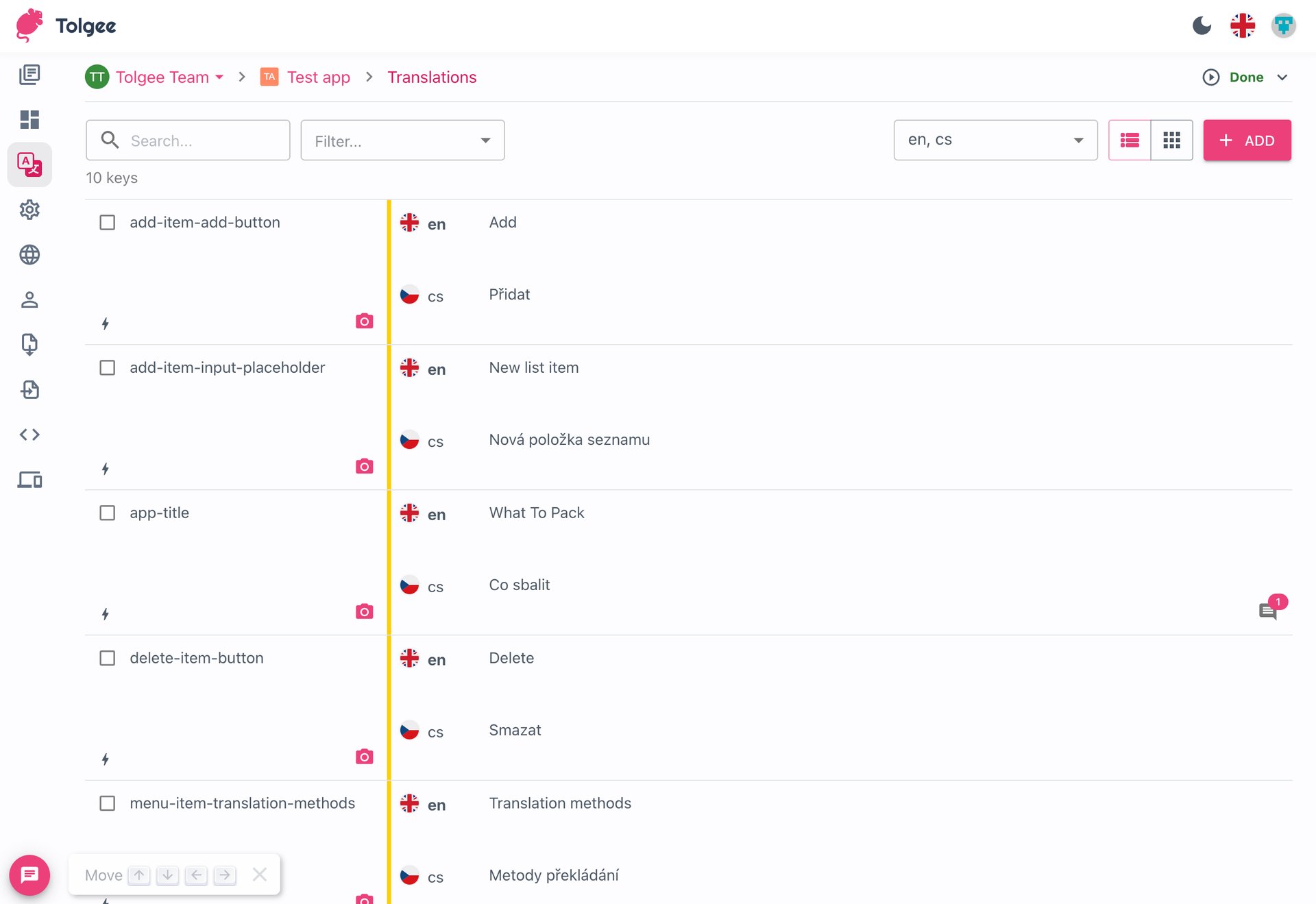
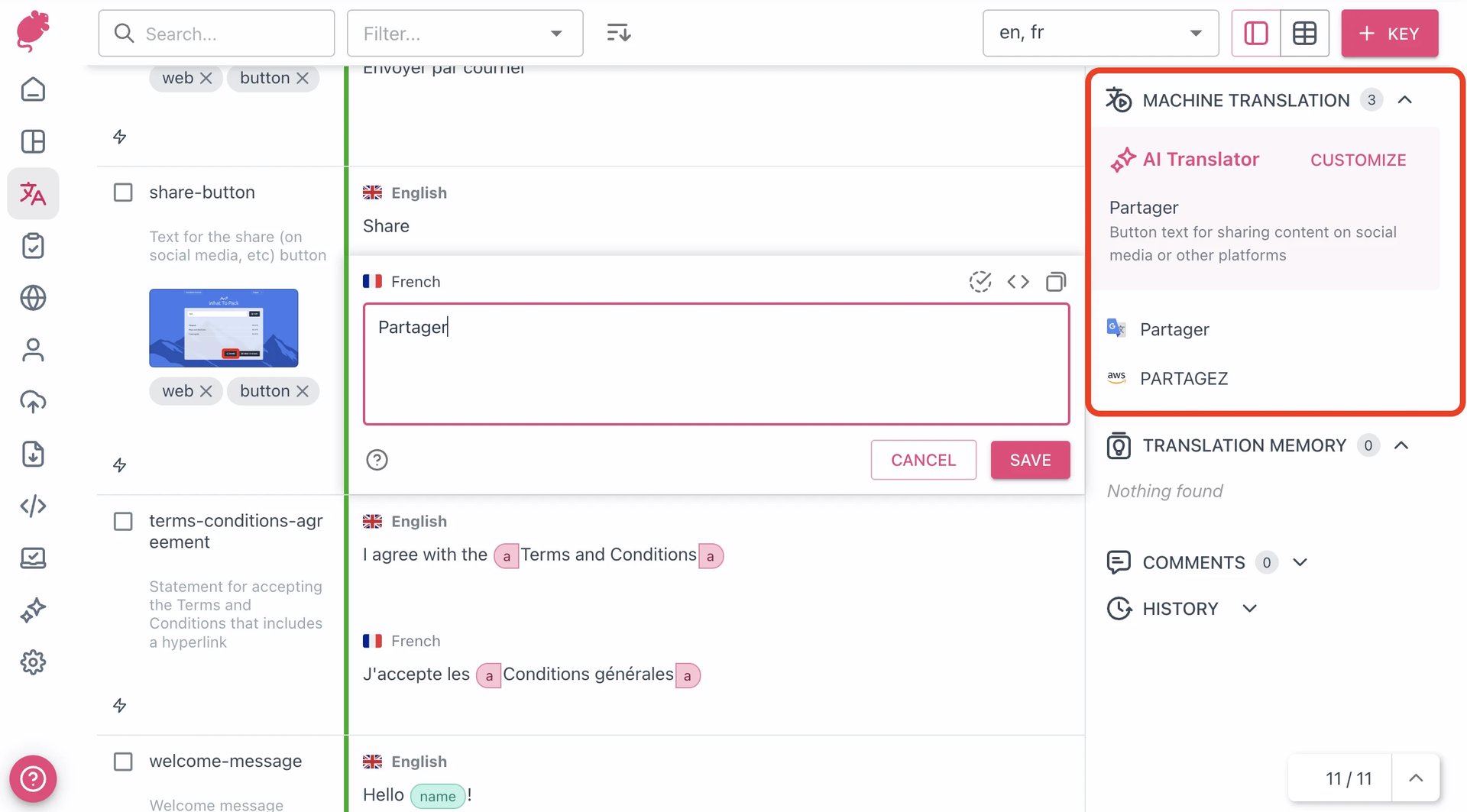
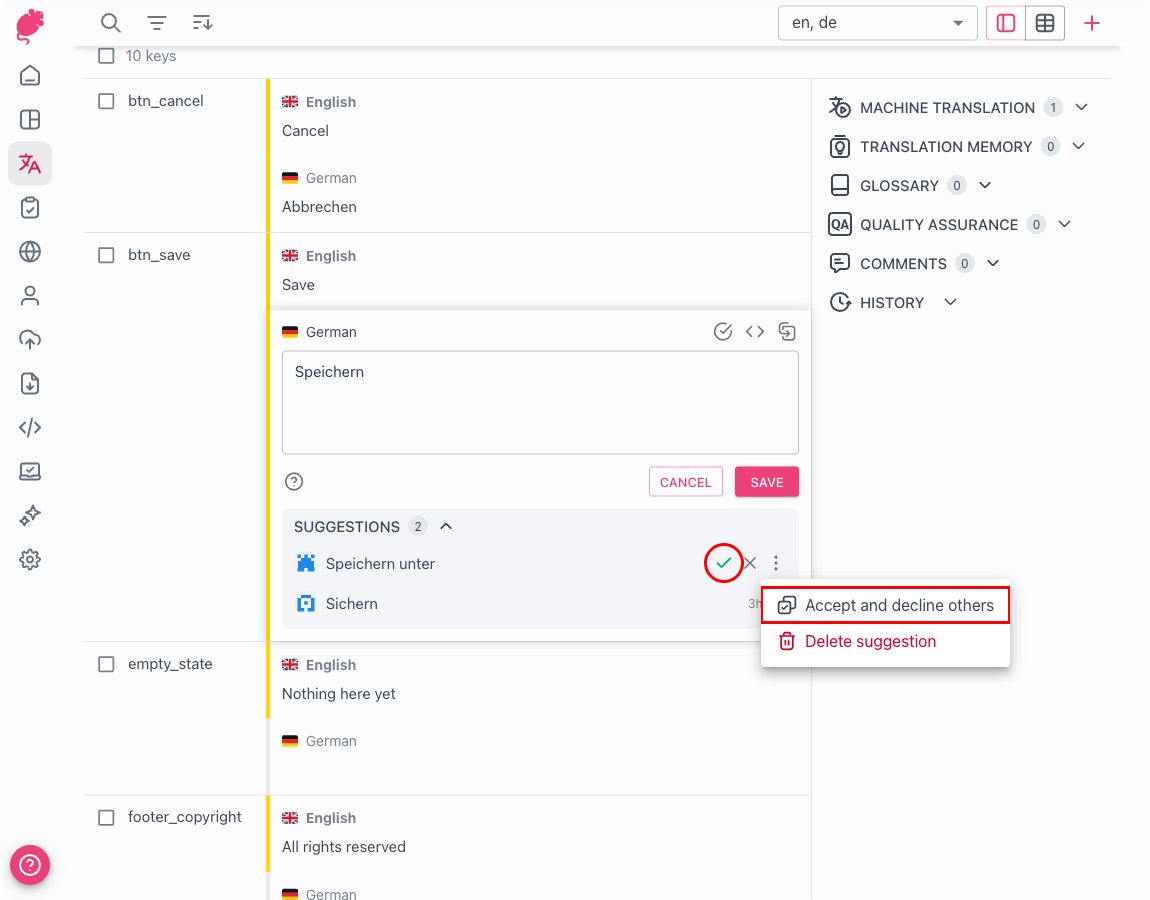
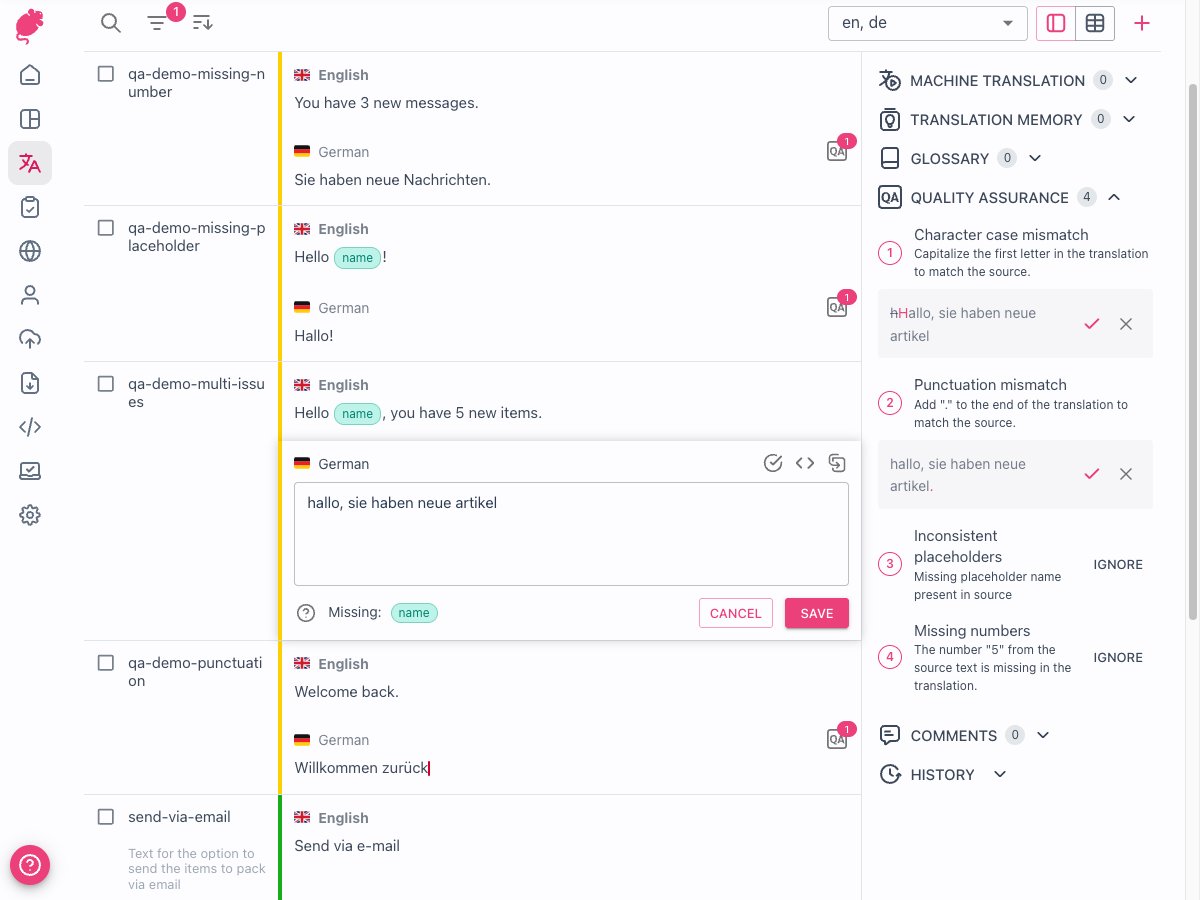
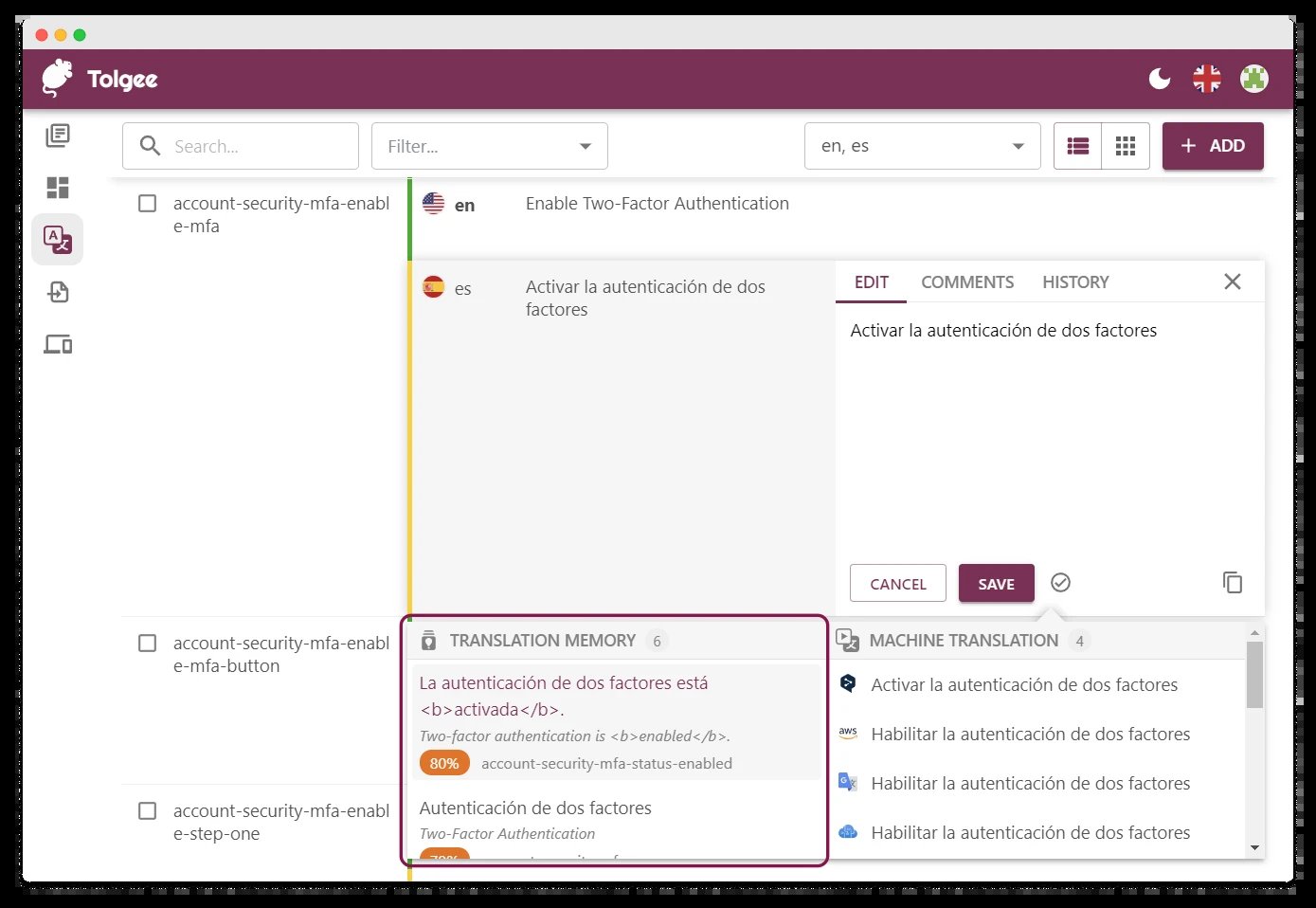
Open the app
About Tolgee
Tolgee is a localization platform: keep every translation of your app in one place, translate in context and ship new texts without a new release. This is Tolgee in a single container, with PostgreSQL inside, one port and one data folder. The admin password is made for you on first start.
Features
- Translation editor with keys, languages, tags, comments and screenshots
- In-context translating: change texts right inside your running app with the Tolgee SDKs
- Machine translation (Google, DeepL, AWS, Azure or an LLM) and translation memory
- Import and export JSON, XLIFF, PO, Android, iOS and more; CLI and REST API
- Teams, organizations, permissions, tasks and review states
- Glossaries, QA checks and branching
- PostgreSQL inside
How to use
- Open Tolgee from your dashboard.
- Sign in as
adminwith the password from the app log. - Open the demo project, or create your own and add languages.
Before you install
Leave ADMIN_PASSWORD blank to get a random one, shown in the app log in the box marked CREDENTIALS. Tolgee works from every device with PUBLIC_URL left as it is; for links in emails and sign-in with GitHub or Google, set it to http://[ZIMAOS-IP-ADDRESS]:6192, like http://192.168.1.20:6192. Sign-up is off: invite people from your organization's Members page, or turn on TOLGEE_AUTHENTICATION_REGISTRATIONS_ALLOWED. Email, machine translation and the other settings are in the Variables tab; add them in the app settings. The first start takes about 3 minutes.
The settings in the first table are already in the app settings. To use any other one, open the app settings, add the variable with your value, save, and the app restarts with it. A setting you leave out uses its default.
In the app settings
| Variable | Default value | Description |
|---|---|---|
TZ | $TZ | Your time zone. It is filled in from your ZimaOS time zone. Leave it unless you need another. |
PUBLIC_ | http://localhost:6192 | The address of Tolgee. Tolgee works from every device with the default. For working links in emails and sign-in with GitHub or Google, change it to http://[ZIMAOS-IP-ADDRESS]:6192 or your https address. Keep the port at 6192. |
ADMIN_ | — | The password of the admin account. Leave it blank and the app makes a random one, shown in the app log in the box marked CREDENTIALS. Once you change it in Tolgee, Tolgee keeps yours. |
Sign-up and accounts
| Variable | Default value | Description |
|---|---|---|
TOLGEE_ | admin | The admin user name, made on the first start. Set it before the first start. |
TOLGEE_ | false | Set to true to let anyone make an account. Otherwise the admin invites people. |
TOLGEE_ | false | Set to true so new accounts must confirm their email. Needs email (SMTP). |
TOLGEE_ | true | Set to false so only the admin can create organizations. |
TOLGEE_ | true | Set to false to skip the demo project for the admin. |
TOLGEE_ | true | Set to false to turn sign-in off: everyone who opens Tolgee is the admin. Only for a computer nobody else can reach. |
Email (SMTP)
| Variable | Default value | Description |
|---|---|---|
TOLGEE_ | — | Your email server, like smtp.gmail.com. Leave it out and no emails are sent. |
TOLGEE_ | 25 | Your email server port, usually 587 or 465. |
TOLGEE_ | — | The user name for your email server. |
TOLGEE_ | — | The password for your email server. |
TOLGEE_ | false | Set to true when your email server needs a user name and password. |
TOLGEE_ | false | Set to true for STARTTLS (port 587). |
TOLGEE_ | false | Set to true for TLS from the start (port 465). |
TOLGEE_ | — | The sender, like Tolgee <[email protected]>. |
Sign in with GitHub or Google
| Variable | Default value | Description |
|---|---|---|
TOLGEE_ | — | GitHub OAuth app client ID. Its callback is PUBLIC_URL/login/auth_callback/github. |
TOLGEE_ | — | GitHub OAuth app client secret. |
TOLGEE_ | — | Google OAuth client ID. Its redirect URI is PUBLIC_URL/login/auth_callback/google. |
TOLGEE_ | — | Google OAuth client secret. |
Machine translation
| Variable | Default value | Description |
|---|---|---|
TOLGEE_ | — | Your Google Cloud Translation API key. |
TOLGEE_ | — | Your DeepL API key. |
Server
| Variable | Default value | Description |
|---|---|---|
TOLGEE_ | 51200 | The largest file you can import or upload, in kilobytes. |
JAVA_ | — | Extra Java options, like -Xmx2g to give Tolgee more memory. |
name: tolgee

services:
  tolgee:
    image: ghcr.io/hsinghhira/tolgee:latest
    container_name: tolgee
    restart: unless-stopped
    stop_grace_period: 90s
    privileged: true
    environment:
      - TZ=$TZ
      - PUBLIC_URL=http://localhost:6192
      - ADMIN_PASSWORD=
    ports:
      - target: 8080
        published: "6192"
        protocol: tcp
    volumes:
      - type: bind
        source: /DATA/AppData/$AppID/data
        target: /data
        bind:
          create_host_path: true
    healthcheck:
      test: ["CMD", "curl", "-fsS", "-o", "/dev/null", "http://127.0.0.1:8080/actuator/health"]
      interval: 30s
      timeout: 10s
      retries: 5
      start_period: 240s
    deploy:
      resources:
        limits:
          cpus: "2.00"
          memory: 3072M
        reservations:
          cpus: "0.10"
          memory: 768M
    labels:
      icon: https://cdn.jsdelivr.net/gh/HSinghHira/IceStore@main/Apps/tolgee/icon.png
    x-casaos:
      id: com.icestore.tolgee
      envs:
        - container: TZ
          description:
            en_US: >-
              Your time zone. It is filled in from your ZimaOS time zone.
              Leave it unless you need another.
        - container: PUBLIC_URL
          description:
            en_US: >-
              The address of Tolgee. Tolgee works from every device with the
              default. For working links in emails and sign-in with GitHub or
              Google, change it to http://[ZIMAOS-IP-ADDRESS]:6192 or your
              https address. Keep the port at 6192.
        - container: ADMIN_PASSWORD
          description:
            en_US: >-
              The password of the admin account. Leave it blank and the app
              makes a random one, shown in the app log in the box marked
              CREDENTIALS. Once you change it in Tolgee, Tolgee keeps yours.
      ports:
        - container: "8080"
          description:
            en_US: Tolgee web app and API, published on host as 6192
      volumes:
        - container: /data
          description:
            en_US: >-
              The PostgreSQL database, uploaded files and screenshots, and
              this install's secret keys (state/secrets.env and
              tolgee/jwt.secret). Back up the whole folder.

x-casaos:
  id: com.icestore.tolgee
  architectures:
    - amd64
    - arm64
  main: tolgee
  author: HSinghHira
  category: Developer
  developer: tolgee
  icon: https://cdn.jsdelivr.net/gh/HSinghHira/IceStore@main/Apps/tolgee/icon.png
  thumbnail: https://cdn.jsdelivr.net/gh/HSinghHira/IceStore@main/Apps/tolgee/screenshot-1.jpg
  screenshot_link:
    - https://cdn.jsdelivr.net/gh/HSinghHira/IceStore@main/Apps/tolgee/screenshot-1.jpg
    - https://cdn.jsdelivr.net/gh/HSinghHira/IceStore@main/Apps/tolgee/screenshot-2.jpg
    - https://cdn.jsdelivr.net/gh/HSinghHira/IceStore@main/Apps/tolgee/screenshot-3.jpg
    - https://cdn.jsdelivr.net/gh/HSinghHira/IceStore@main/Apps/tolgee/screenshot-4.jpg
    - https://cdn.jsdelivr.net/gh/HSinghHira/IceStore@main/Apps/tolgee/screenshot-5.jpg
  title:
    en_US: Tolgee
  tagline:
    en_US: Developer and translator friendly web-based localization platform
  description:
    en_US: >-
      Visit: [https://icestore.hsinghhira.me/app/tolgee/](https://icestore.hsinghhira.me/app/tolgee/) for full details


      Tolgee is a localization platform: keep every translation of your app
      in one place, translate in context and ship new texts without a new
      release. This is Tolgee in a single container, with PostgreSQL inside,
      one port and one data folder. The admin password is made for you on
      first start.


      **Features**


      - Translation editor with keys, languages, tags, comments and
        screenshots

      - In-context translating: change texts right inside your running app
        with the Tolgee SDKs

      - Machine translation (Google, DeepL, AWS, Azure or an LLM) and
        translation memory

      - Import and export JSON, XLIFF, PO, Android, iOS and more; CLI and
        REST API

      - Teams, organizations, permissions, tasks and review states

      - Glossaries, QA checks and branching


      **How to use?**


      1. Open Tolgee from the Zima OS dashboard.


      2. Sign in as admin with the password from the app log.


      3. Open the demo project, or create your own and add languages.
  tips:
    before_install:
      en_US: >-
        1. Leave ADMIN_PASSWORD blank to get a random one. Or type your own.


        2. Leave PUBLIC_URL as it is to use Tolgee on your home network. For
           links in emails, set it to http://[ZIMAOS-IP-ADDRESS]:6192, like
           http://192.168.1.20:6192.


        3. More settings, like sign-up, email (SMTP), sign-in with GitHub or
           Google and machine translation, are listed on the Tolgee page at
           https://icestore.hsinghhira.me/app/tolgee/ (Variables tab). You can
           add them now or later in the app settings.


        4. Start the installation.


        5. Wait about 3 minutes for Tolgee to start the first time.


        6. Open the app log. Find the box marked CREDENTIALS. It has the
           admin user name and password.


        7. Open Tolgee from the Zima OS dashboard and sign in.
  index: /
  port_map: "6192"
  scheme: http
  is_uncontrolled: false
  version: "v3.242.4"
  update_at: "2026-11-08"
  release_notes:
    en_US: |-
      - Single-container Tolgee with one port (6192) and one data folder
      - PostgreSQL 17 inside, as upstream recommends; the image's bundled PostgreSQL 13 (gone in Tolgee v4) is not used
      - Sign-in is on, and the admin password is made on first start, so each install gets its own
      - tolgee/tolgee v3.242.4
  repo: "https://github.com/tolgee/tolgee-platform"
  support: "https://github.com/tolgee/tolgee-platform/issues"
  docs: "https://docs.tolgee.io/platform/self_hosting/configuration"
Install Tolgee
Something not working with Tolgee?
Report it so it gets fixed, or ask for an app that is not here yet.
 ZimaOS
Add the store link, then find Tolgee in the App Store and install it.
 CasaOS
Add the store link, then find Tolgee in the App Store and install it.
 ReCasaOS
Add the store link, then find Tolgee in the App Store and install it.
 Homeio
Add the store link, then find Tolgee in the App Store and install it.
 MOS
Add the repository in MOS Hub Settings, then find Tolgee in Docker → MOS Hub and install it.


